Quick Navigation Guide
SAGA's menu is organized into clear sections so you can find every feature fast. It works the same way on desktop and mobile, with a few small differences in how you open the menu and where your account options live.
Last updated 3 days ago
📍 Navigation Menu
On both desktop and mobile, the menu is divided into sections. A few items are groups that open to reveal more features inside them.
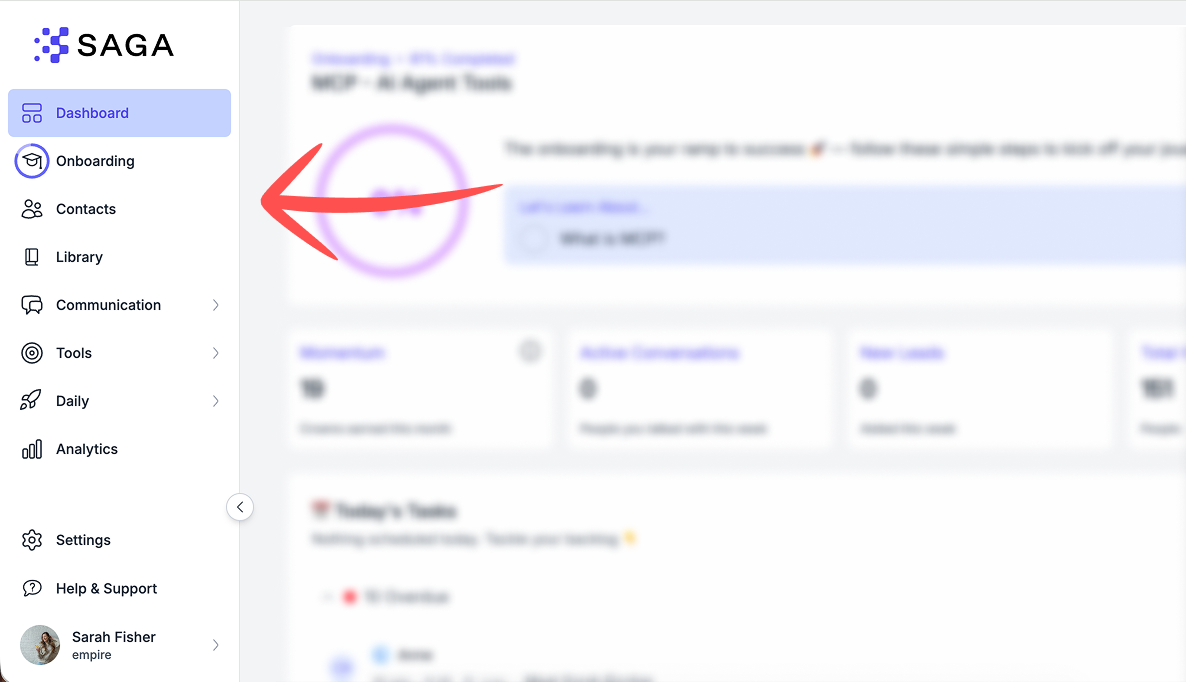
How to open it:
On desktop: the menu is the sidebar on the left, always visible. For the grouped items (Communication, Tools, Daily), hover over the group and its submenu appears, then click the feature you want.
On mobile: tap the ☰ menu (hamburger) icon in the top left to open the menu, then tap a section to see what's inside.
Main items
📊 Dashboard – See your activities and events at a glance.
🎓 Onboarding – Get set up step by step and start fast in network marketing.
👥 Contacts – Keep all your people organized in one place.
🌐 Community – Explore ideas from other users, catch up on your team's News and see what's trending. Events, News and Saved all live here: open an event or a news item to read it and join the comments, and add a poll to your next post. Channels are either public, open to the whole team, or private, invite only: a channel admin switches between the two from the channel's Access settings with Make private or Make public, and SAGA asks you to confirm before it changes who can see the channel.
📚 Library – Browse and manage trainings, scripts, and resources.
📈 Analytics – Check what's working with easy-to-read stats.
💬 Communication
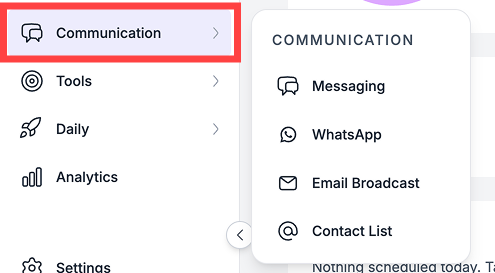
Open Communication to find:
Messaging – Chat directly with your contacts.
WhatsApp – Connect and message on WhatsApp.
Email Broadcast – Send one email to reach everyone at once.
Drip campaigns – Set up automated email sequences.
Contact List – Create and manage your mailing lists.
🎯 Tools
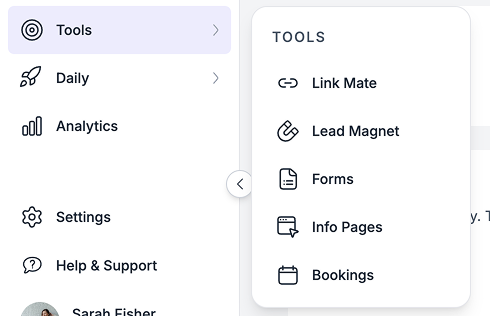
Open Tools to find:
Link Mate – Your personal link hub.
Lead Magnet – Offer freebies to attract new leads.
Forms – Qualify your leads.
Info Pages – Show your products and business details in one spot.
Bookings – Share your booking link so prospects can schedule with you.
🚀 Daily
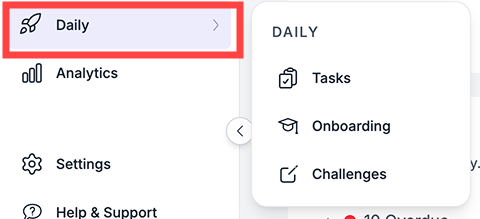
Open Daily to find:
Tasks – Your daily to-dos and follow-ups.
Onboarding – Your step-by-step setup.
Challenges – Fun tasks to keep you motivated.
Events are no longer part of this menu: your team's calendar now opens inside Community → Events, and a link to the old Events page takes you straight there.
Settings, Help & Support, and your Profile
These three live in different spots on desktop and mobile. Here is where to find each one.
💬 Help & Support Menu
Click it and a pop-up opens with everything you need to get unstuck:
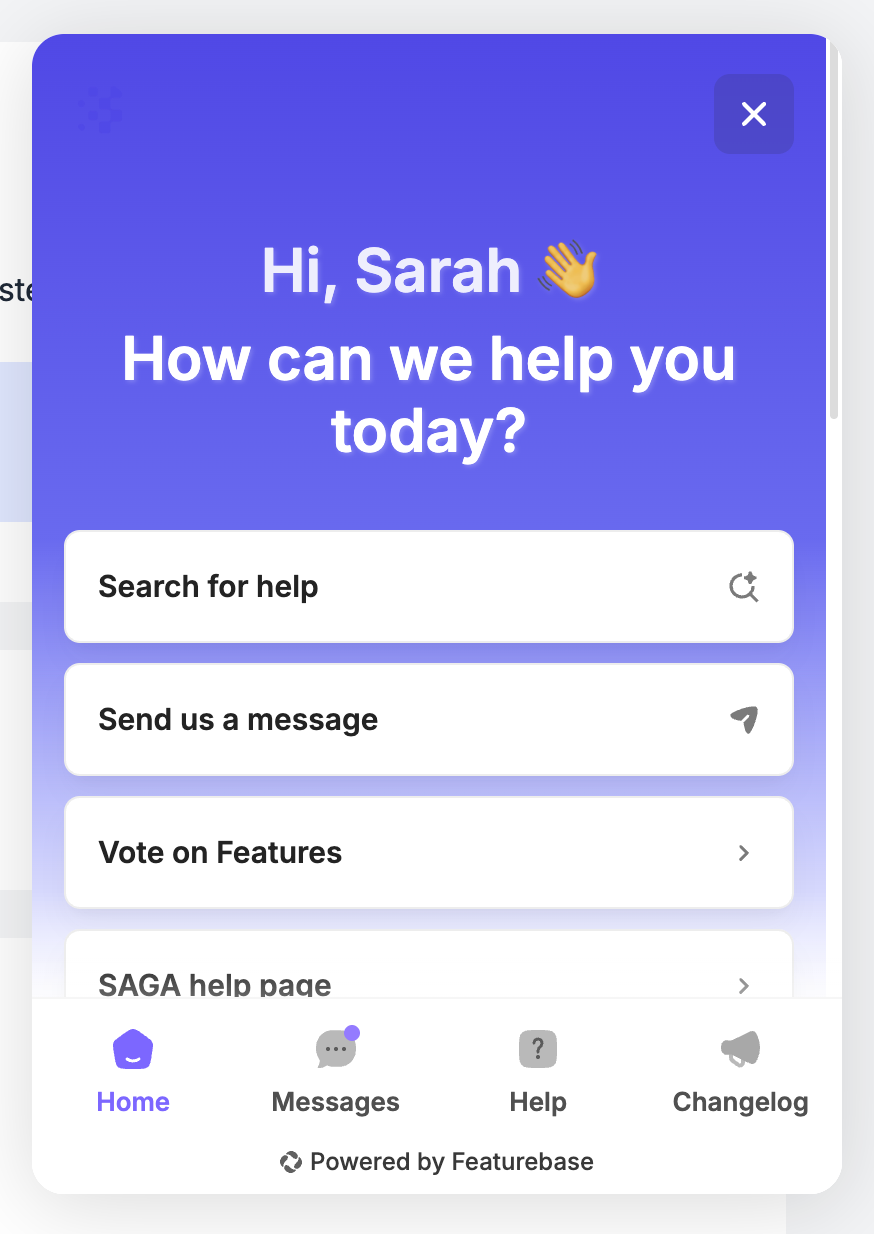
Last Updates – See the newest features, improvements, and changes in SAGA (the changelog).
Messages – Message us directly whenever you're struggling with something, and get help from our team.
Help – Browse all the step-by-step guides for every feature, the same help pages you're reading now.
Where to find it:
On desktop: at the bottom of the left sidebar.
On mobile: the Help & Support button in the top right.
👤 Profile Menu (Top Right Corner)
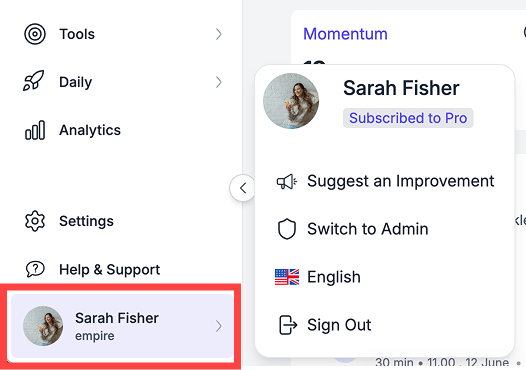
Open your profile picture to manage your account and share feedback. Inside you'll find:
Suggest an improvement – Give us feedback, suggest a feature you'd like to see, or report a bug.
Language Settings – Switch SAGA to your preferred language (English, Italian, German, Spanish, and more).
Sign Out – Log out of your account securely.
On mobile, this is also where you open your Settings.
Where to find it:
On desktop: at the bottom of the left sidebar.
On mobile: your profile picture in the top right, next to Help & Support.
💬 Need Help?
If you need help or have questions:
Support Centre: Need help? Start a chat with the Fibi AI Agent in your SAGA. If they can’t help, a human team member will take over.
Book a Call: Schedule a demo with our team
Was this helpful?
Still need help? Ask the team