Push Notifications
Stay on top of everything happening in SAGA — new leads, messages, and activity alerts — by enabling push notifications on your devices.
Last updated 1 day ago
Important: Notifications must be enabled separately on each device you use. Follow the steps below for each one.

Types of Push Notifications
SAGA sends instant push notifications for key sales events:
Video watch notifications: Share media from the contact's Quick Share row — not the old Resources tab. Only trackable Library shares trigger watch alerts.
Activate Notifications on Desktop (Browser)
Open SAGA at thesaga.app and log in
Open Settings → Personal Settings. On desktop, Settings is at the bottom of the left menu.
Toggle Notifications on
Your browser will show a permission popup asking if you want to allow notifications from SAGA — click Allow
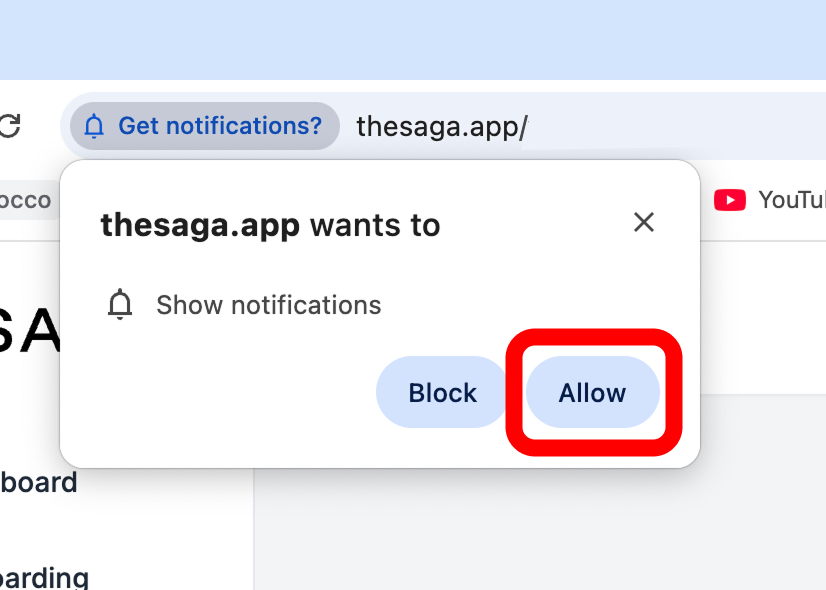
If you accidentally clicked "Block", see the troubleshooting section at the bottom of this page.
Activate Notifications on iPhone
Push notifications on iPhone require two things: SAGA must be installed on your home screen, and it must be opened from that icon (not from Safari).
Step 1: Install SAGA to your Home Screen
If you haven't done this yet, follow the steps in Adding SAGA to your Phone →
⚠️ This step is required. Notifications will not work if you open SAGA directly in Safari.
Step 2: Open SAGA from the Home Screen Icon
Tap the SAGA icon on your home screen to launch it. This is important — always use the icon, not your browser.
Step 3: Enable Notifications in SAGA
Tap your profile picture (top right) → Settings → Personal Settings
Toggle Notifications on
Your iPhone will ask if you want to allow notifications — tap Allow
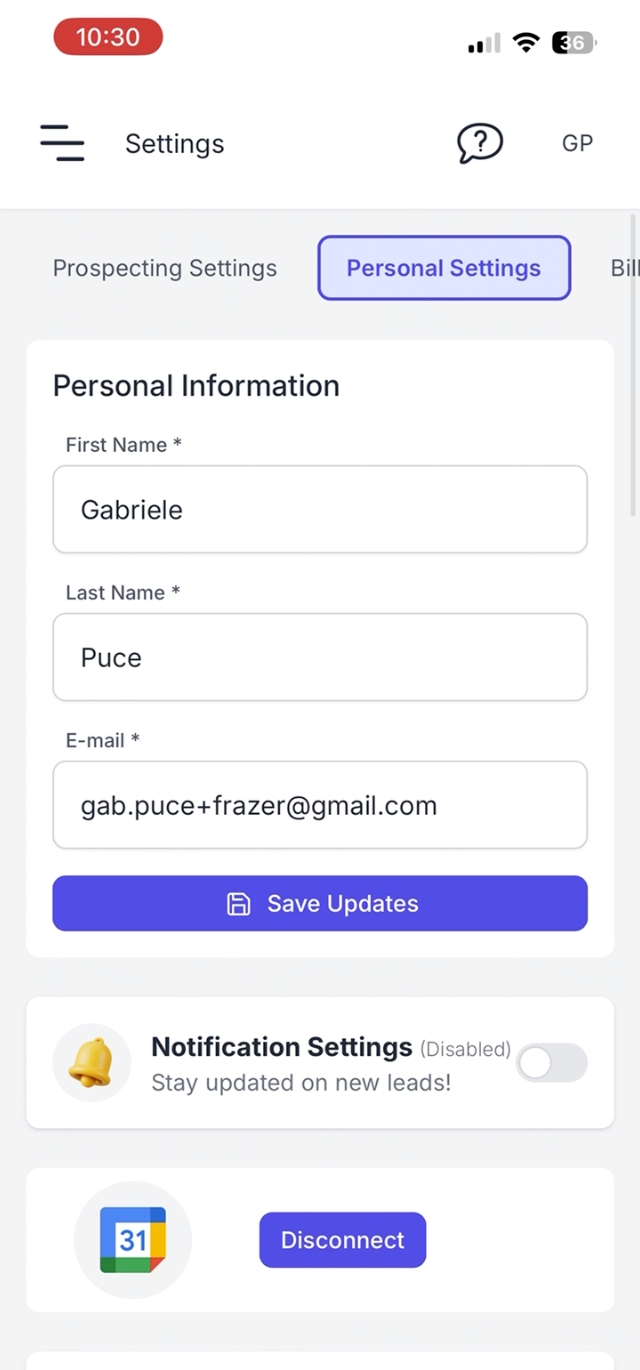

💡 Note: This requires iOS 16.4 or later. If you're on an older version, update your iPhone via Settings → General → Software Update.
Activate Notifications on Android
Step 1: Install SAGA to your Home Screen (Recommended)
For the best experience, add SAGA to your home screen first. This gives it app-like behaviour including more reliable notifications. See Adding SAGA to your Phone →
You can also enable notifications directly from Chrome without installing — but installing is recommended.
Step 2: Enable Notifications in SAGA
Open SAGA (from your home screen icon or Chrome)
Tap your profile picture (top right) → Settings → Personal Settings
Toggle Notifications on
If prompted, tap Allow when Android asks for permission
Not Receiving Notifications? Check These
On iPhone:
Make sure SAGA is opened from the home screen icon, not Safari
Go to iPhone Settings → SAGA → Notifications and check that notifications are turned on
Check that Do Not Disturb / Focus mode is not blocking them
Confirm you are on iOS 16.4 or later
On Android:
Go to Phone Settings → Apps → Chrome (or SAGA) → Notifications and make sure they are allowed
Check that battery saver mode isn't restricting background activity
On Desktop:
Click the padlock icon in your browser's address bar and check that notifications are set to Allow
If set to Block, change it to Allow and reload the page, then toggle notifications on again in SAGA Settings
💬 Need Help?
Support Chat: Start a chat with the Fibi AI Agent inside SAGA. If it can't help, a human team member will step in.
Book a Call: Schedule a session with our team →