Contacts
Keep all your contacts in one convenient place with a dedicated page for each contact. Effortlessly manage all contact information, update details, schedule follow-ups, and more—all at your fingertips.
Last updated 5 days ago
Contact List
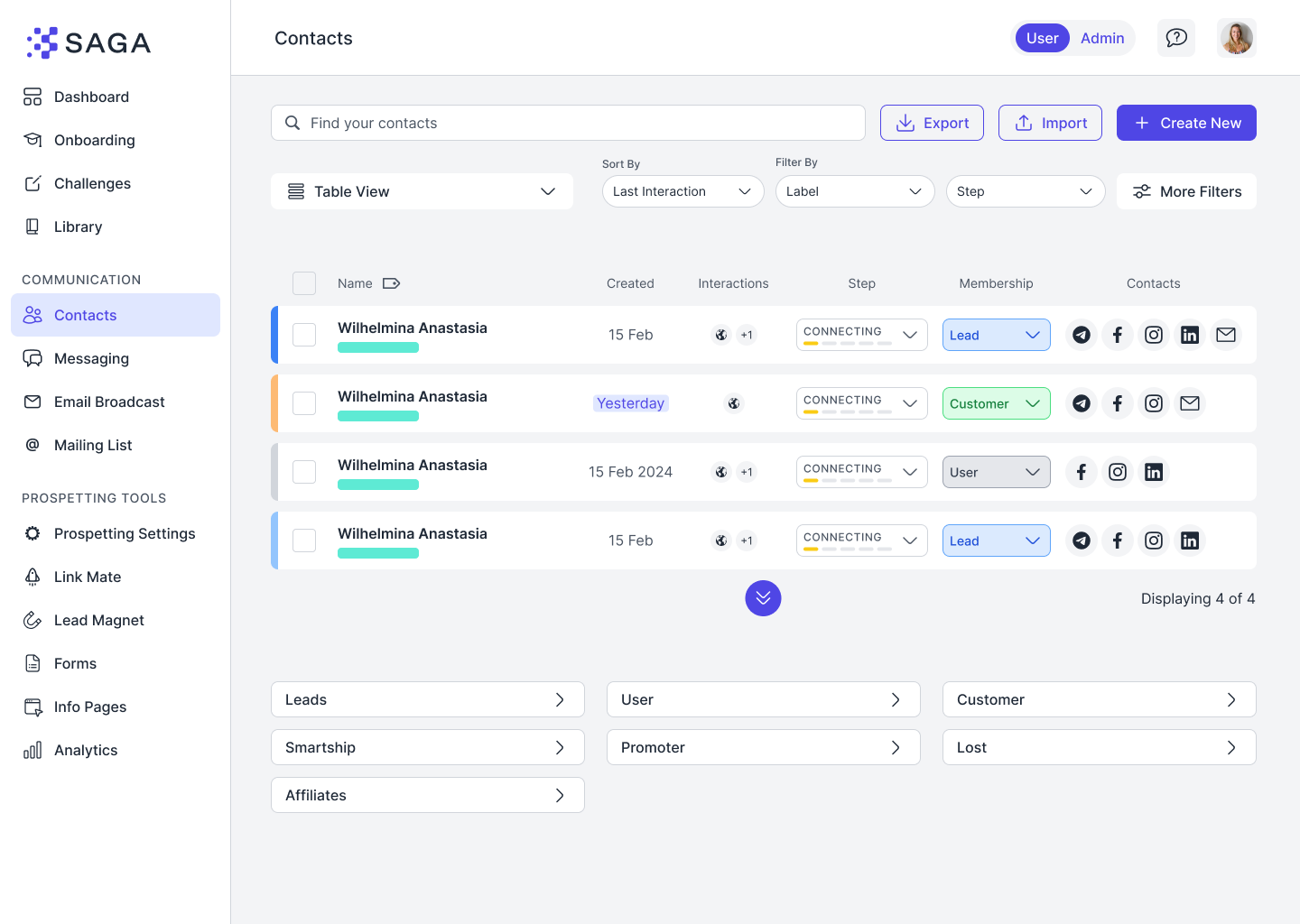
The Table Shows
Contact Name
Labels (color-coded so you know who’s who)
Step (where they are in your sales journey)
Membership
Creation or Last Interaction Date
Quick contact buttons
For each person, these are the available contact methods:
Phone Number: Direct Messages & Call (only available if you’re using SAGA from mobile),
Whatsapp, Telegram
Social Medias: Instagram, Facebook, Linkedin
Email
How to Create your Contacts
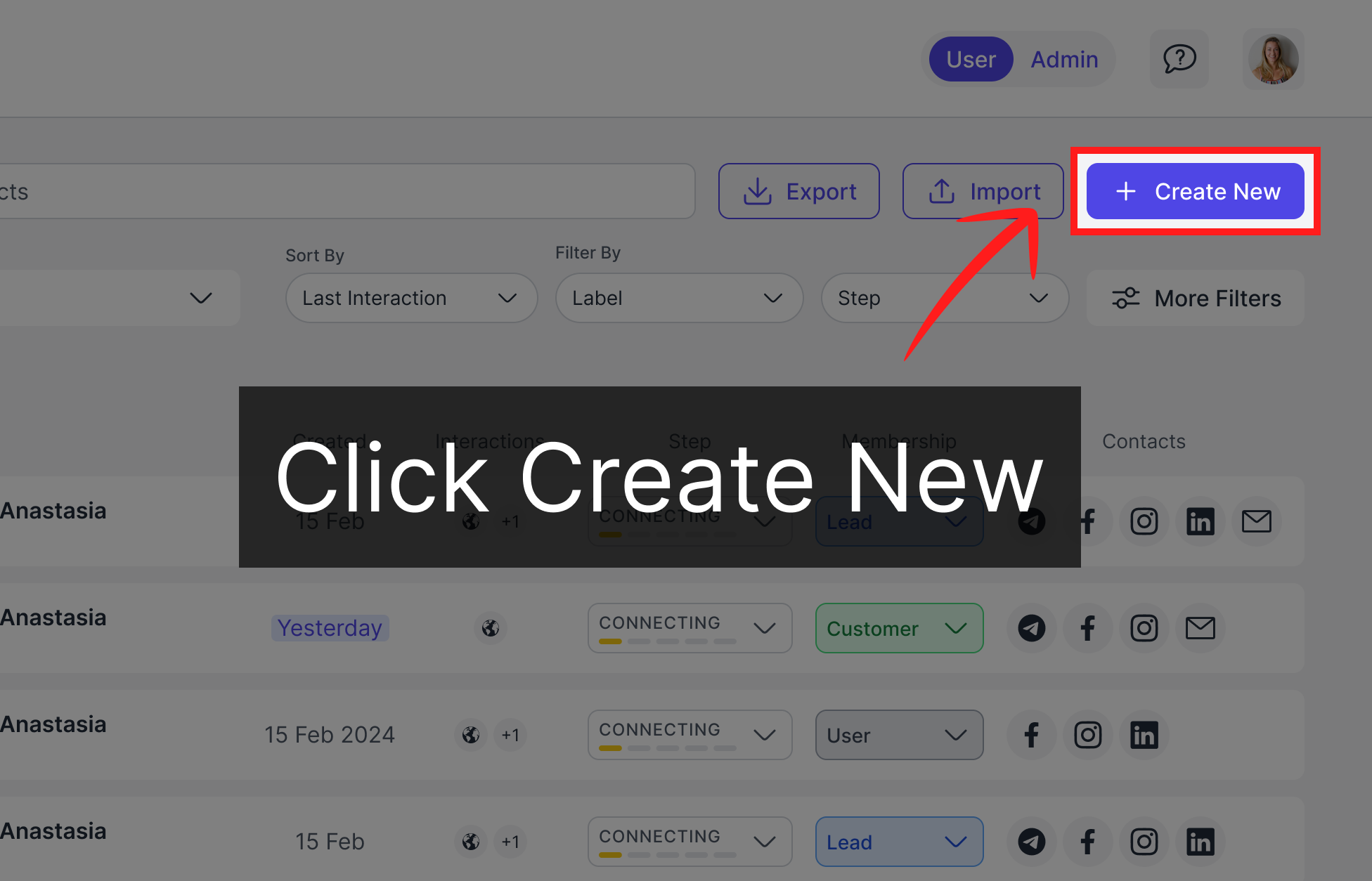
Manual Creation
Click on the 'Create New Lead' button. Input the basic information, click 'Create Lead,' and that's it! your new contact is seamlessly integrated into your contact list.
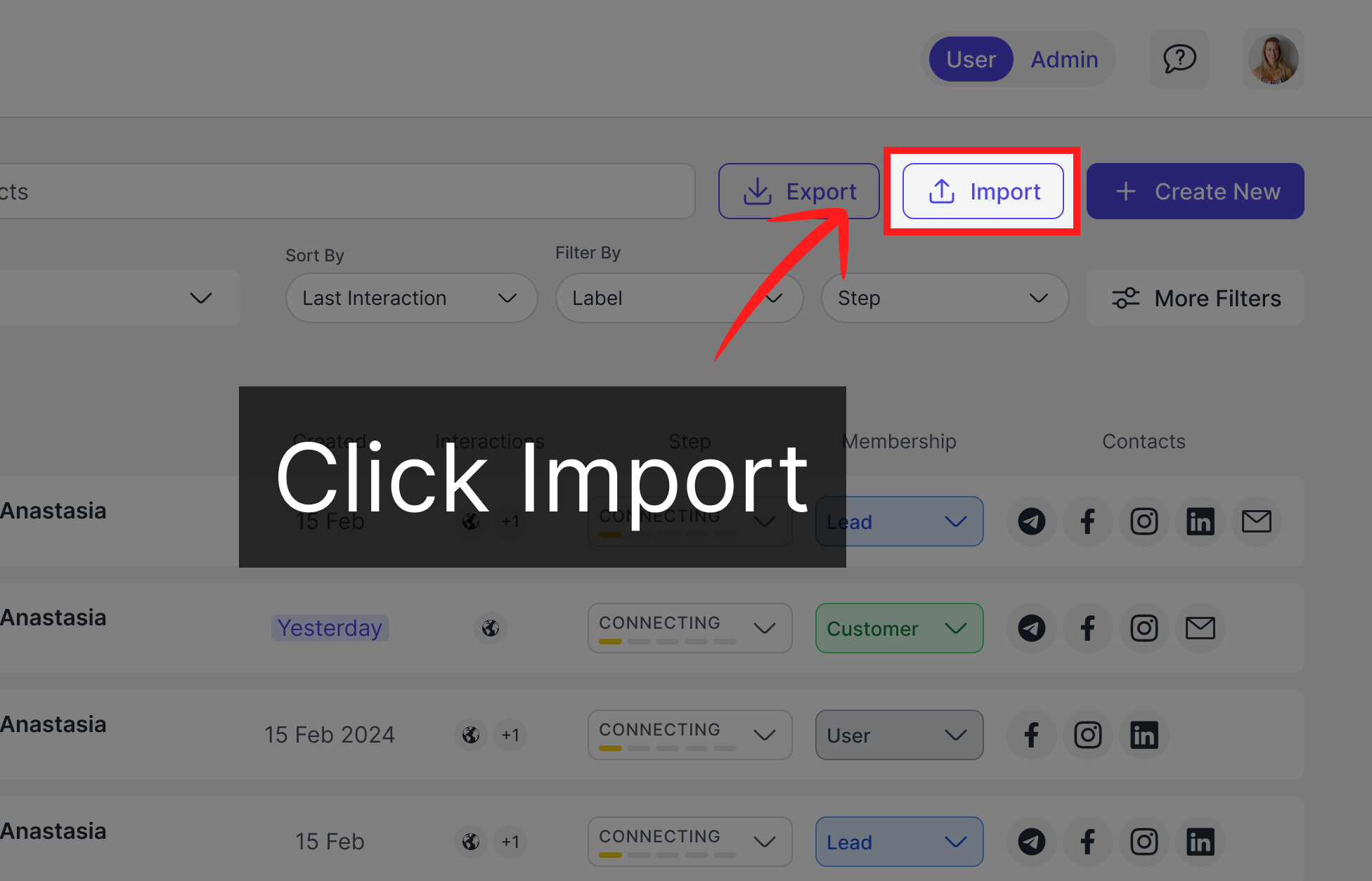
Contact Import
You can create contacts in bulk by importing them, with a CSV file, or importing them from you phone or social medias (Instagram, Facebook or Linkedin). Find more details on the dedicated page.
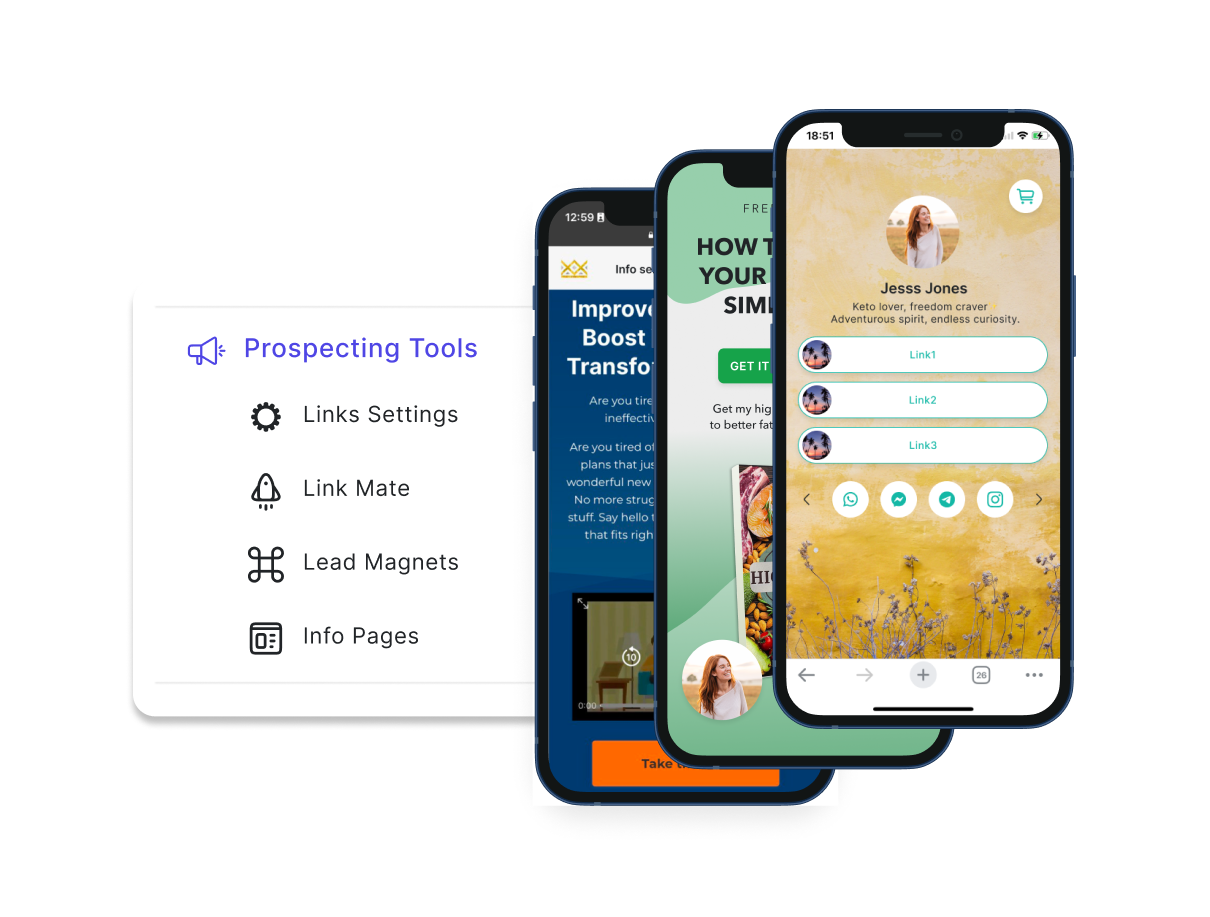
Automatic Creation
When a contact engages with one of your Prospecting Tools, they are automatically added to your contact list, retaining all the information from their interaction.
Switch views
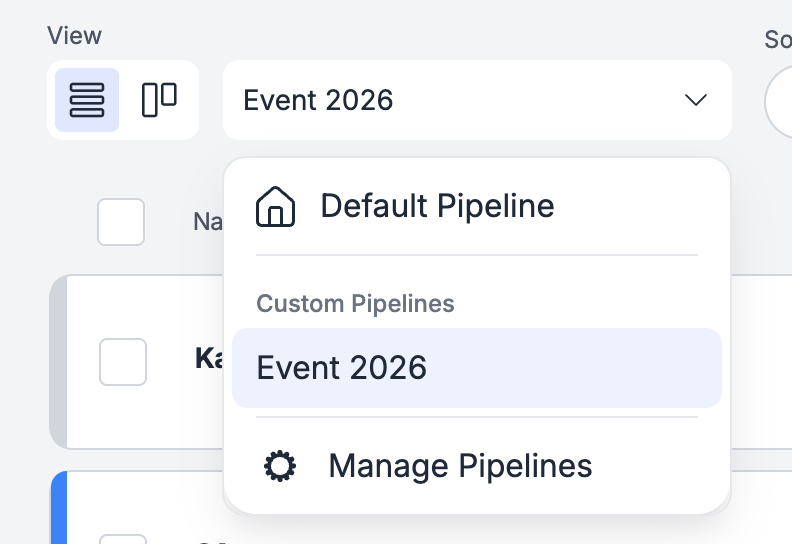
SAGA gives you complete control over how you organize and view your network. You can look at your entire contact database at once, or you can focus on a specific workflow using Pipelines.
Pipelines can include:
The default Structured Sales Process (SSP) Check out this article.
Custom pipelines you create for specific goals (events, campaigns, follow-ups). Learn more about it!
Pipelines are structured processes that help you track a contact's journey. When viewing your contacts, you can choose the layout that works best for you:
Table View: This is a clean, structured list. It shows key details at a glance, such as the contact name, applied labels, membership status, and their current pipeline step. You can use Table View for your global "All Contacts" list, or you can use it inside a specific pipeline. When you use Table View inside a pipeline, it will filter your list to show only the contacts and steps relevant to that specific workflow.
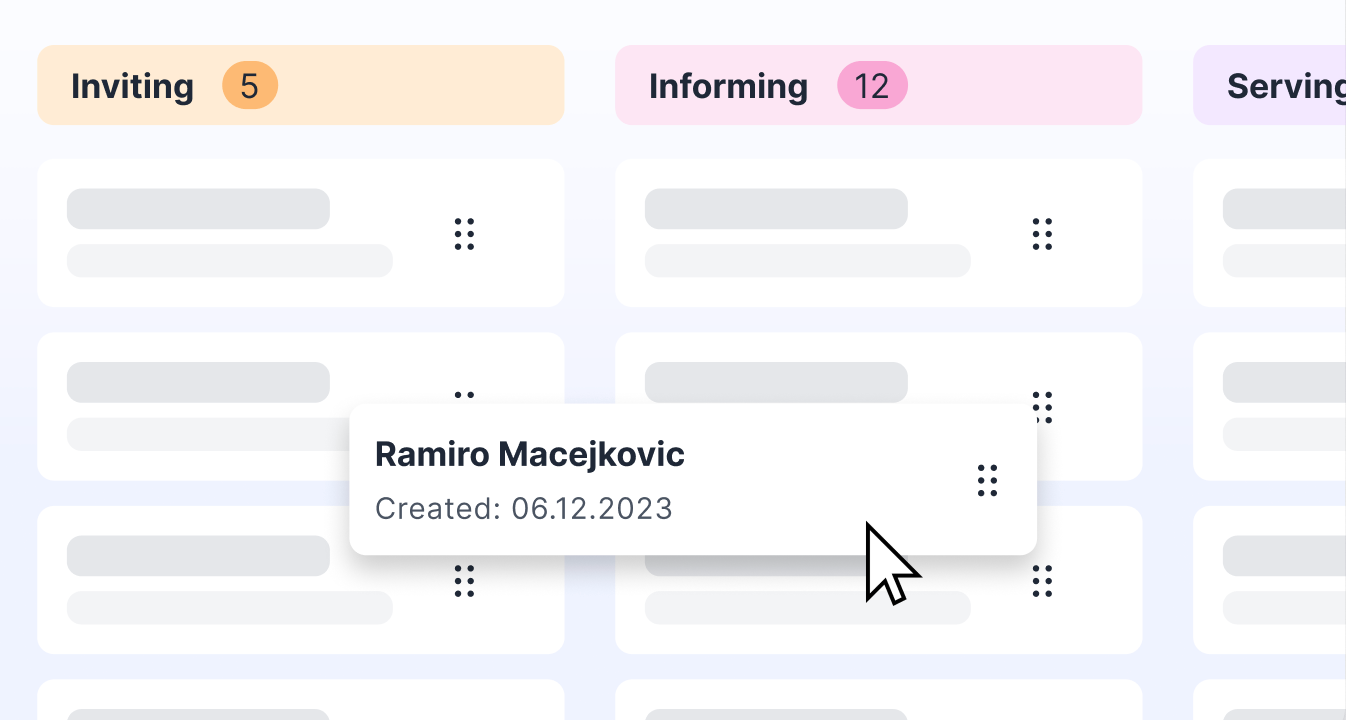
Kanban (Card) View: This is a highly visual layout available exclusively within your pipelines. It organizes your contacts into columns based on their current stage, allowing you to easily drag and drop them from one step to the next.
You can easily switch between your global list and your pipelines, and toggle your preferred view, using the tools in the top header. This helps you move between a detailed list view and a visual pipeline view, depending on what you want to focus on.
Sort & Filter Controls
To quickly locate a contact, utilize the filters and search bar. These tools are designed to streamline your search and make the process of finding specific contacts faster and more efficient.
Sort by: Name, Creation Date, Update, Interaction date & Most Urgent Task
Filter by:
Labels
Interest: Product or Business
Membership
Pipeline Step
Interaction: if the lead interacted with one of your prospecting tools and which one.
Source: if the lead was imported & how, or manually created
Has upcoming task, yes or no
Country
Address — search contacts by street address or location text (partial match)
Notes/Description — search contacts by text in their description or notes (case-insensitive, partial match). Star this filter to pin it as your primary search on desktop.
Contacts information: if it has a specific contact handle, like instagram ### Favorite filter (desktop) Pin one filter to the main Contacts filter bar so you can reach it in one click. 1. Open Contacts on desktop. 2. Click More filters. 3. Click the star next to any filter (Label, Membership, Address, Step, etc.). 4. That filter replaces the default Label slot in the top filter row. Your choice is saved on this device. To change it, star a different filter. Note: Favorite filters are available on desktop only. On mobile, use More filters as usual. ### Lost contacts Contacts with Lost membership are hidden from your default list. To see them: - Open More filters → Membership → select Lost, or - Use the Lost shortcut at the bottom of the Contacts page. Prefer Lost over deleting if you may need the record later — deleted contacts cannot be recovered.
Export Contacts
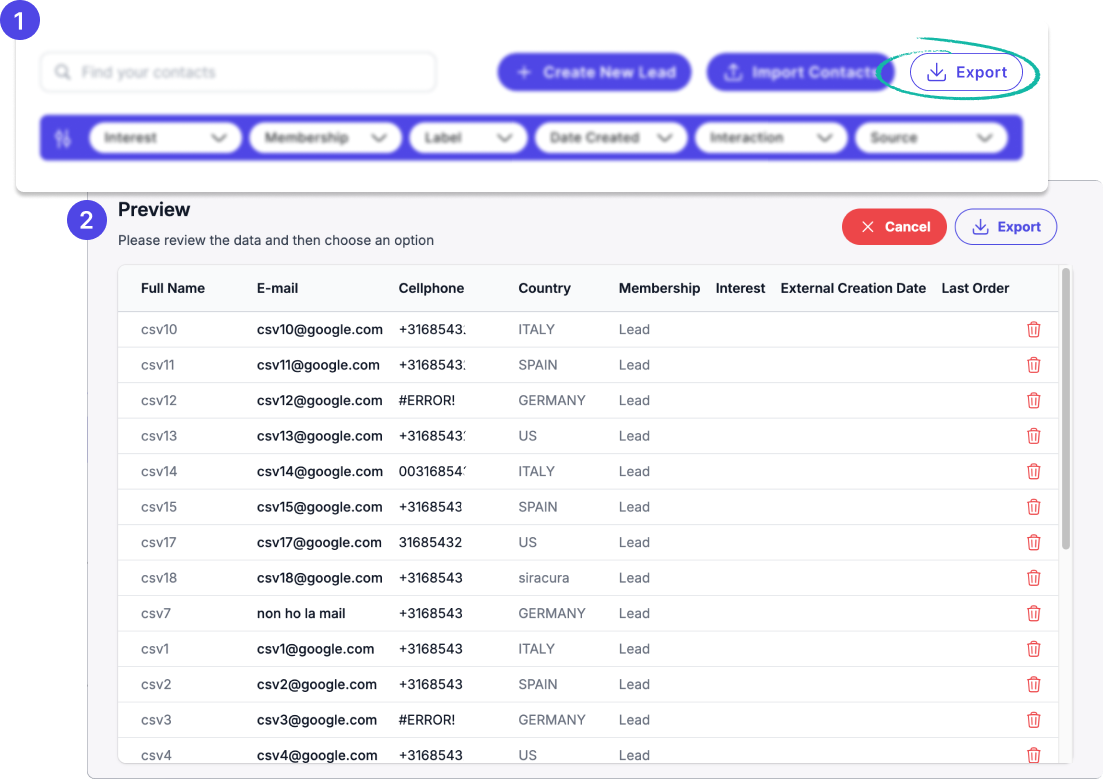
Go to your Contacts Page and follow these steps:
Click "Export": Once your list is ready, click the "Export" button.
Review and Edit: You can review the list and decide whether to keep all contacts or delete some.
Quick Follow up
When you're ready to follow up, pick your preferred channel and send your message. It is just a click away!

Bulk Actions
Select multiple contacts at once to apply an action to all of them. Learn more in this article.
Your Contact Page
Each of your contacts has a dedicated page, ensuring you never lose track of any information or activity. Make the most out of each connection.
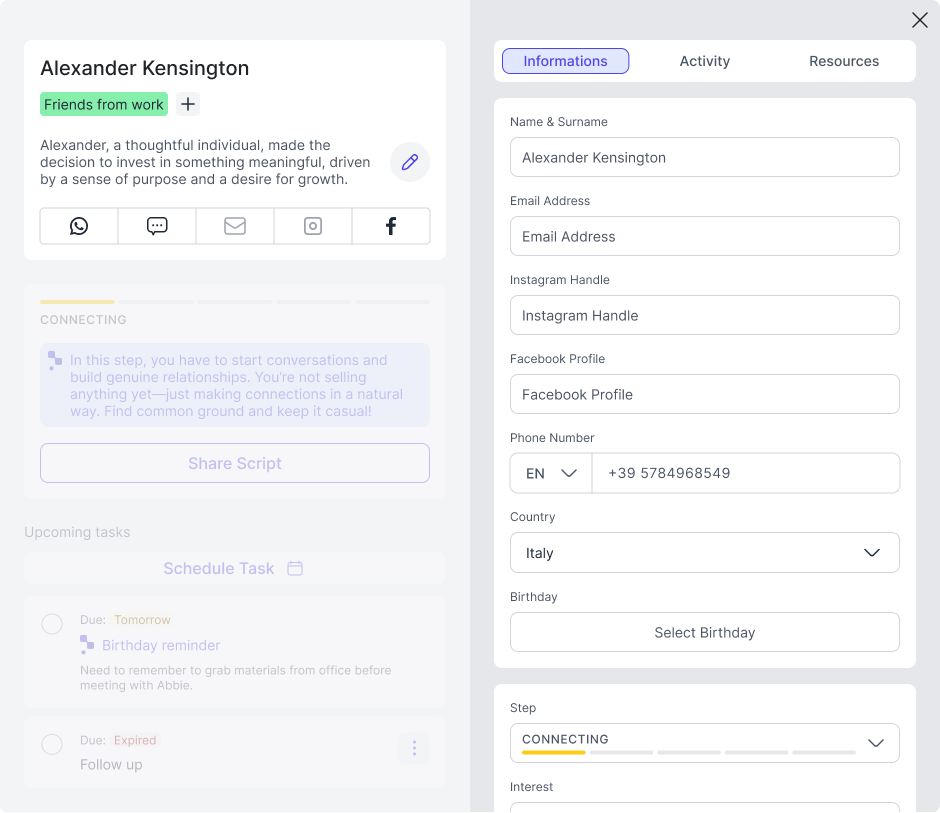
Your Contact Hub
Here you can view and edit all the contact information, with specific fields, multiple labels and a short description. You can also add all the contact handles.
Address
You can store a contact's Address on their profile (create or edit). Address is saved when you create or update the contact.
At the bottom of the Information tab in the contact modal, you’ll find the option to delete a contact. Please note that once a contact is deleted, it cannot be recovered.
If you’d like to keep the contact accessible without actively using it, we recommend assigning it the “Lost” membership instead. You can then easily find it by clicking on “Lost” at the bottom of the main contact page.
📤 Quick Share
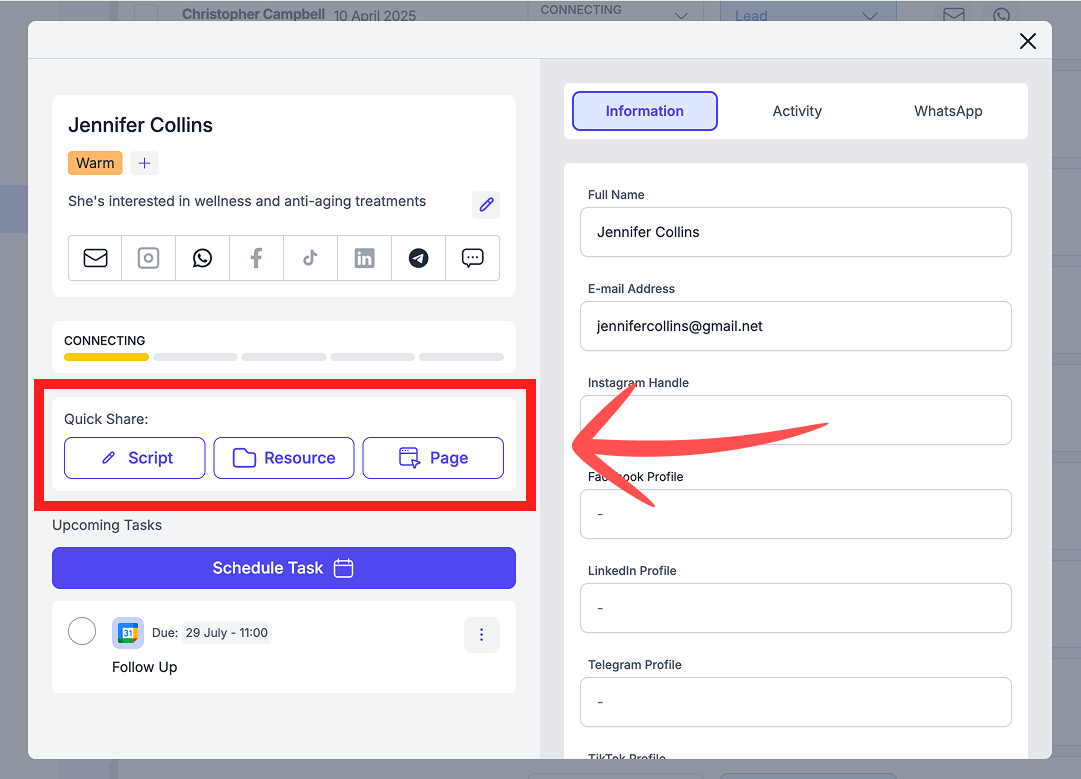
Right below your contact's information, you'll find the Quick Share, your command centre for sending targeted materials straight to your leads. From here, you can instantly share three types of materials:
Scripts: Access pre-written messages to send to your prospect. To save you time, the scripts shown here are automatically filtered to match the contact's current step in your pipeline. Learn more about getting the best out of our scripts.
Media: Send videos, PDFs, or images directly from your SAGA Library.
Info Pages: Share beautifully designed landing pages with comprehensive details about your offers. Learn more about creating Info Pages.
Because this widget works hand-in-hand with your Structured Sales Process (SSP), sharing a Media item or an Info Page automatically generates a trackable link for your prospect. Scripts and external links are not tracked. Here's what happens as soon as you share:
The contact moves to Informing in your pipeline. SAGA registers that your prospect is being informed.
The contact moves to Serving the moment they open the link. This confirms engagement and tells you it's time to follow up.
You receive a push notification the instant your prospect opens the content (if push notifications are enabled in your settings).
Video watch time is tracked. For videos, SAGA records exactly how many seconds your prospect watched, so you know their level of interest precisely.
Every share and every open is automatically logged in the contact's Activity Panel, with a timestamp and engagement details. No manual tracking needed.
Schedule Tasks
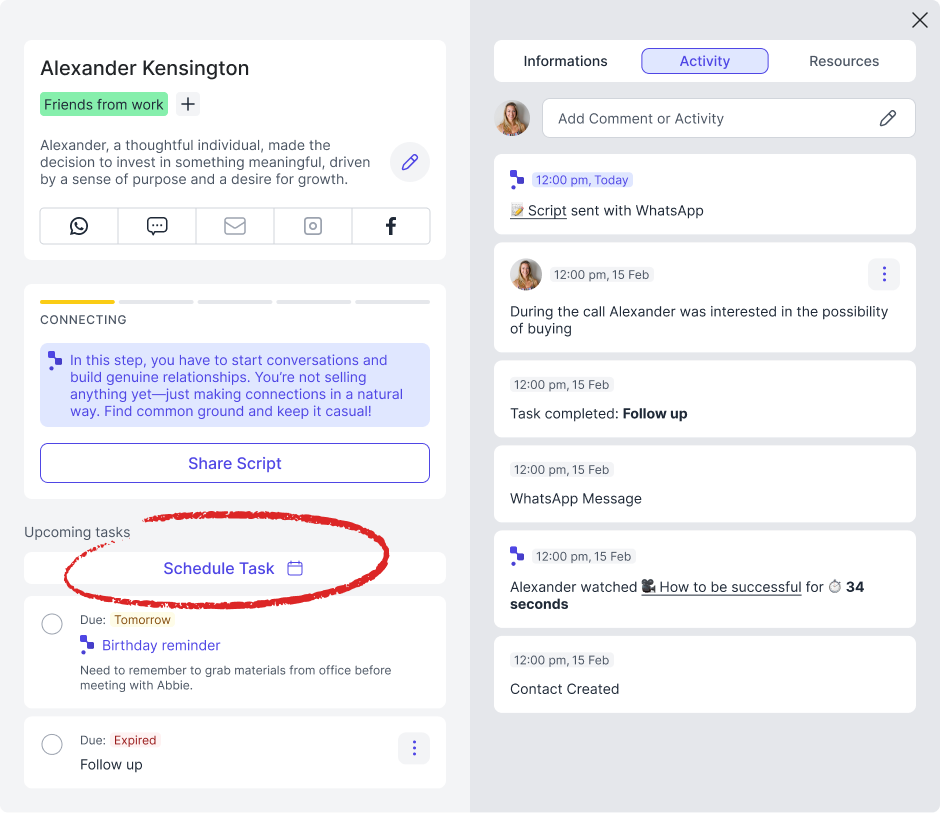
Never forget a follow-up again. From any contact page, click "Schedule Task", pick the date and time, and write a note about what you need to do. That's it!
Once saved, the task appears directly on the contact page. From there you can:
Edit it if the timing or details change
Mark it as done once you've taken action
Every task is also recorded in the contact's Activity Panel, so you always have a full history of what happened and what's coming next.
Learn how to manage all your tasks →
Activity Tab
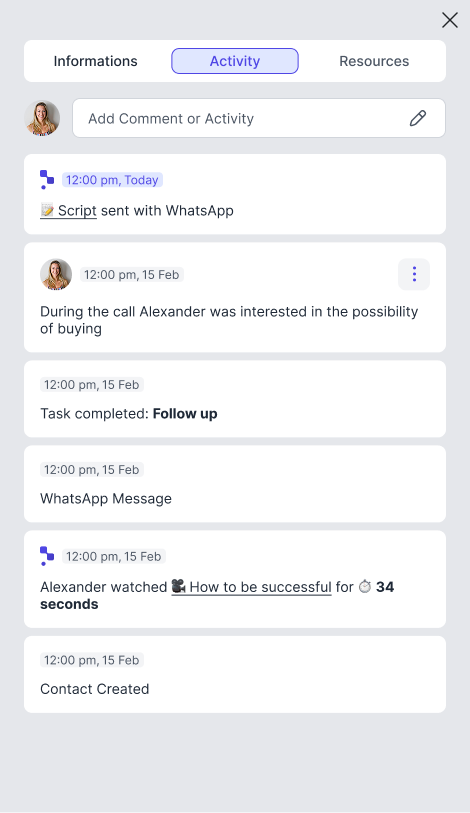
All the actions taken by your lead are located in one place. From the Creation Date and the Source to any update you make, interaction, and interest. You can also add your own activities, to keep track of everything.
This also includes trackable link events: whenever you share a resource with this contact, or whenever they open it, SAGA logs it here automatically. For videos, you will also see the exact number of seconds they watched. Every event includes a timestamp, giving you a complete picture of how your prospect is engaging with your content.
Assign Labels to Your Contacts
Add Label
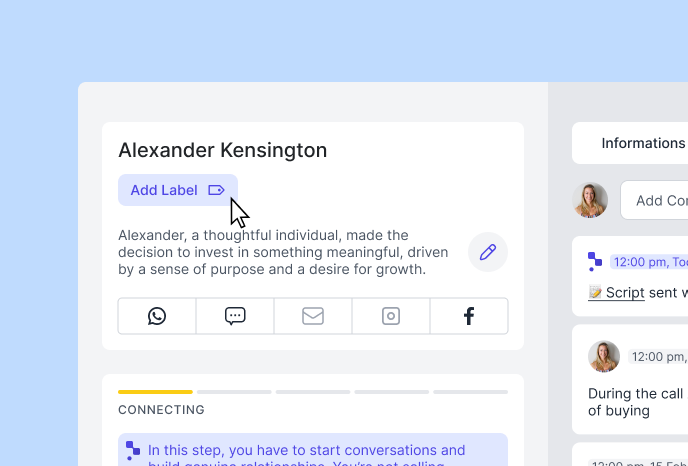
Go to your Contact Page and click on "Add Label"
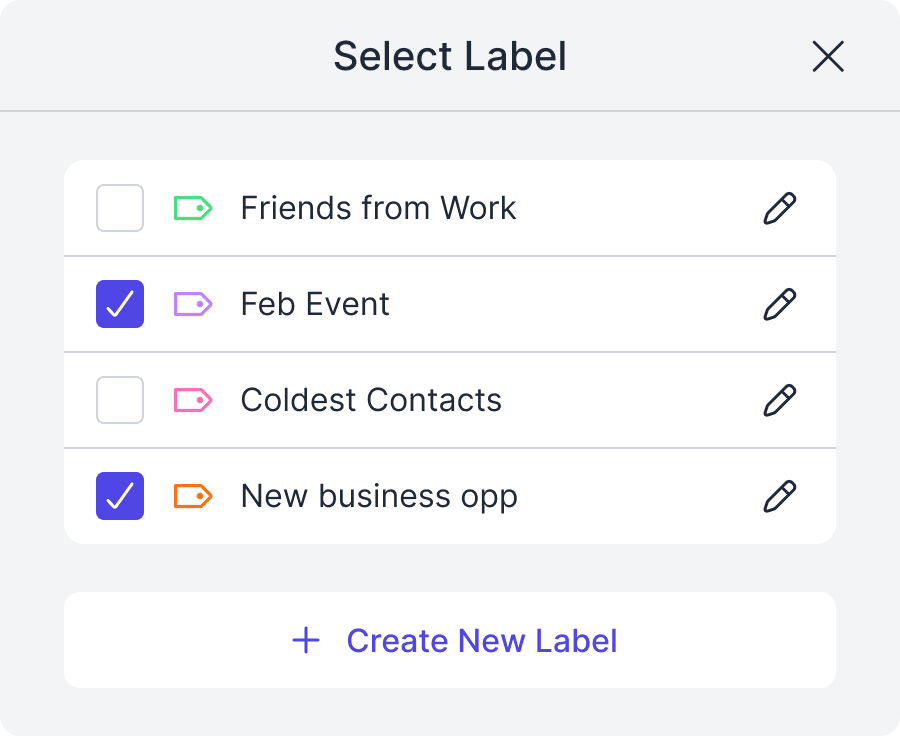
Choose, Create, or Edit a Label
Assign the label to your specific contact. Select the name and color of your label to make it easily recognizable at a glance.
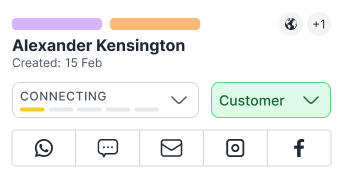
You're Done!
Your contact is now assigned to those labels and can be easily found by filtering for labels.
Labels also power your Dynamic Mailing Lists. When you create a Dynamic Mailing List, you choose one or more labels as the rule. Every contact with those labels is automatically added to that list, and the list updates whenever a label is added or removed from a contact. Learn more about Dynamic Mailing Lists.
📤 Exporting your contacts
You can download your contacts from SAGA at any time.
Go to your Contacts page.
Click the Export button.
Your contacts download as a spreadsheet file that you can open in Excel, Google Sheets, or Numbers.
💬 Need Help?
If you need help or have questions:
Support Centre: Need help? Start a chat with the Fibi AI Agent in your SAGA. If they can’t help, a human team member will take over.
Book a Call: Schedule a demo with our team