Edit Multiple Contacts at Once
The Bulk Editing feature allows you to select and edit multiple contacts simultaneously with just one click. Save time and manage your contacts more efficiently.
Last updated 22 days ago
Select Contacts on Mobile
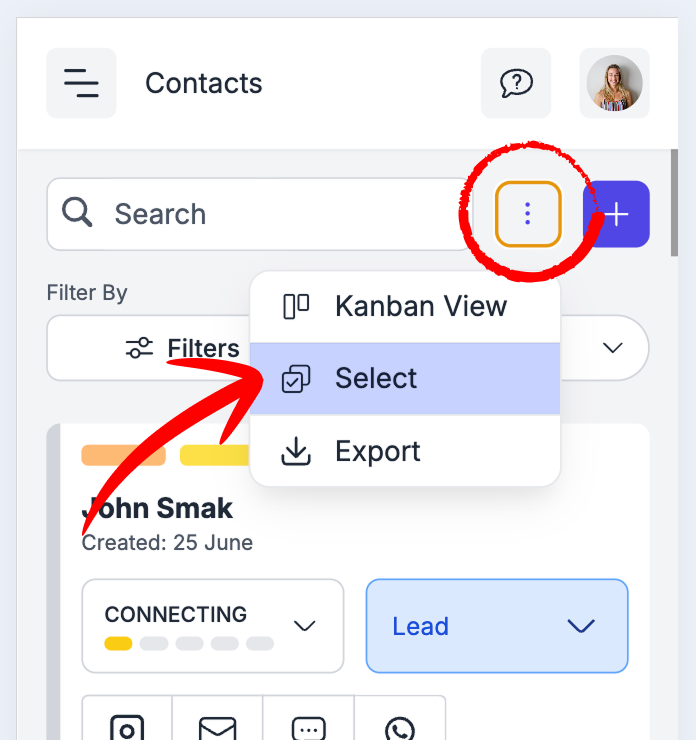
To select more than one contact on your phone, tap on the 3 dots button in the top right corner, and then tap on “select”
Now you’ll be able to select multiple contacts just by clicking on the little checkbox on the right side of each contact card.
Select Contacts on Laptop
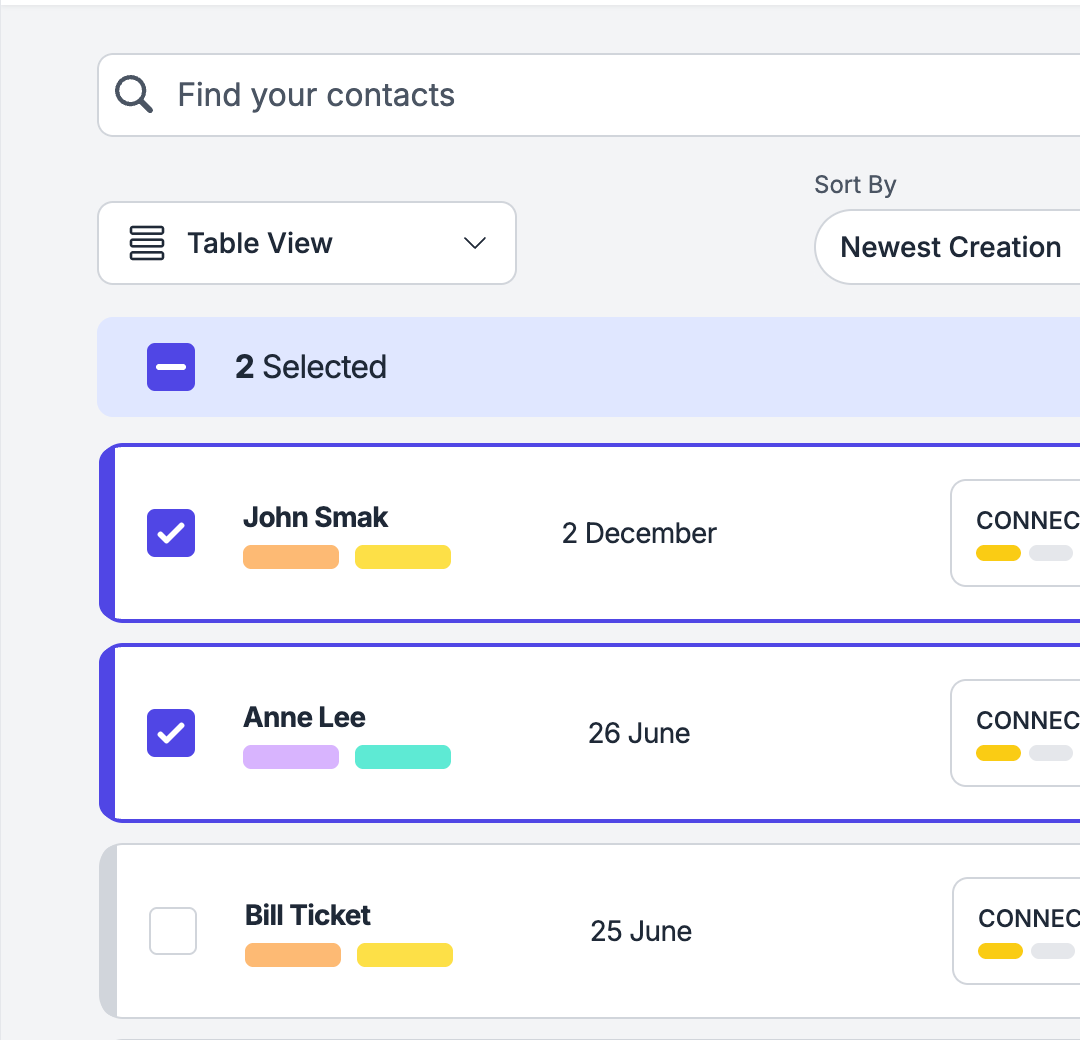
To select more than one contact on your laptop just click on the little checkbox on the right side of each contact card.
🔧 What You Can Do with Bulk Editing
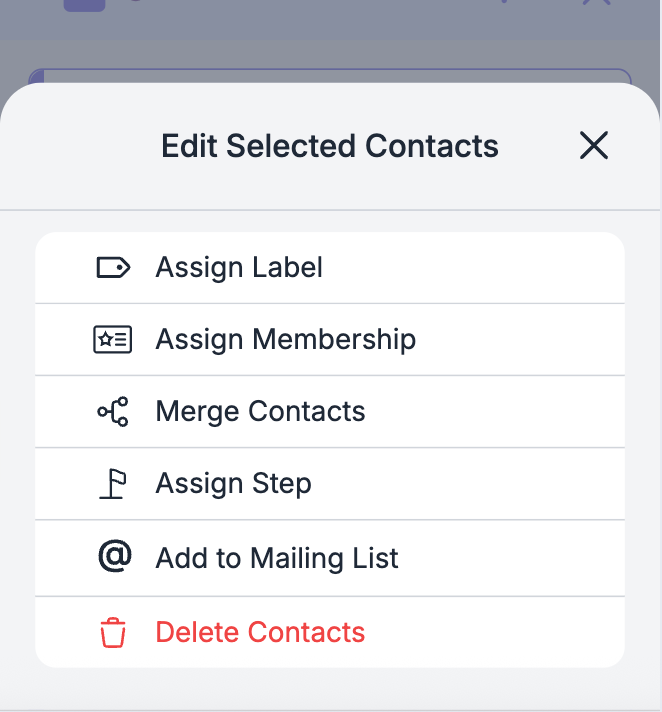
Assign memberships: Assign a specific membership to all selected contacts.
Assign step: Assign a specific step to all selected contacts.
Add labels: Organize your contacts with custom labels.
Add to a mailing list: Simplify communication management by directly adding them to a mailing list.
Delete contacts: Clean up your list by removing multiple contacts in a single step.
Merge contacts: You can merge all the selected contacts into one.
Booking calls from deleted contacts are automatically reassigned to the surviving contact.
Maximum 5 contacts per merge. The merge is irreversible.
How to “select all” contacts
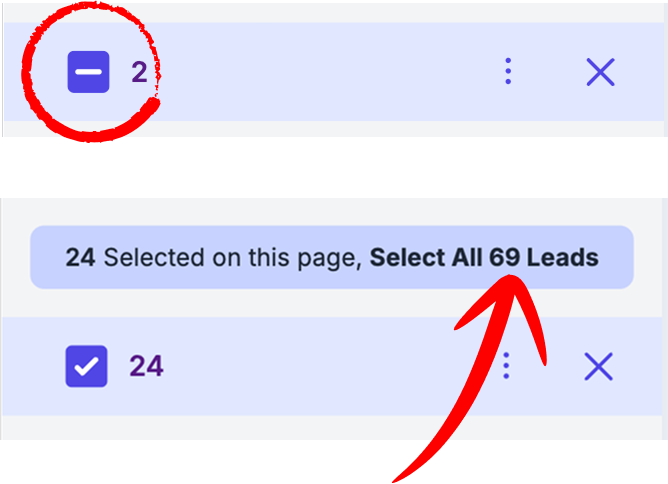
In order to select all
Click on the ➖ icon on top of the table, next to the number of items selected
A purple box is going to appear, with “Select All X Leads” written.
Click on it and you’ll select all of your contacts
Assign Contacts to a Pipeline
You can add one or multiple contacts to a pipeline using bulk actions.
How it works:
Go to Table View
Select one or more contacts
Open Bulk Actions (3-dot menu)
Click Assign to Pipeline
Choose:
the pipeline
the step where the contacts should start
The selected contacts will be added to that pipeline without being removed from the main SSP.
This is useful when managing events, campaigns, or follow-ups for many contacts at once.
❓ You Ask — We Tell
Q: Can I undo a Bulk Editing action?
A: No, changes are final. We recommend carefully reviewing selected contacts before confirming.
Q: Can I use Bulk Editing on mobile devices?
A: Yes, the feature is optimized for mobile devices.
Q: Is there a limit to how many contacts I can edit at once?
A: No, you can edit an unlimited number of contacts.
🚀 Ready to Try Bulk Editing?
💬 Need Help?
If you need help or have questions:
Support Centre: Need help? Start a chat with the Fibi AI Agent in your SAGA. If they can’t help, a human team member will take over.
Book a Call: Schedule a demo with our team
Still need help? Ask the team