Configuring Email Client
Setting up your email client to open directly from SAGA contacts
Last updated 5 days ago
💡 Why does the email button open Outlook instead of Gmail?
When you tap an email button in SAGA, your device opens whatever app is set as your default email app. If your default is Outlook, Outlook opens, even if you normally use Gmail. To send from Gmail (or any other app), set that app as your default using the steps below for your device. You only need to do this once.
Chrome
In chrome, go to chrome://settings/handlers or type it into your URL bar.
Make sure pop-ups are enabled on your browser
Make sure “Sites can ask to handle protocols” is enabled for now (you can disable again after)
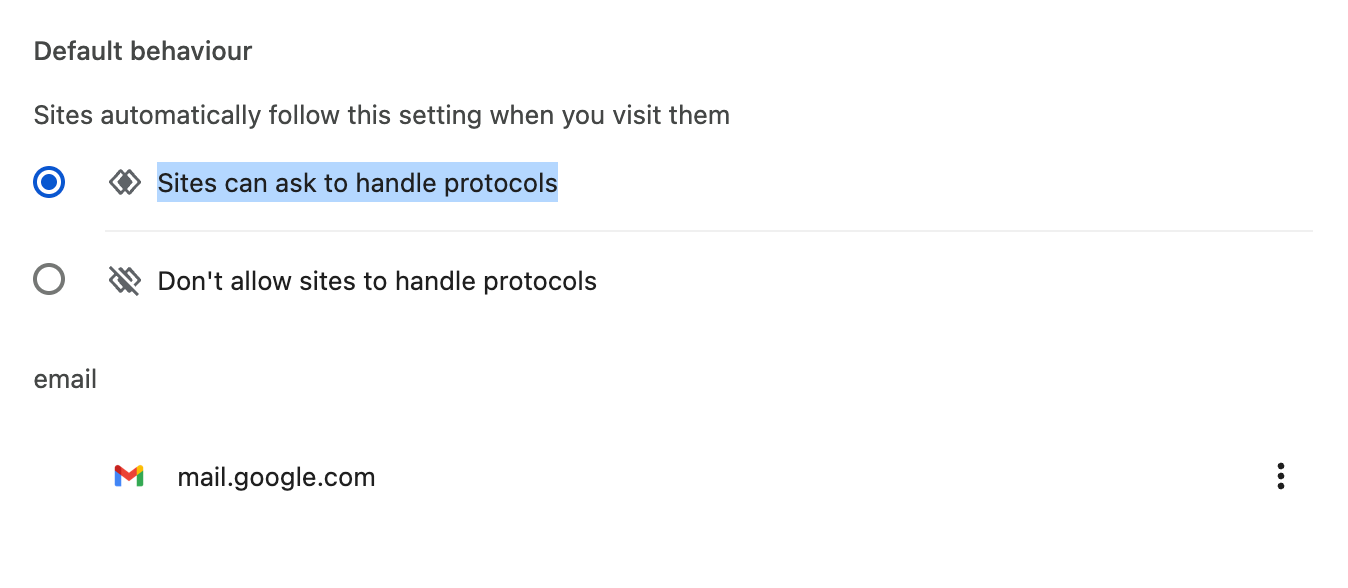
Make sure there are no applications selected already in the section below (if you don’t see any apps that is fine - none are configured yet) - remove them if there are any under ‘email’
Then head on back to mail.google.com and you should see a pop up or the icon below
Click the icon or allow on the popup
Mac
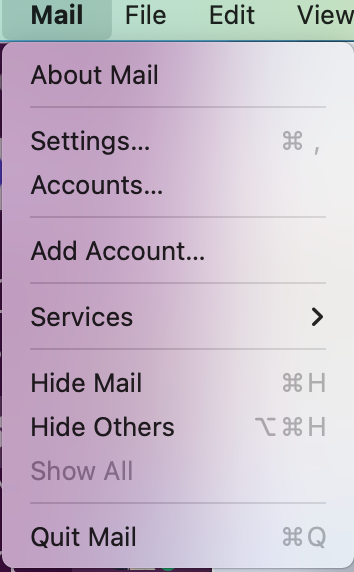
Open mail → click on mail on the top left of the screen → Then click settings
Click on "Default email reader" and choose your preferred app or your preferred browser.
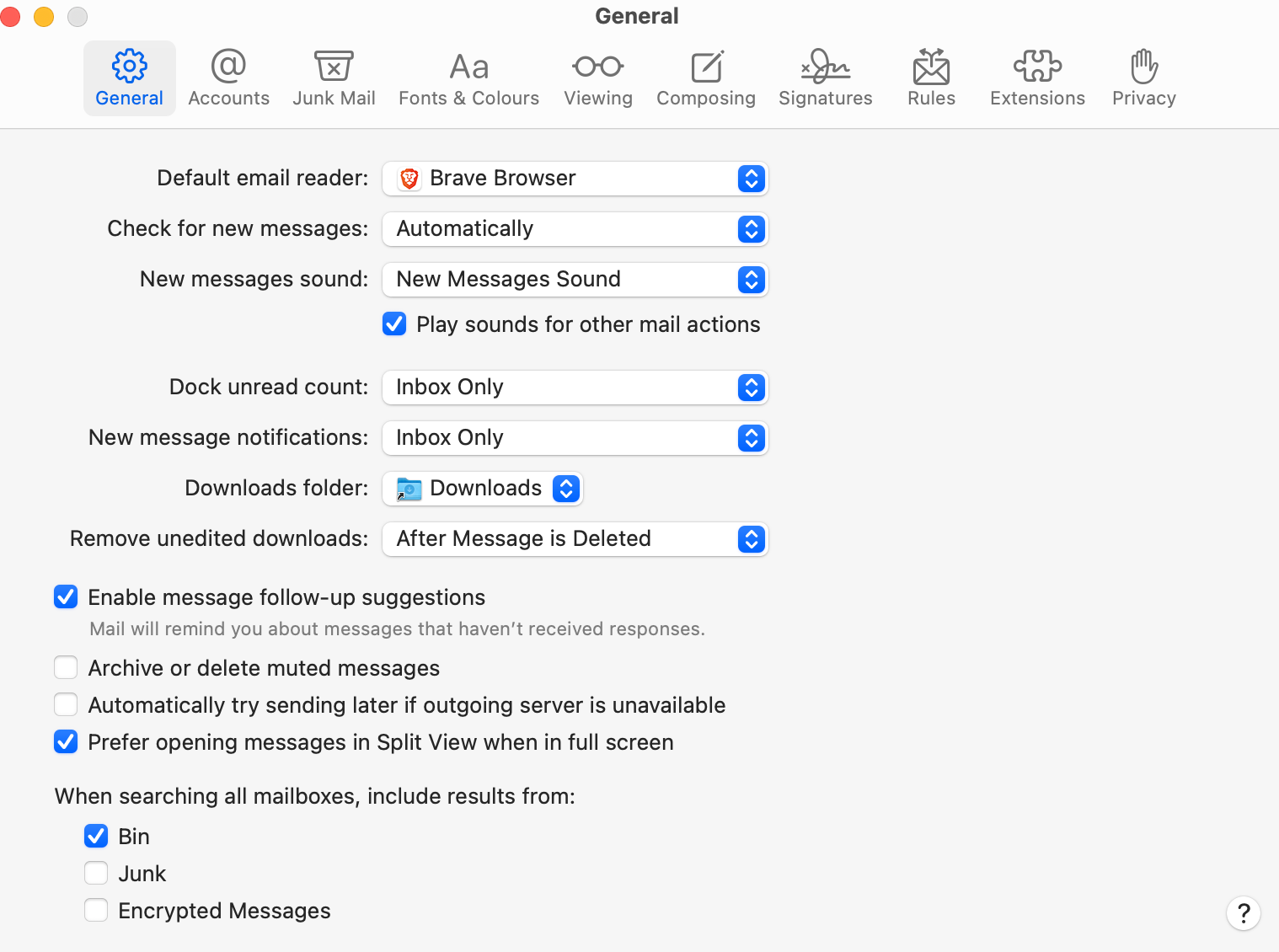
Using Chrome? Follow the chrome instructions above.
Mobile
Mobile should choose your default email application that is set on the phone
iPhone (iOS 14 and later)
To set a third-party email app (like Gmail, Outlook) as the default:
Install your preferred email app from the App Store.
Open the Settings app.
Scroll down and tap on the email app (e.g., "Gmail").
Tap "Default Mail App".
Select your preferred app (e.g., "Gmail", "Outlook").
Android (varies by device)
To set a default email app on most Android phones:
Install your preferred email app from the Play Store.
Open the Settings app.
Tap "Apps" or "Apps & notifications".
Tap "Default apps" (may be under "Advanced").
Tap "Email app".
Select your preferred email app (e.g., Gmail, Outlook).
Windows 11
Open Settings: Press the Windows key + I to open the Settings app or click here
Select Default Apps: Click on "Default apps" in the left sidebar.
Find Mailto option: Search for Mailto handler
Select your client: Select your preferred email client like Outlook etc.
Using Chrome? Follow the chrome instructions above.
Windows 10
Open Settings: Press the Windows key + I to open the Settings app.
Navigate to Apps: Click on "Apps" in the left sidebar.
Select Default Apps: Click on "Default apps" in the left sidebar.
Find Email Setting: Scroll down to the "Email" section.
Choose Your App: Click on the currently selected email app. A list of installed email apps will appear. Select the app you want to use as your default.
Confirm Default for Mailto: If you also want to set the default for "mailto:" links (common on web pages), click on the current app associated with "mailto:" and choose your preferred email client.
Confirm Default for EML files (Optional): If you want to set the default for .eml files (email files saved on your computer), click the ".eml" link and choose your preferred email client.
Close Settings: Once you've made your selections, close the Settings app
Using Chrome? Follow the chrome instructions above.
💬 Need Help?
If you need help or have questions:
Support Centre: Need help? Start a chat with the Fibi AI Agent in your SAGA. If they can’t help, a human team member will take over.
Book a Call: Schedule a demo with our team