Booking Calendar – Your Booking Link
Share a personal booking link with your prospects and let them schedule a call directly based on your availability. Set up your calendar, configure availability, automate your pipeline, and never miss a meeting.
Last updated 11 days ago
📅 Your Booking Calendar
SAGA's booking calendar lets you share a personal booking link with your prospects so they can schedule a call or meeting with you, based on your real availability. No back-and-forth, no missed connections.
📆 Sync with your calendar
Connect Google Calendar, Outlook, or Apple Calendar so your booking page reflects when you are actually free. Once connected, SAGA reads busy times from your selected calendars and automatically blocks those slots, so prospects cannot book when you already have something scheduled. You connect it once in Settings → Personal Settings. See how to connect your calendar →
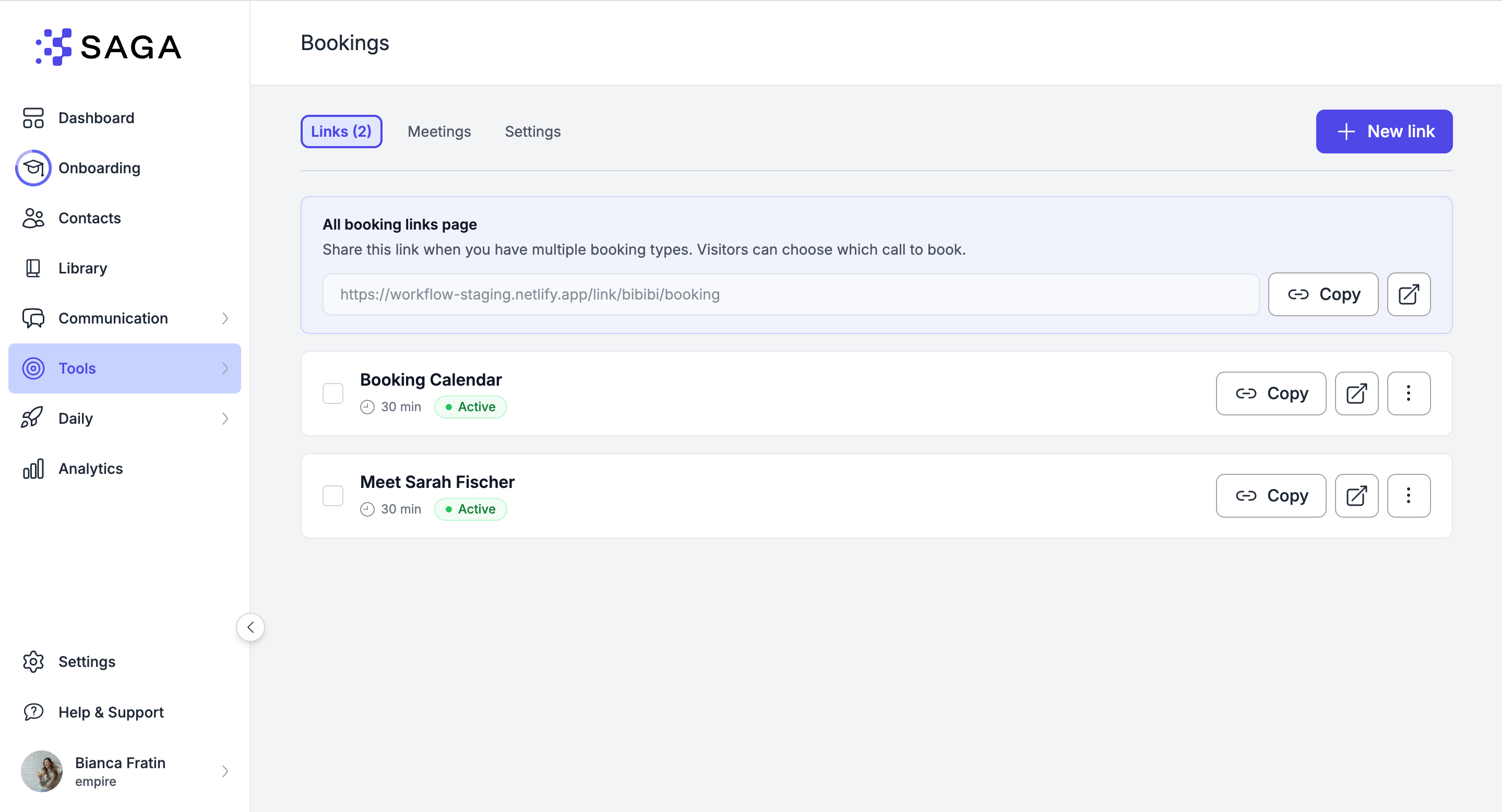
You'll find Bookings under Tools in the left menu.
🔗 Links Tab
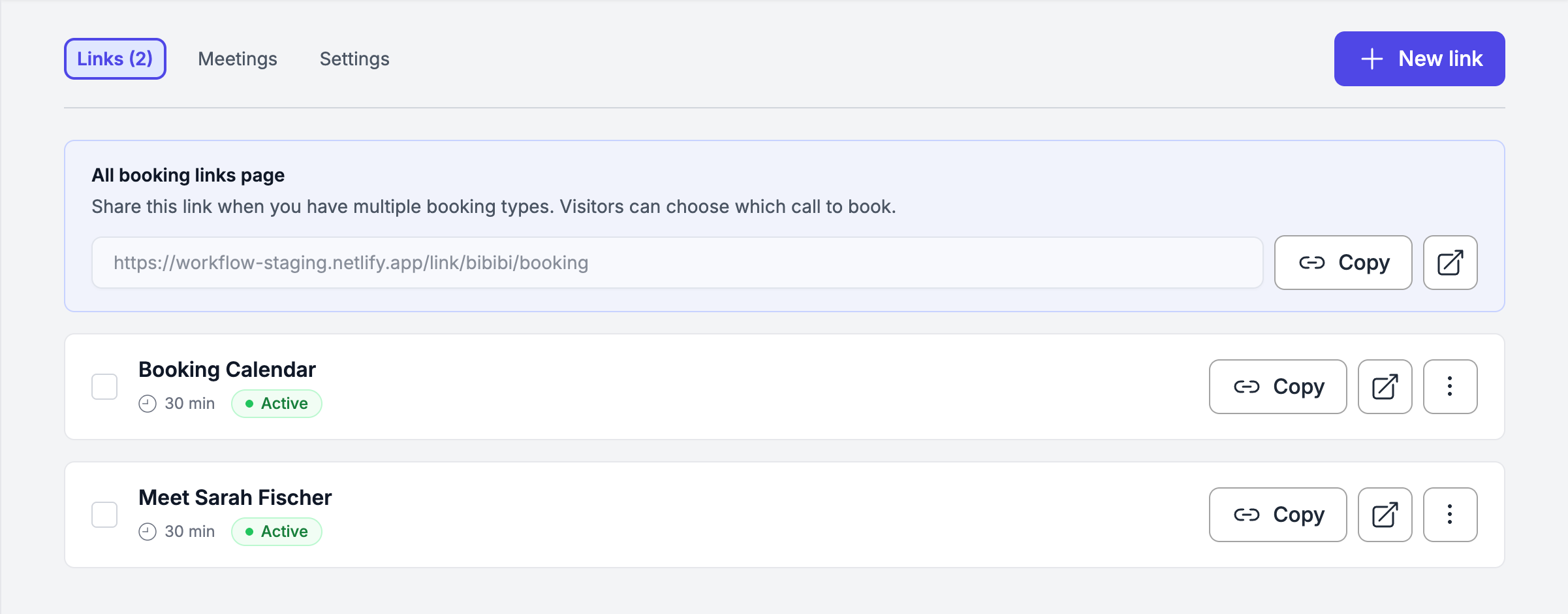
The Links tab shows all your booking links. From here you can:
Activate or deactivate a link. When deactivated, anyone who opens it will see a message that the booking page is currently unavailable.
Click on a link to open and edit its settings.
Preview your booking page or copy the link to share it anywhere.
Create a new link with the + button.
You can create as many links as you need, one for each type of meeting you offer. For example, a "Discovery Call" and a "Business Presentation", each with its own settings, duration and booking link.
⚙️ Link Settings
Click on any link to edit its settings. Always click Save when you're done.
Event Details
Event name – The title your prospects will see on the booking page (e.g. "Discovery Call with Maria")
Duration – How long each meeting lasts
Description – A short message shown on the booking page to let prospects know what to expect
Location – Tell prospects where you'll meet. Add a video call link, an address, or a phone number — or leave it empty and ask the contact for it on the booking form. Whatever you set is included in the confirmation email, the reminders and the calendar invite.
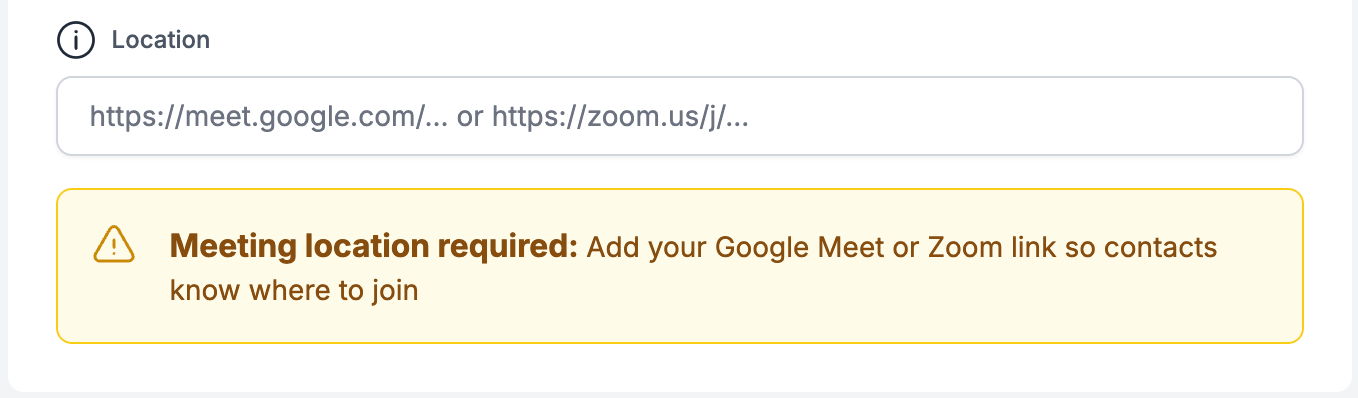
💡 Where to get your meeting link
Paste in the link for whichever video tool you use:
Zoom: Open Zoom, go to Meetings, and copy your Personal Meeting Link. Or start a new scheduled meeting and copy its link.
Google Meet: Go to meet.google.com, click New meeting, then Create a meeting for later, and copy the link.
Microsoft Teams: Open Teams, go to Calendar, click New meeting, and copy the meeting link from the invite.
Once added, the meeting link is automatically included in the confirmation email your prospects receive.
Buffer Time
Add a buffer between meetings so you always have a short break before the next one starts.
Scheduling Window
Maximum advance time – How far in advance someone can book (e.g. no more than 60 days ahead)
Minimum notice – How soon before the meeting start time a booking can be made (e.g. at least 1 hour's notice)
Daily booking limit – Optionally cap how many appointments can be booked on this link per day. Toggle it on and enter the maximum number of bookings allowed per day (must be at least 1). Once a day reaches the limit, prospects can no longer select a slot on that day.
After Booking
Choose what happens once a contact completes their booking:
Show confirmation page – A simple thank-you page confirming the booking
Redirect to a destination – Send them to another page, like one of your SAGA Info Pages, after booking
🤖 Automation & Pipeline
Make your pipeline work for you. When someone books a meeting, SAGA can automatically:
Move them to a specific pipeline step
Apply a label to their contact
This saves you from having to update contacts manually after every booking.
✉️ Email Notifications
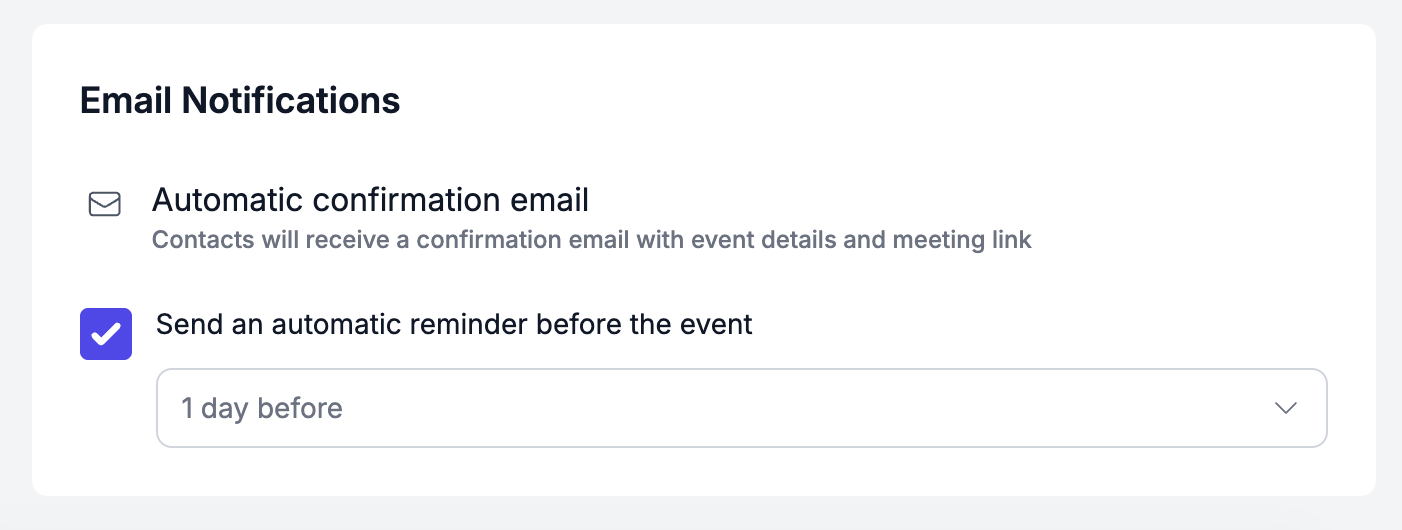
Confirmation Email
When someone books, they automatically receive a confirmation email with all the event details and the meeting link.
Reminder Before the Event
You can choose to send an automatic reminder email before the meeting. Just turn it on and set how far in advance to send it (e.g. 1 hour before, 1 day before). You can add up to three reminders, each with its own timing, subject and wording, and send an automatic follow-up after the event ends (paid plans).
Once you're happy with everything, click Save.
📋 Meetings Tab
The Meetings tab shows all your confirmed bookings in one place. Your meetings also appear in your Task list as always, so you can access them wherever you prefer.
⚙️ Settings: Global Availability
Your availability settings apply to all your booking links by default. Set them once here and they work across every link you create.
Calendar sync
Connect Google Calendar, Outlook, or Apple Calendar to keep your availability accurate.
On the Availability tab you can:
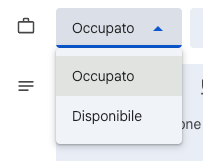
Toggle Use this calendar for availability
Choose Check availability on read calendars (with 30-day event counts)
Choose Add events to for new bookings
Set a Primary calendar when multiple accounts are connected
⚠️ Blocking time with an all-day event
SAGA only blocks slots for events marked as Busy in Google Calendar. All-day events default to Free, so they won't block your booking page.
To fix it: open the event in Google Calendar → three dots → More options → set availability to Busy → Save.
Weekly Availability
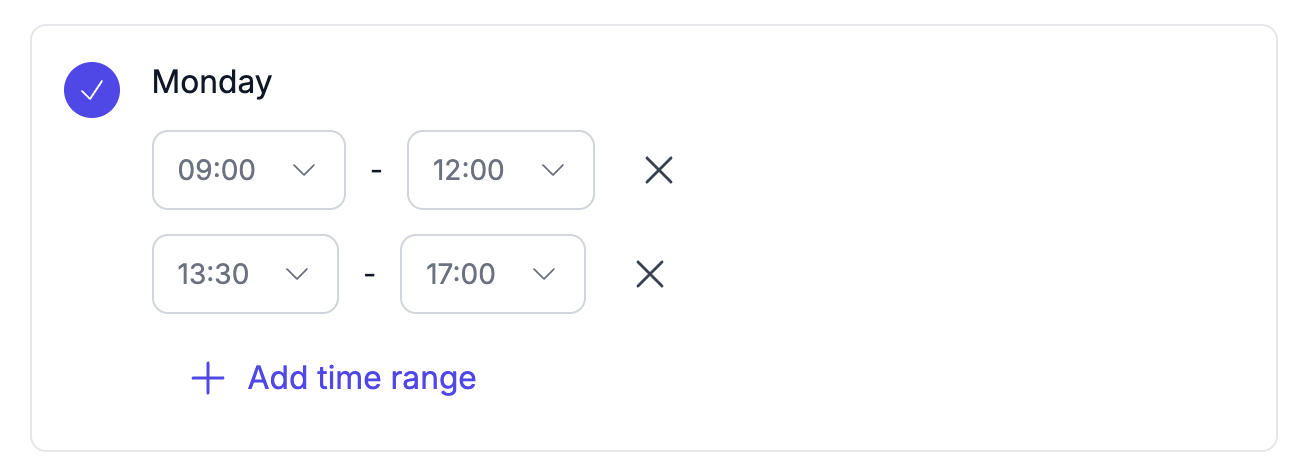
Set your schedule day by day. For each day of the week, you can:
Toggle it on or off depending on whether you're available
Add one or more time slots – as many as you need (e.g. 9am–12pm and 2pm–5pm)
Only the times you set will be available for booking. Always click Save when you're done.
📤 Sharing Your Booking Link
Share your booking link anywhere you connect with prospects: in a message, an email, your social media bio, or directly in a conversation. They'll click it, pick a slot, and you're booked.
The Booking Hub share link only appears in your booking links when hosting is turned on and the link has at least one active calendar. If you don't see the hub link, check that hosting is enabled and that at least one calendar's toggle is on.
👥 What Your Prospect Sees
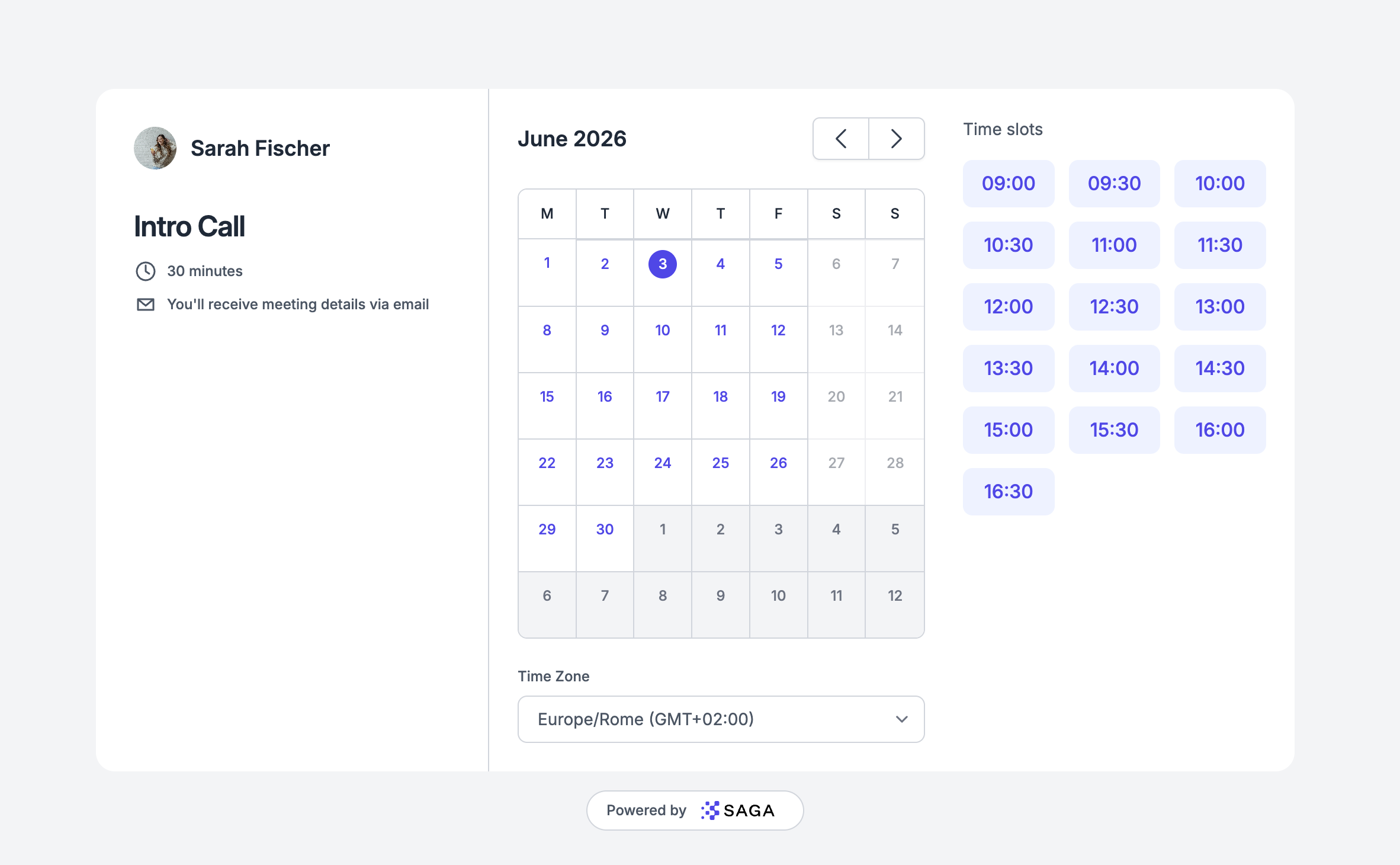
When a prospect opens your booking link, they can:
Browse the available dates and times based on your availability
Pick a slot that works for them
Fill in their details (the contact form uses your Prospecting settings)
You now set this up per link under Invitee form - add up to 20 questions (short text, long text, dropdown, image choice or rating), mark them required, and let invitees add guests; the answers are saved on the contact.
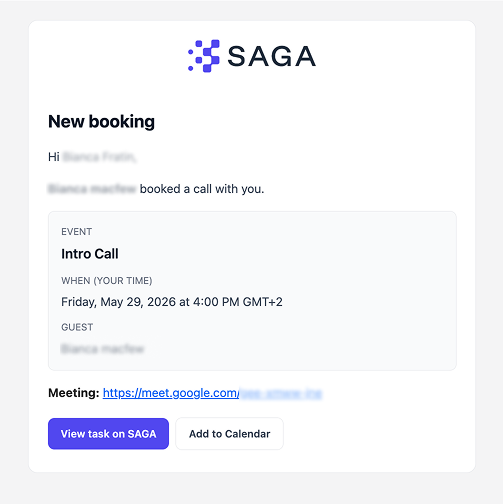
Receive a confirmation email with the meeting details and link
The email also includes options to cancel or reschedule. If they reschedule, they'll see the booking page again to choose a new slot.
🔄 Rescheduling
Both you and your prospect can reschedule. If you reschedule from your side, your prospect will automatically receive an email letting them know.
📋 Meetings in Your Task List
Every confirmed booking appears in your Task list alongside your regular tasks. You'll see upcoming meetings in the Upcoming tab and past ones in the History tab once completed. You can also view all your bookings at any time in the Meetings tab of the Bookings page.


💬 Need Help?
If you need assistance with your booking calendar or have any questions:
Support Centre: Start a chat with the Fibi AI Agent in your SAGA. If they can't help, a human team member will take over.
Book a Call: Schedule a demo with our team
Was this helpful?
Still need help? Ask the team