Lead Magnets
Lead Magnets are powerful tools designed to help you grow your network by collecting new contacts in exchange for a valuable freebie.
Last updated 4 days ago
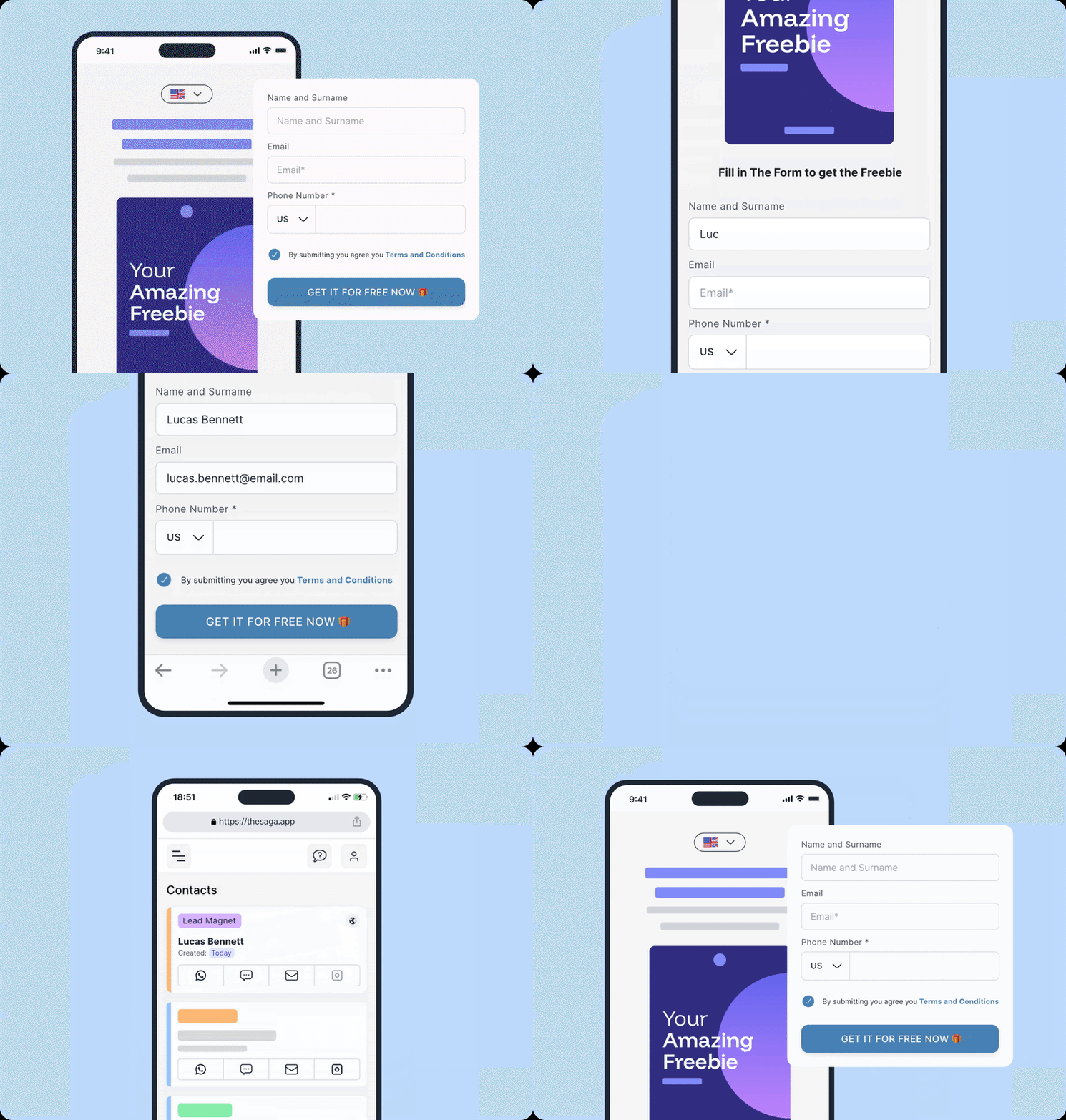
✨ Lead Magnets Overview
Beautiful, high-converting form pages: When someone wants your freebie, they simply fill out a form.
Automatic contact capture: Once submitted, their information is instantly added to your SAGA CRM with all data attached.
Seamless delivery: The freebie is sent to them via email automatically.

How does the Lead Magnet Looks like?
The Lead Magnet is a webpage containing the information you want to share.
Title & description
The Freebie thumbnail
The form
& More details
Your Name & Profile Picture
How does it work?
Once the form inside the lead magnet is filled and submitted, the lead will promptly receive an email from you. This email will contain the promised freebie (PDF or a Link).
You’ll be notified when a new lead is generated in your SAGA account, and you’ll be able to see which Lead Magnet they interacted with—both through the icon on their contact card and in the activity panel within their contact profile.
⚙️ Settings Note
Note: Remember, all settings related to Lead Magnet can be found within your Prospecting Settings.
🎯 Main Benefits
Convert curious visitors into actual leads
Save time with automation
Keep your leads organized inside SAGA
Integrate lead magnets with your LinkMate (SAGA’s version of Linktree)
How to Built a Lead Magnet that Converts
🛠️ What You Can Do with Lead Magnets
You have multiple ways to use Lead Magnets in SAGA:
Use pre-made Lead Magnets as they are
Duplicate existing ones and customize them
Create your own from scratch
Add them to your LinkMate
Option 1: Pre-Made Lead Magnets
SAGA includes ready-to-use Lead Magnets you can start sharing immediately.Where do they come from?
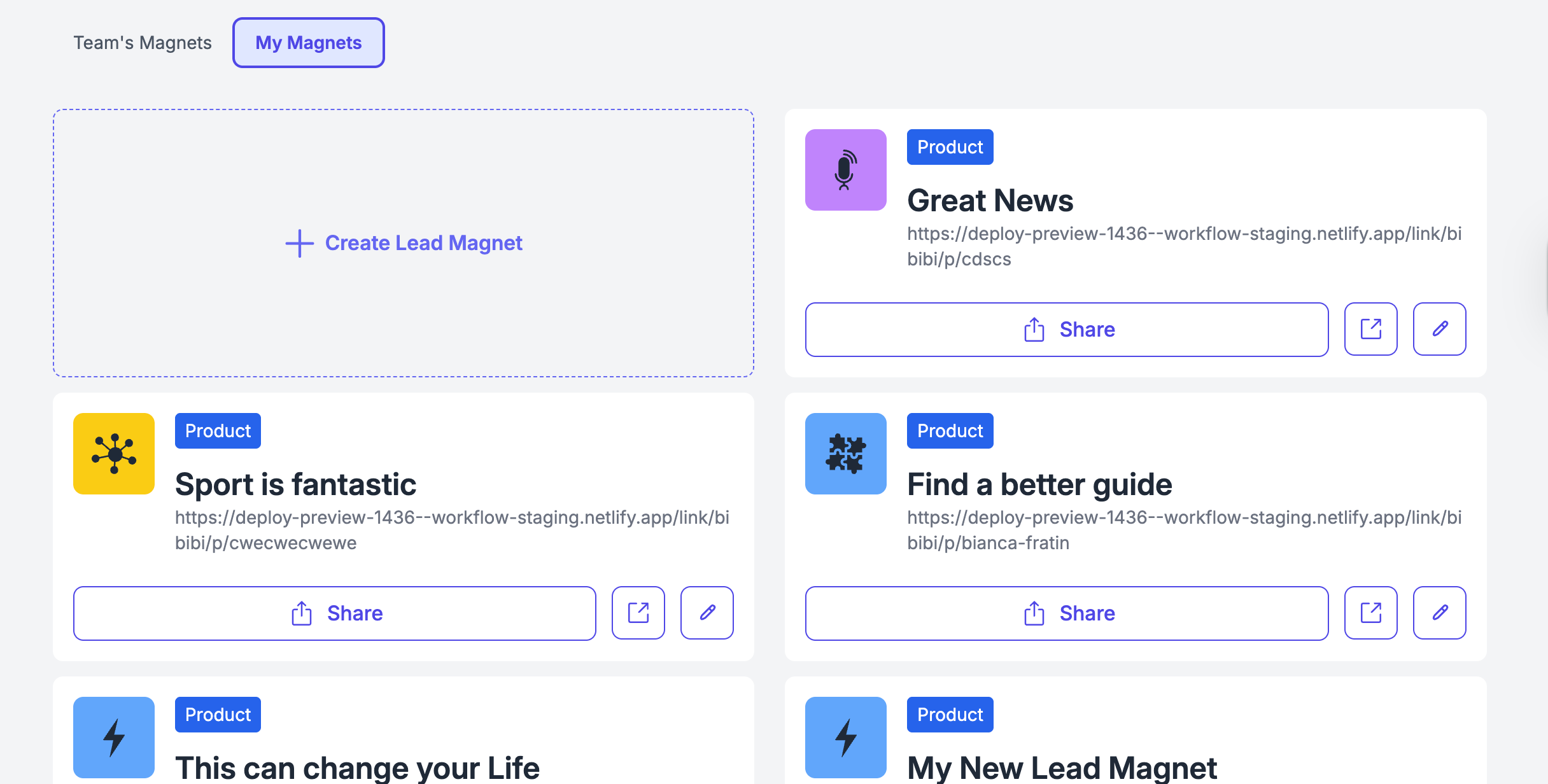
On the Lead Magnets page, you’ll always find a dedicated tab with existing Lead Magnets:
If you’re part of a team, these may have been created by your team
If you’re not in a team, you’ll see default templates provided by SAGA
Can I use them without editing?
Yes — and this is the important partEven if you don’t edit anything, these Lead Magnets are already:
Connected to your profile
Shared through a personal URL
Linked to your CRM
This means that every contact who fills out the form will appear in your Contacts page, exactly like any other lead. No extra setup required.
Preview Before You Share
To know exactly what you’re sharing:Click on a Lead Magnet to open its detailsUse Preview to see the public page as a visitor
Send yourself a test email to check the freebie that’s delivered automatically The test email is always sent to the email address you’re signed in with — the recipient field is locked for that reason.
This lets you confidently share the Lead Magnet knowing:
What the page looks like
What content is sent via email
Once ready, just copy the link and share it anywhere.
Easily share ready-made Lead Magnets, automatically linked to you, with potential leads.
Option 2: Duplicate & Customize
If you like a pre-made Lead Magnet but want to adapt it:
Duplicate it
Use it as a starting template
Edit text, visuals, or the freebie itself
This gives you full flexibility while saving time.
Option 3: Create Your Own Lead Magnet
Follow these steps to create and personalize your Lead Magnet!
1. Access the Lead Magnet Section
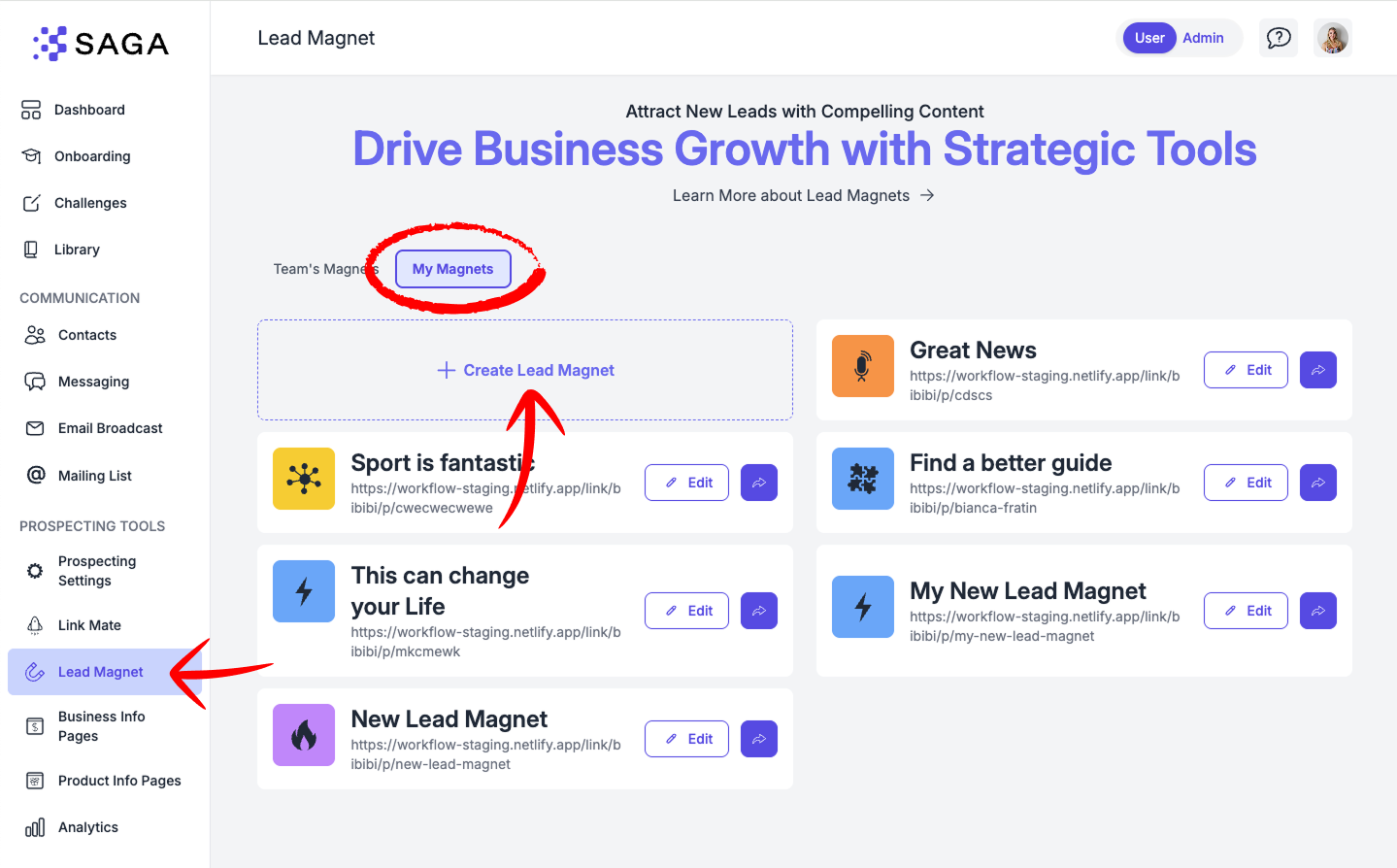
Navigate to the Lead Magnet section.
Click on "My Magnets".⚠️ Note: This feature may not be available on your current plan.
Click on "Create Lead Magnet" to get started.
2. Fill Out the Basic Info
A window will open where you can:
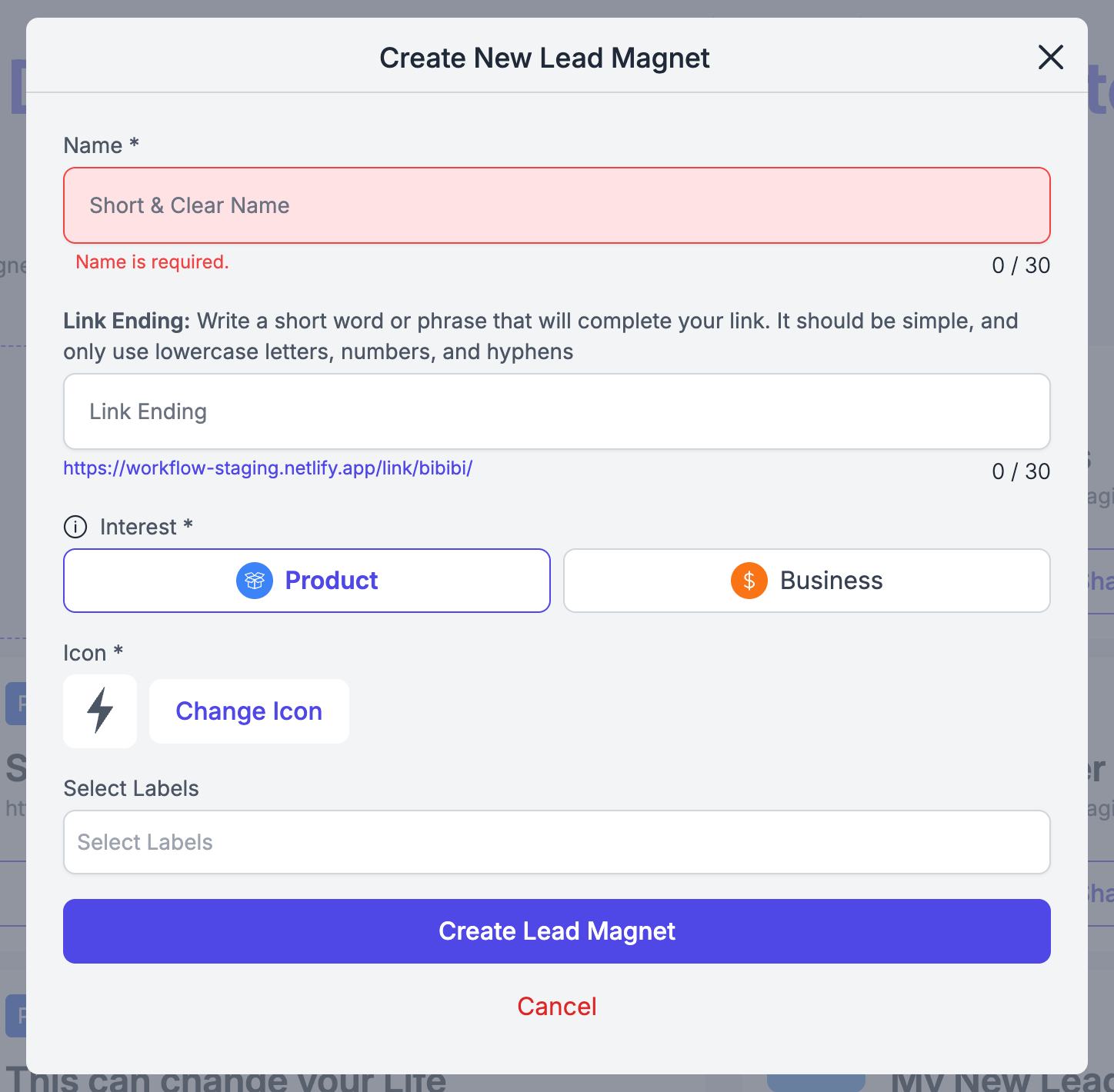
✏️ Name your Lead Magnet
🔗 Customize the URL slug (the final part of the link) — or leave it as is.
🎯 Select the interest: is your magnet about Business or Product?
✅ Once done, click "Create Lead Magnet".
3. Customize Your Lead Magnet
You’re now inside the Lead Magnet Editor.You can always revisit the settings by clicking "Settings" in the top right corner.
Now let’s personalize each section:
✍️ Form Page (The Opt-in Page)
This is the public page you'll share with people so they can sign up to get your freebie.

📝 Click on any text to edit it.
🖼️ Click on the thumbnail image to replace it. 💡 Tip: Use Canva to create a custom image in A5 or A4 format for best results.
You can either choose an image to upload or add a link to a video
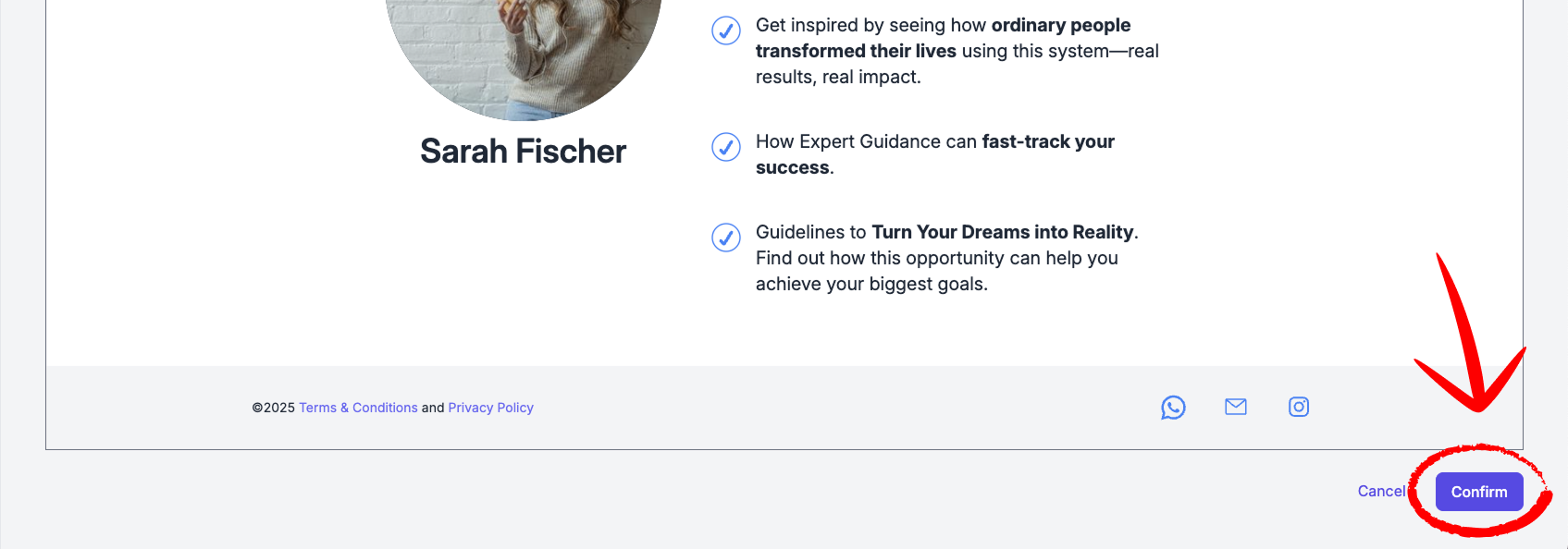
Once you’re done, click the button “Confirm” at the page bottom, to start editing the next part. NB You’ll be always able to come back and edit the page!
You can now add a video to your Lead Magnet form page and choose to lock it — meaning the video will only become visible after someone submits the form. It’s a simple way to boost engagement and encourage sign-ups, while keeping your most valuable content exclusive to leads who convert.
🎉 Thank You Page
This is the page people see after submitting the form.
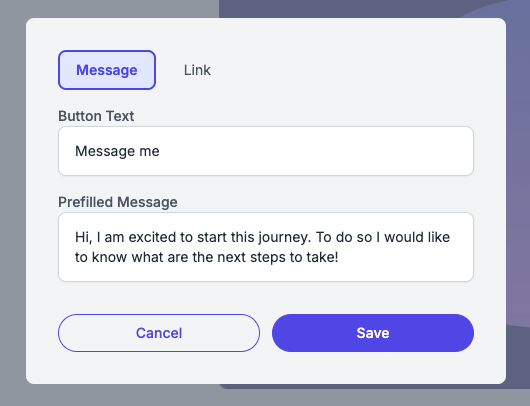
Edit all texts freely.
Customize the button:
🔘 "Message Me" button (with optional pre-filled text).
🔗 Or insert a custom link, like a Calendly appointment page.
Once you’re done, click the button “Confirm” at the page bottom, to start editing the next part.
ThemeChoose a color scheme and a typography to make your Lead Magnet reflects your personal brand

📩 Email SequenceHere you can edit the Email Sequence your leads will receive once they fill in the form.
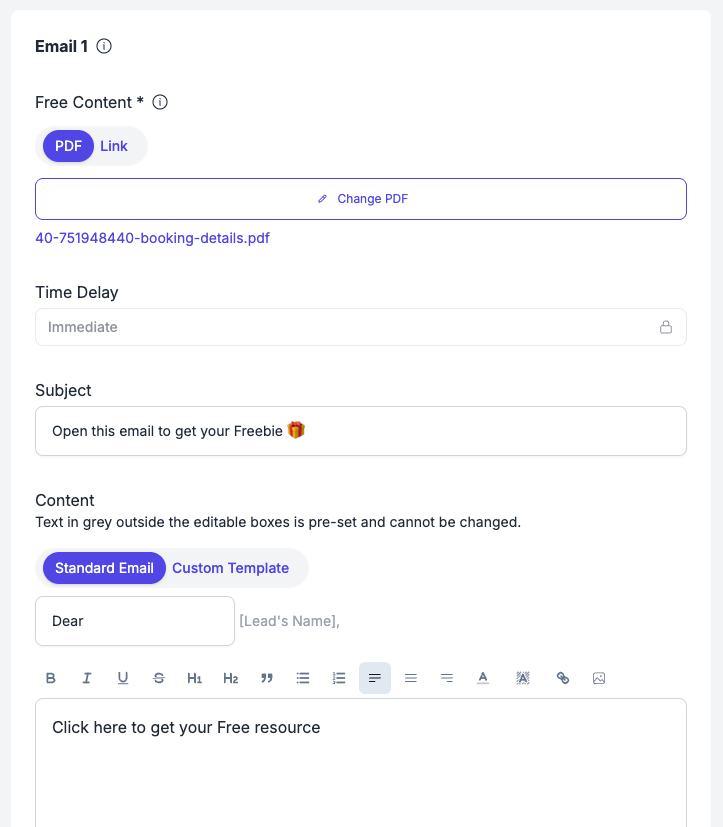
First Email:
In this email you’ll share the free content (freebie) with your leads. This will be sent immediately
Choose to deliver the freebie as a PDF or a Link (e.g., a board page).
Edit the subject line, email content, and button text in the email.
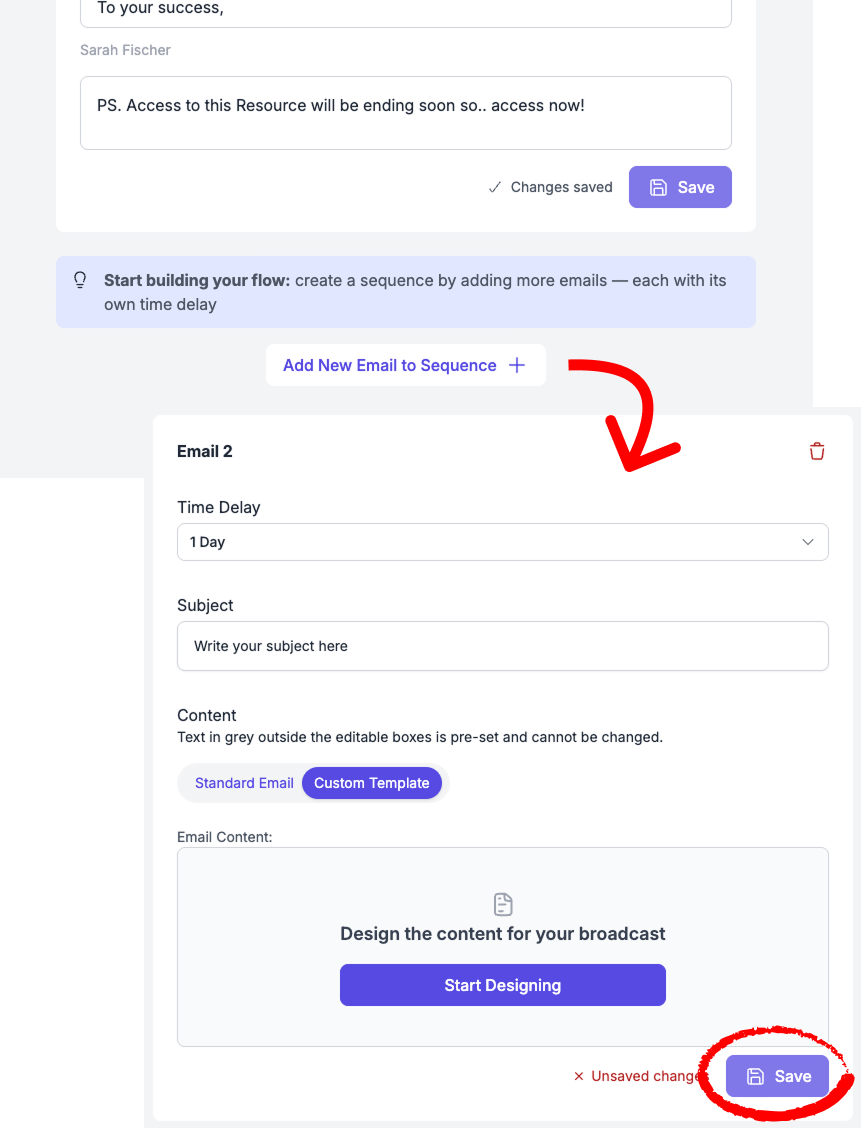
Optional Email Sequence:
You can choose to build a sequence of emails that will be sent automatically over time. This allows you to nurture your leads, provide extra value, or guide them toward a specific action.
You can add up to 10 emails to your sequence by clicking “Add email to sequence.”
You can set a delay time for each email. This delay is calculated from the moment the form is submitted (e.g. send two days after the contact has provided their information).
You can use our template builder to easily design professional-looking emails.
⚠️ Remember to click “Save” each time you edit an email to make sure your changes are applied.
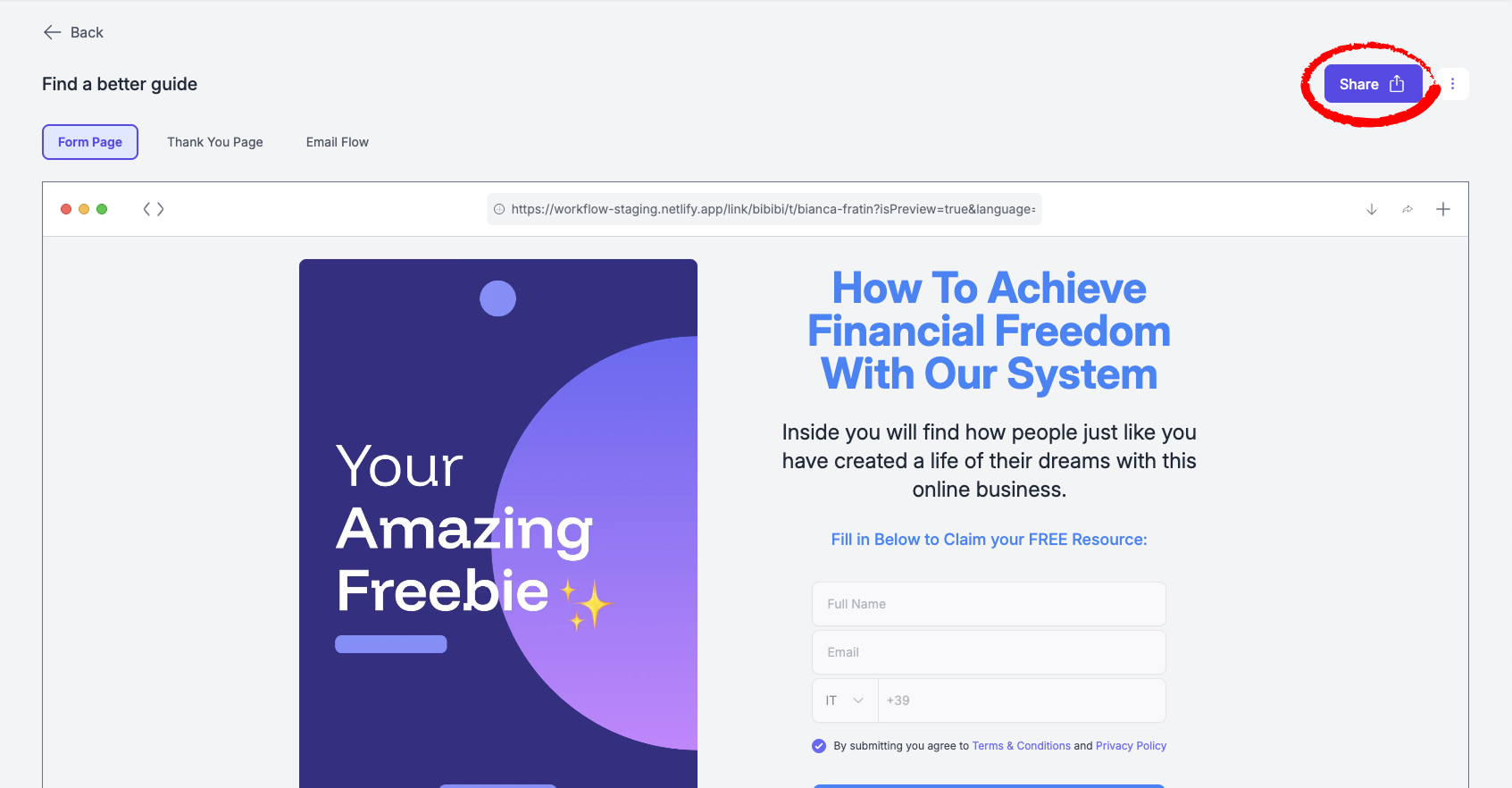
Now your Lead Magnet is ready to be shared! You can share it by clicking on the share button on the top right corner!
4. Manage Your Lead Magnets
Return to "My Magnets" to:
✏️ Edit an existing Lead Magnet.
📧 Send yourself a test email by clicking the Lead Magnet card. The recipient is fixed to your own SAGA account email; if you want to check how the magnet looks to a different address, share the link and open it as a lead instead.
📤 Share your Lead Magnet using the "Share" button.
🎉 You’re all set!Start growing your audience with personalized, professional Lead Magnets!
📊 Track Performance with Lead Magnet Analytics
Once a Lead Magnet is published (not a draft), you can see how it performs directly inside SAGA — without going to the global Analytics page.
Quick glance: conversion rate on the card
On Lead Magnets → My Magnets, each published magnet shows a conversion rate badge (e.g. 25%) on its card. Tap it to open the full analytics view.
Draft magnets do not show analytics until they are published (PDF, video, or link freebie configured).
Full analytics: Analytics tab
Open any published Lead Magnet, then select the Analytics tab.
You'll see three summary metrics:
Below the summary, the Converted Leads list shows every contact who signed up through this magnet. You can:
Open a contact directly from the list
Use Filters to narrow the list (same filters as your Contacts page)
Load more contacts if the list is long
Plan limits
On free plans, only the first contacts in the converted-leads list are visible. Upgrade to unlock the full list.
How this differs from the Analytics page
Lead Magnet Analytics = performance of one specific magnet (views → sign-ups → who converted)
Analytics page (Tools & Resources tab) = aggregated performance across all tools for a selected time period
Use both: check per-magnet analytics when optimizing a single freebie; use the Analytics page for overall trends.
Add Lead Magnet to your Linkmate
Easily integrate your Lead Magnet into your LinkMate page by following these simple steps:
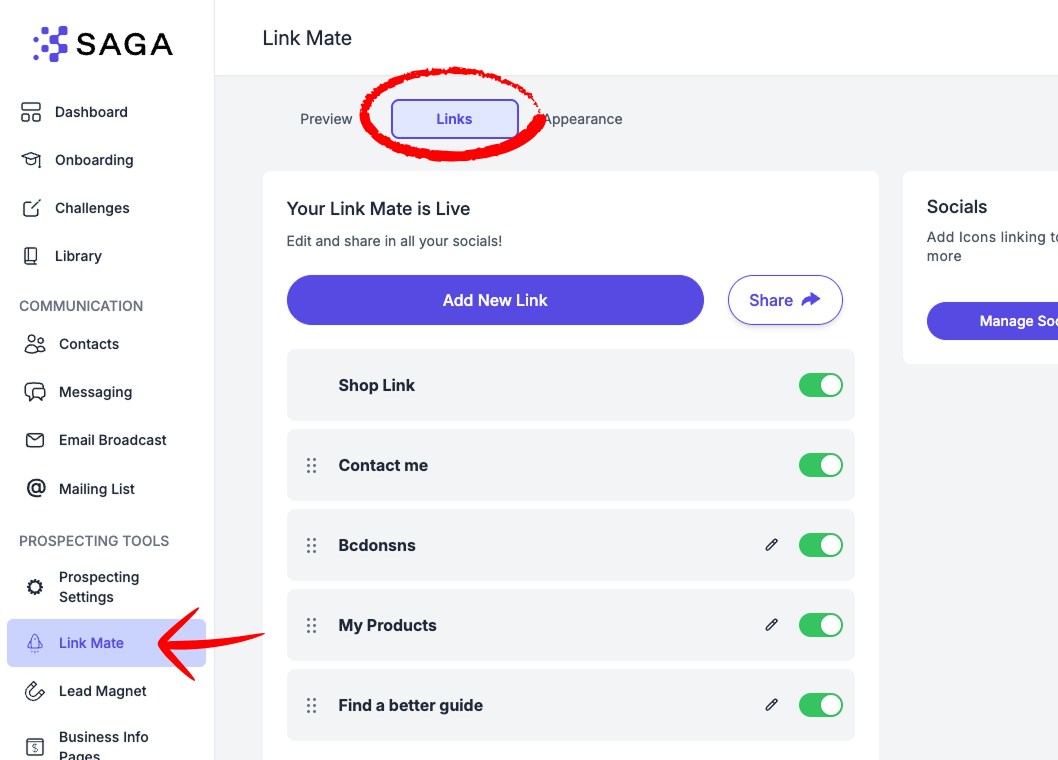
Open the LinkMate page from the left menu.
Click on the "Links" tab at the top of the page.
Click the “+ Add New Link” button.
Choose the “Lead Magnet” option.
📋 Select the Lead Magnet you want to add from your list.
🖼️ Decide if you want to:
Change the thumbnail image
Add an animation to the link preview
Once you’re happy with the setup, click “Save”.
✅ Done! You’ve successfully added a Lead Magnet to your LinkMate profile — now go get those leads! 🚀
💬 Need Help?
If you need help or have questions:
Support Centre: Need help? Start a chat with the Fibi AI Agent in your SAGA. If they can’t help, a human team member will take over.
Book a Call: Schedule a demo with our team