Personalised Pipelines
Custom Pipelines allow you to create flexible, purpose-driven sales flows alongside the default Structured Sales Process (SSP). They are ideal for events, promotions, short-term campaigns, or specific sales scenarios where the standard SSP does not fully apply. This page explains what custom pipelines are, when to use them, and how to manage contacts inside them.
Last updated 7 days ago
What Are Custom Pipelines?
A custom pipeline is a user-defined flow made up of steps you choose and organize yourself.
Unlike the SSP:
You decide how many steps it has
You define what each step means
Custom pipelines do not replace the SSP. Every contact always remains in the main system pipeline, but can also participate in one or more custom pipelines.
💡 Think of custom pipelines as overlays you use for specific goals, not as a new default sales system.
Create a Custom Pipeline
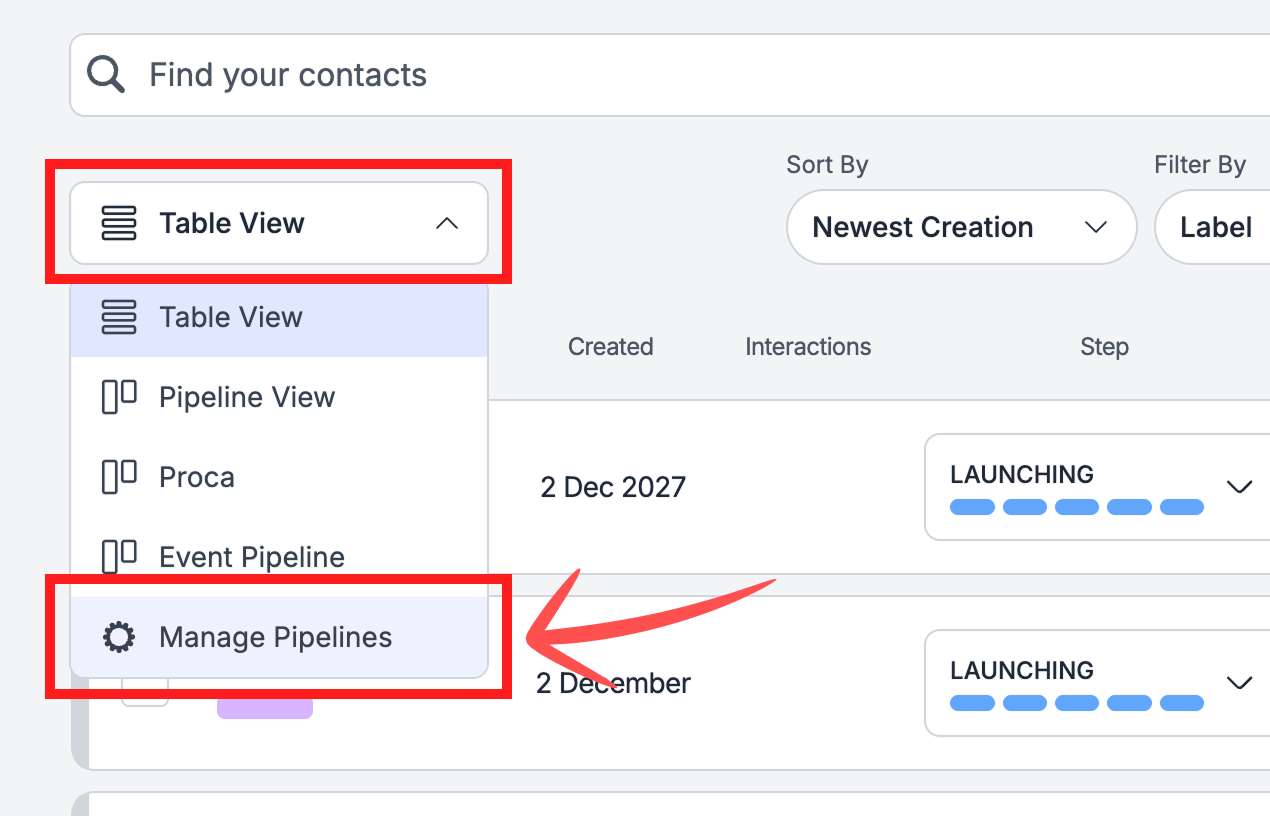
Go to Contacts
Click on the View dropdown menu (top of the page)
Select Manage Pipelines
Here you’ll see a list of all your existing pipelines.
To edit one, click on it
To create a new one, click Create New Pipeline
You can also duplicate (clone) an existing pipeline as a starting point, then rename it or restructure its steps — handy for rolling out similar flows to different teams. Custom pipelines are available on the corresponding plan; if you don’t see the option, check your plan’s feature set.
Edit Your Pipeline
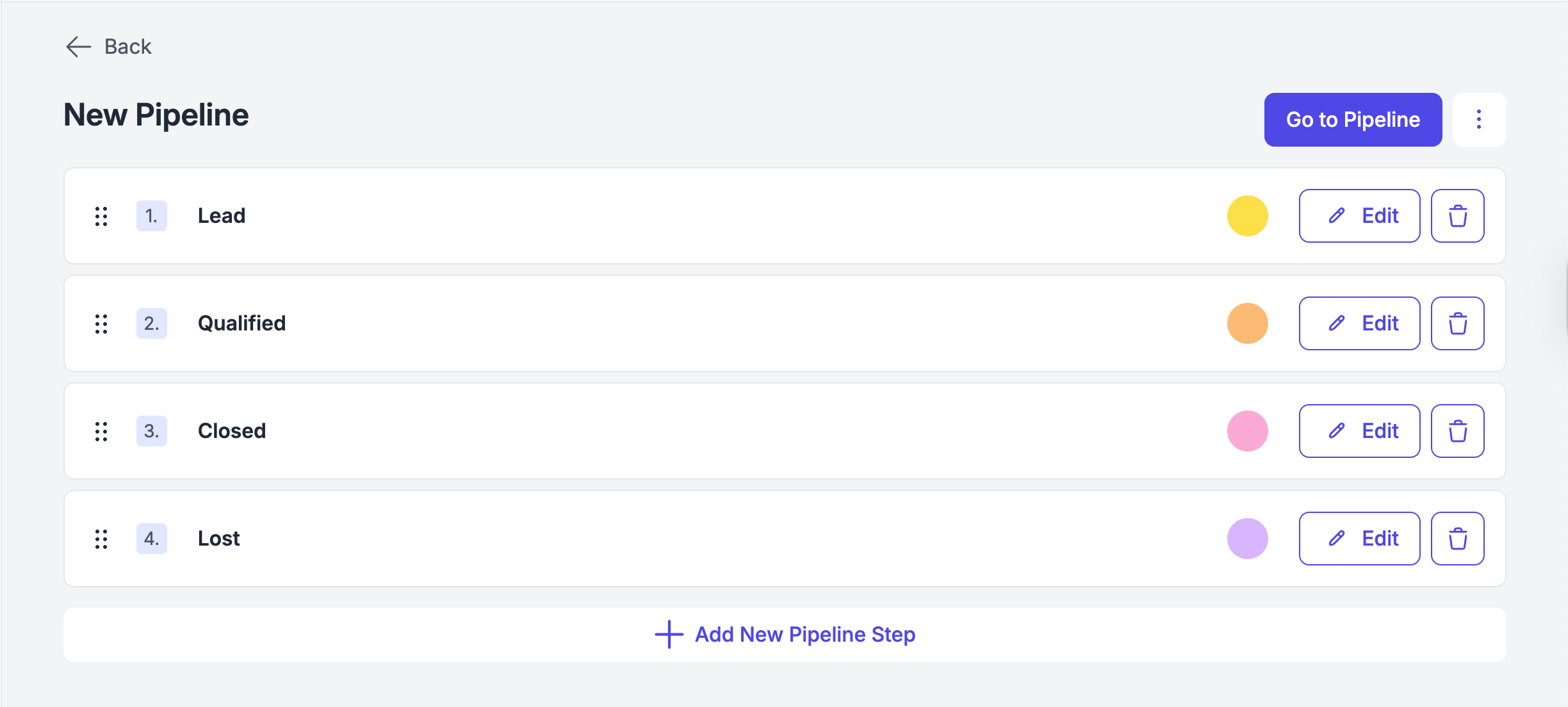
Inside the pipeline editor, everything is designed to be simple and visual.
You can:
Add a step – click “Add New Pipeline Step” and name it
Change a step color – choose a color to recognize stages quickly
Reorder steps – drag and drop steps to change their order
Remove a Step (What Happens to Contacts?)
When you remove a step, you stay in control of what happens next.
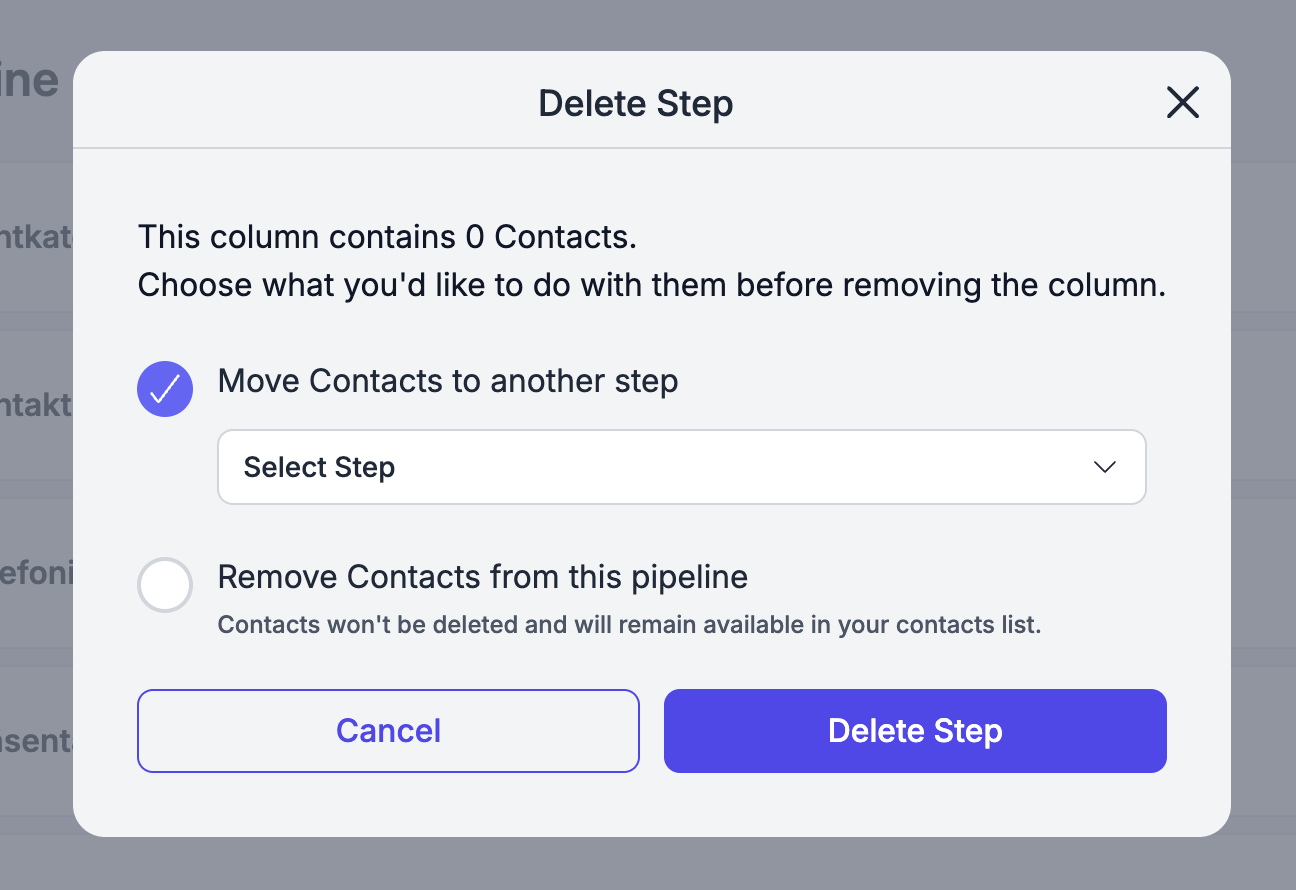
You’ll be asked to choose one option:
Remove contacts from this pipelineThe contacts will leave this custom pipeline, but stay in your contact list and main pipeline.
Move contacts to another stepChoose a different step in the same pipeline and move all contacts there.
This makes sure no contact is lost by mistake.
Add Contacts to a Custom Pipeline
You can add contacts to a custom pipeline in two different ways, depending on your workflow.
Option 1: Directly from the Pipeline View
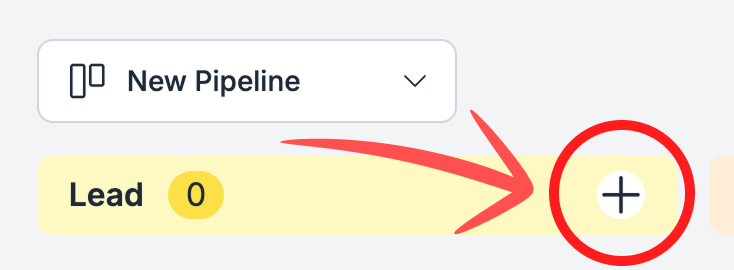
Open the Pipeline View
Find the step where you want to add a contact
Click the ➕ plus icon next to the step name
This will show you a list of all your contacts. Select all the contacts you want to add and click “Add to Pipeline”
These contacts will immediately appear in that step of the pipeline.
Option 2: From the Contact Table (Bulk Edit)
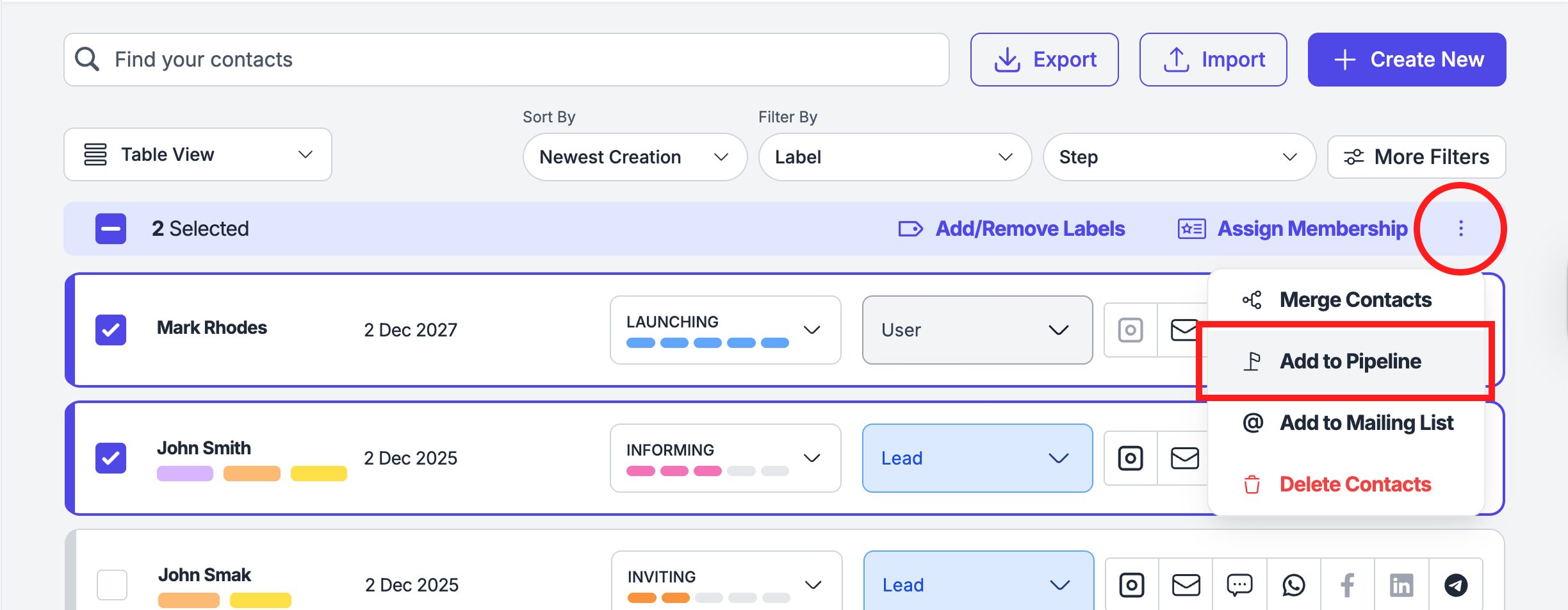
Go to Table View
Select one or multiple contacts
Open Bulk Actions (3 dots menu on the right)
Click Move to Pipeline
Select the pipeline
Choose the starting step of that pipeline
The selected contacts will be added directly to the chosen step without being removed from the main pipeline.
View & Manage Pipelines Inside a Contact
When you open a contact, you always have full visibility over their pipeline participation.
Where to Find It
Click on a contact
Open the Information tab
Scroll to the Pipelines section
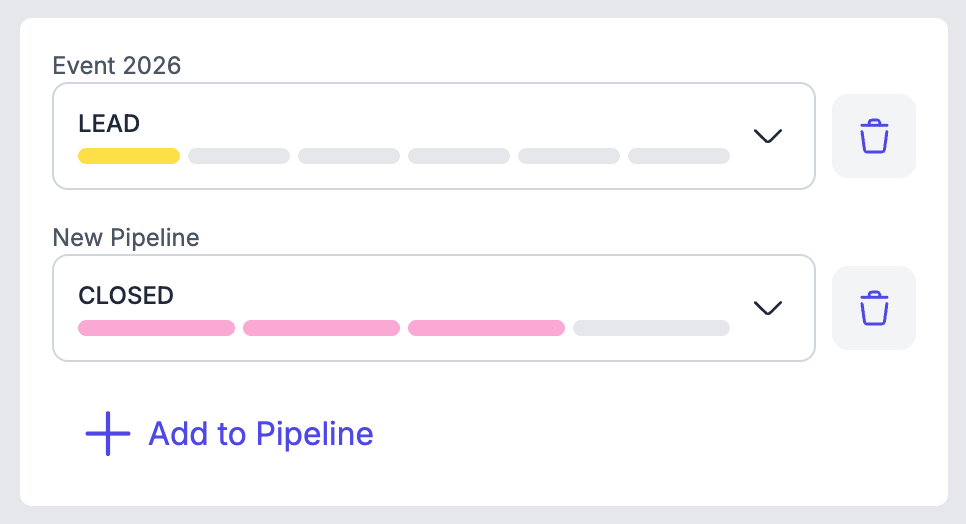
Here you can see:
The main pipeline (always present)
All custom pipelines the contact is part of
Remove a Contact from a Custom Pipeline
If a pipeline is no longer relevant, you can remove a contact from it without deleting the contact.
Open the contact
Go to the Information tab
In the Pipelines section, click the 🗑️ bin icon next to the pipeline name
The contact will be removed only from that custom pipeline.
⚠️ You cannot remove a contact from the main pipeline
Team Pipelines Templates
If you are part of a team, custom pipelines can also be used as shared templates.
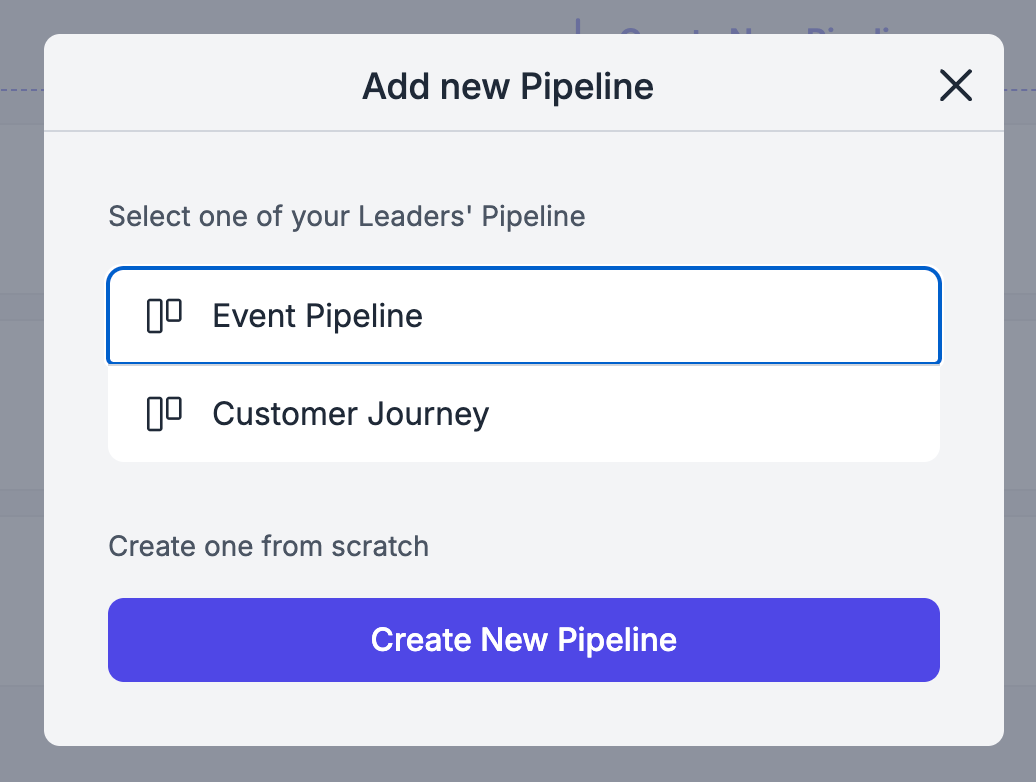
When you create a new pipeline, you can choose how to start:
Create from scratch – build a pipeline step by step
Add from team templates – select an existing pipeline created by a team leader
⚠️ Important:If an admin updates or changes the original team template, existing pipelines are not affected. Leads already inside a pipeline keep their steps and structure exactly as they are
💬 Need Help?
If you need help or have questions:
Support Centre: Need help? Start a chat with the Fibi AI Agent in your SAGA. If they can’t help, a human team member will take over.
Book a Call: Schedule a demo with our team