Import Facebook Contacts
Complete guide to downloading your Facebook connections data (friends and followers) using Facebook's official 'Download Your Information' feature. Step-by-step instructions for all devices plus import into SAGA for professional follow-up.
Last updated About 2 months ago
Importing your Facebook contacts into SAGA is a great way to centralize your leads. Please note that Meta's privacy policies restrict the export of direct profile links. However, SAGA has a smart workaround to save you time.
When you import your list, SAGA automatically generates a custom search link for each contact. Clicking the Facebook icon in their SAGA contact handle will redirect you to Facebook and automatically place their name in the search bar. Since you are already friends, they will typically appear as the first result, making it incredibly fast to find and message them!
In order to import your Facebook contacts into SAGA you’ll have to:
Export and download the contacts from your Facebook help center
Upload the zip file into SAGA
Review your selection and import!
Export your contacts from Facebook
Step 1: Access Facebook help center & start Download
Select your device type below to access the help center
I’m on my iPhone
I’m on my iPhone
Tap on Your Profile Picture / Menu in the top - right corner of Facebook.
Tap ⚙️Settings and privacy, then tap Settings.
Tap Accounts Centre
Tap “Your information and permissions”.
I’m on my Android
I’m on my Android
Tap on Your Profile Picture / Menu in the top - right corner of Facebook.
Tap ⚙️Settings and privacy, then tap Settings.
Tap Accounts Centre
Tap “Your information and permissions”.
I’m on my laptop
I’m on my laptop
Click hereOr:
Click on your profile picture in the top right, then click Settings and privacy.
Click ⚙️Settings.
Click Accounts Centre, then click Your information and permissions.
Click Export your information.
Click Create export.
Select the profiles you want to download (choose your Facebook profile).
Click Export to device.
In Confirm your export, scroll down and set:
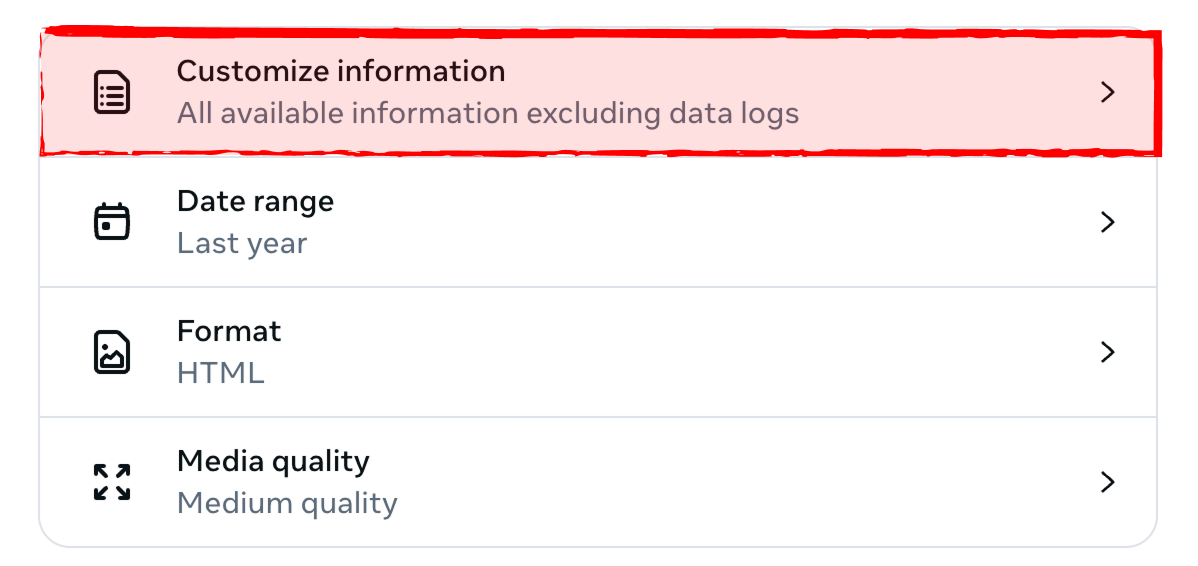
Step 2: Customize information
Leave the default: All available information, excluding data logs.
SAGA will pull the right data to import your contacts
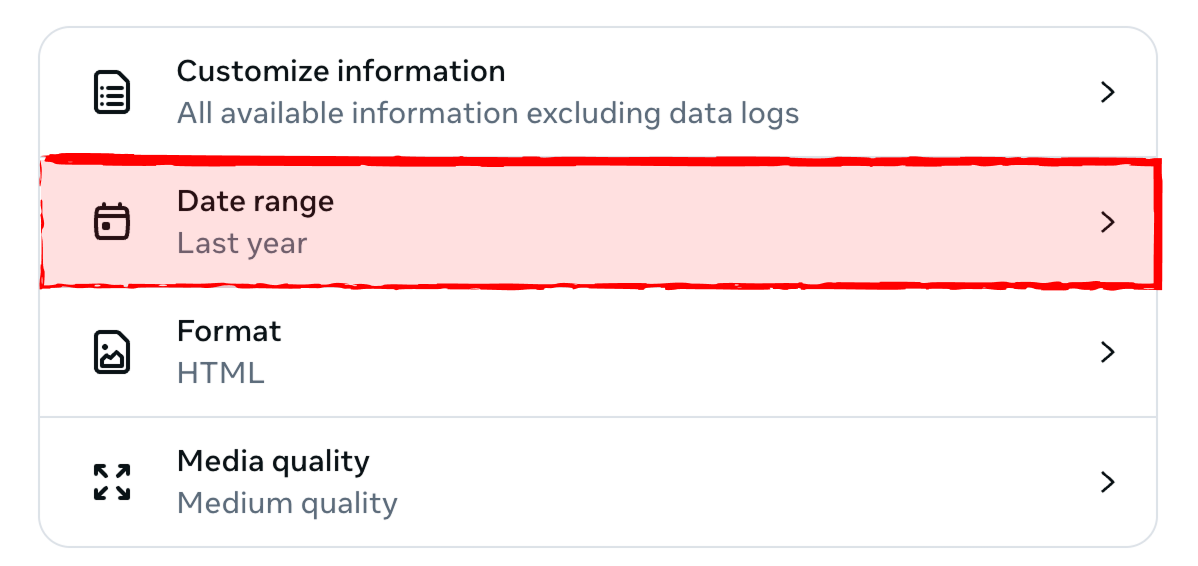
Step 3: Date Range
Here you choose the period when your contacts (friends) were created on Facebook.
If you want to export all your friends, select All time.
If you only want friends added in a specific period, choose that date range.
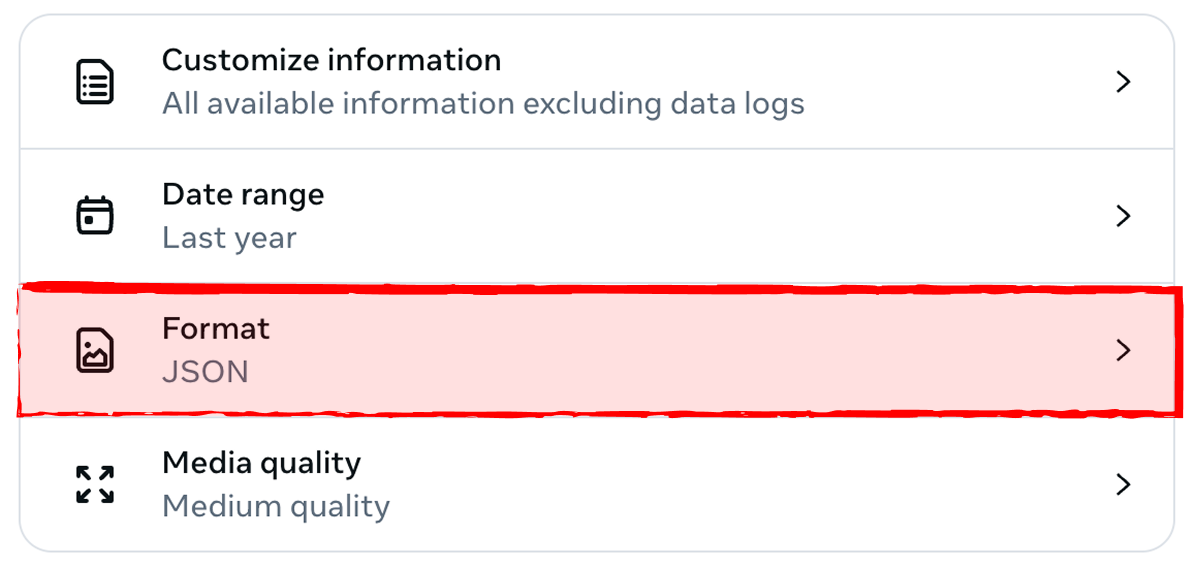
Step 4: Format
Click Format → choose JSON → Save.
Check that JSON now shows under Format.
Leave Media quality at Medium.
→ Click Start export. Your files will be prepared.

Step 5: Download your Zip File
After you request your Facebook data, you’ll receive an email from Facebook when your files are ready to download. This email will include a link that takes you directly to the Facebook Download Center, where your download requests are stored. Once you’re there, simply click the Download button next to your request. The data will be saved to your computer as a ZIP file, which is a type of folder that holds several files together.
Import your contacts into SAGA
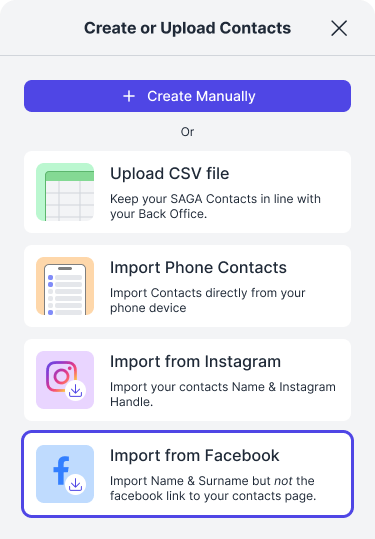
Step 6: Choose Facebook Import
Open SAGA, navigate to Contacts, and click “upload contacts”
Choose Facebook Contacts
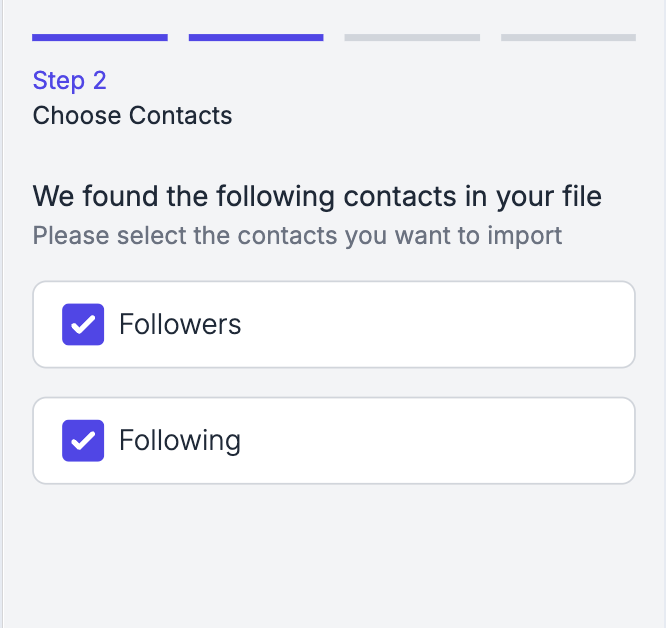
Step 7: Import your Contacts in SAGA
Select the ZIP File you just downloaded to upload it into SAGA.
SAGA will automatically extract the files that can be imported
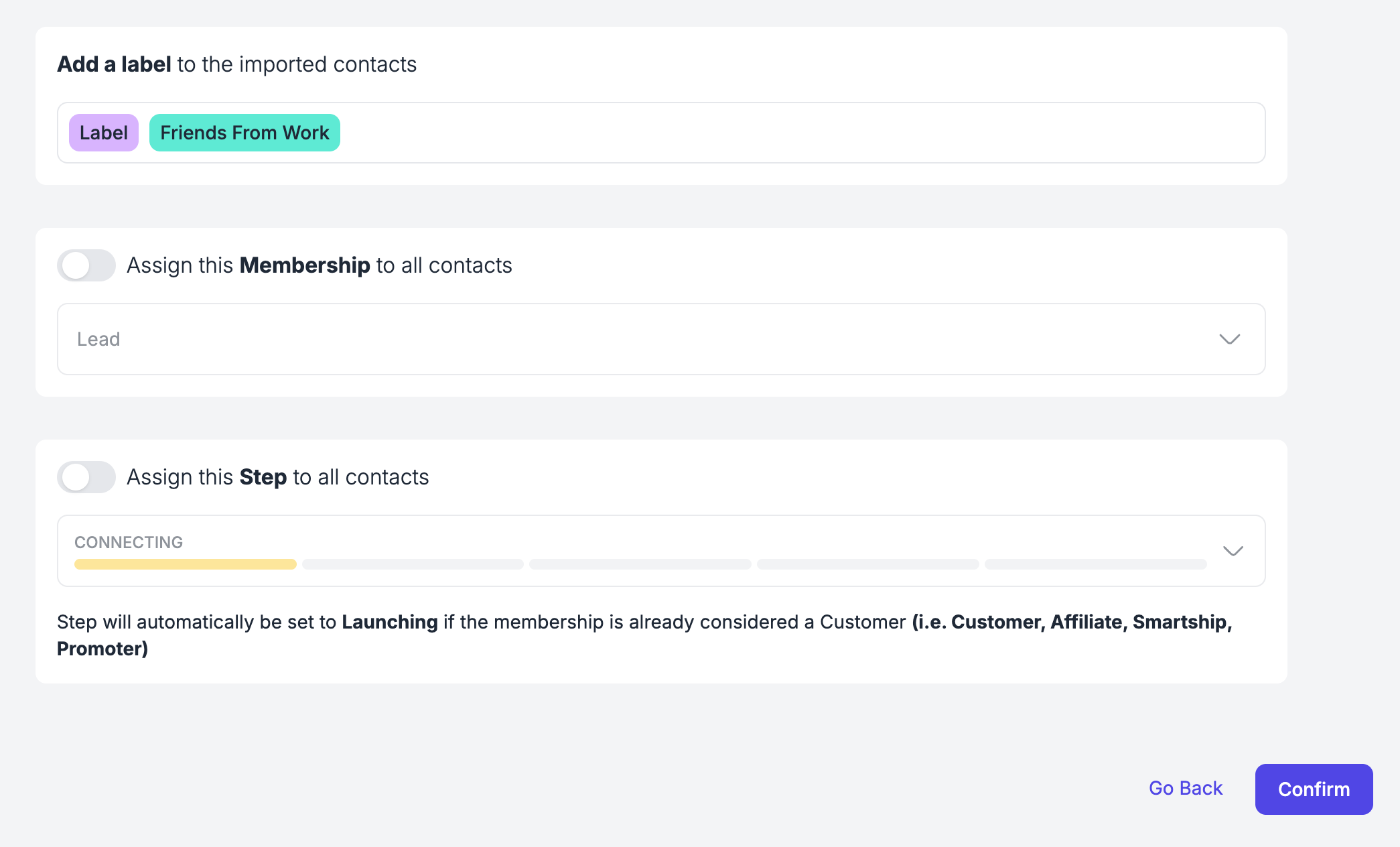
Step 8: Assign other Info
Assign 1 or more labels to the contacts you are importing
Assign a specific Membership or a Step to the contacts you are importing
NB: if some of the contact you are importing exist already in SAGA, these information are going to be overwritten.
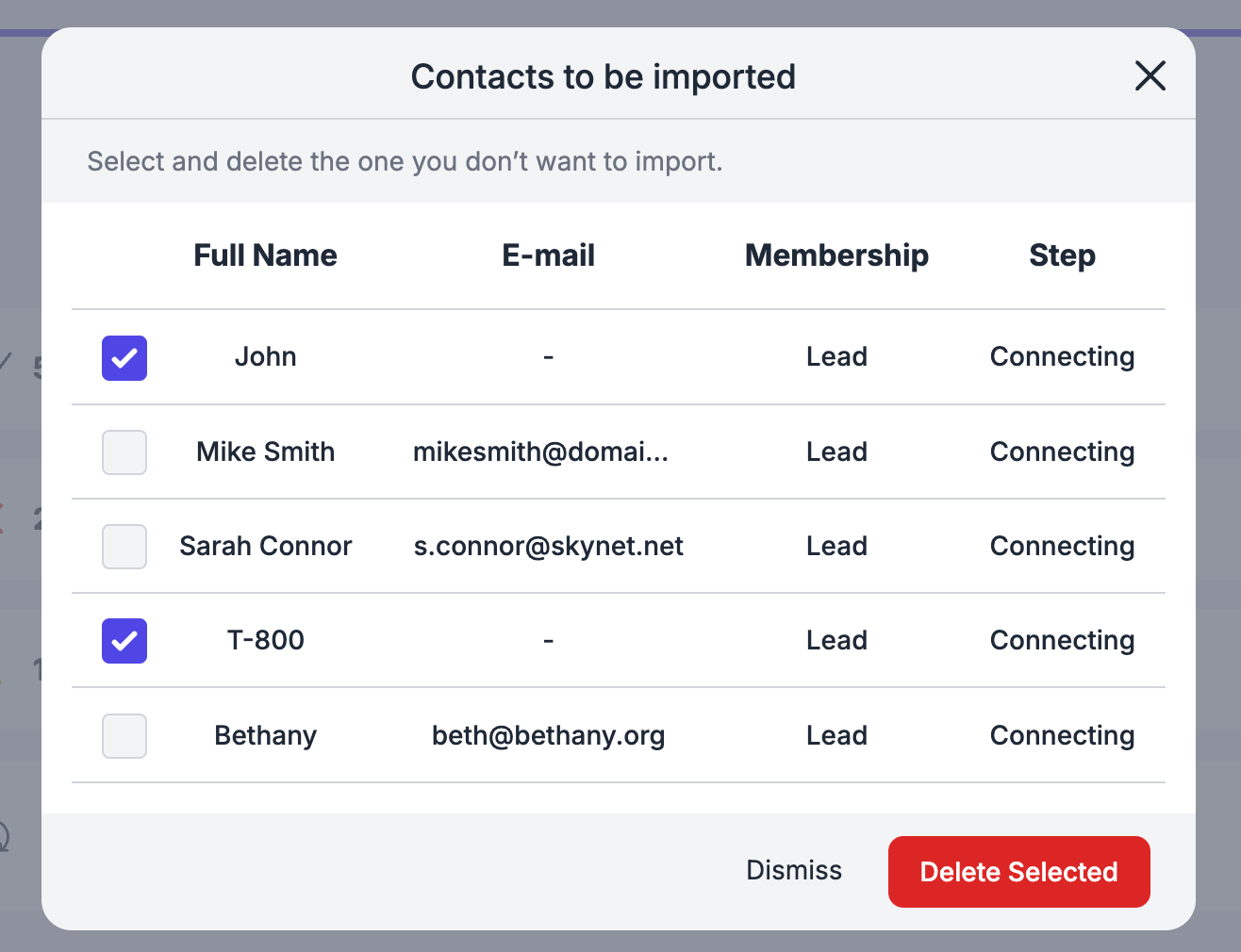
Step 9: Keep or Delete Contacts
Check your import recap. You’ll see:
✅ Contact to import
Merging Criterias
You can go through the list, select some and remove them, if you don’t want to upload them.
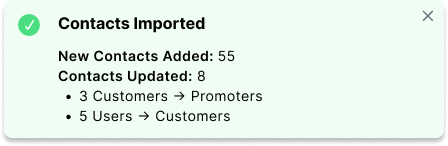
Step 10: Well Done!
Once you are done, a pop-up will appear summarizing the actions you have just taken.
💬 Need Help?
If you need assistance with importing contacts or have questions about the process:
Support Centre: Need help? Start a chat with the Fibi AI Agent in your SAGA. If they can’t help, a human team member will take over.
Book a Call: Schedule a demo with our team
Was this helpful?
Still need help? Ask the team