Analytics Page – Help Guide
The Analytics page helps you understand how your contacts, conversations, and tools are performing over time. Use it to track growth, measure engagement, and identify what actions lead to results.
Last updated 5 days ago
Tabs Overview
The Analytics page is divided into two tabs:
Contacts
Tools & Resources
Each tab focuses on a different part of your workflow.
Time Frame Selection
At the top of the page, you can choose a time frame (for example: last 7 days, last month, custom range).
All numbers and charts update based on the selected period.
1. Contacts Tab
This tab focuses on people in your pipeline and how you interact with them.
Key Numbers

1. Total Contacts
The total number of contacts currently in your account.
This number is not limited to the selected period.
2. New Contacts
The number of contacts added during the selected period.
Includes contacts that were:
Added manually
Imported
Generated through prospecting tools
3. Active Conversations
People you interacted with at least once during the selected period.
This helps you understand how many contacts you actually engaged with, not just how many you have.
4. Launched
People who were moved to the final step of the pipeline: Launching during the selected period.
5. Conversion Rate
Out of the contacts you started a conversation with, the percentage that reached Launching.
This metric focuses on quality of conversations, not just volume.
Charts & Visual Insights
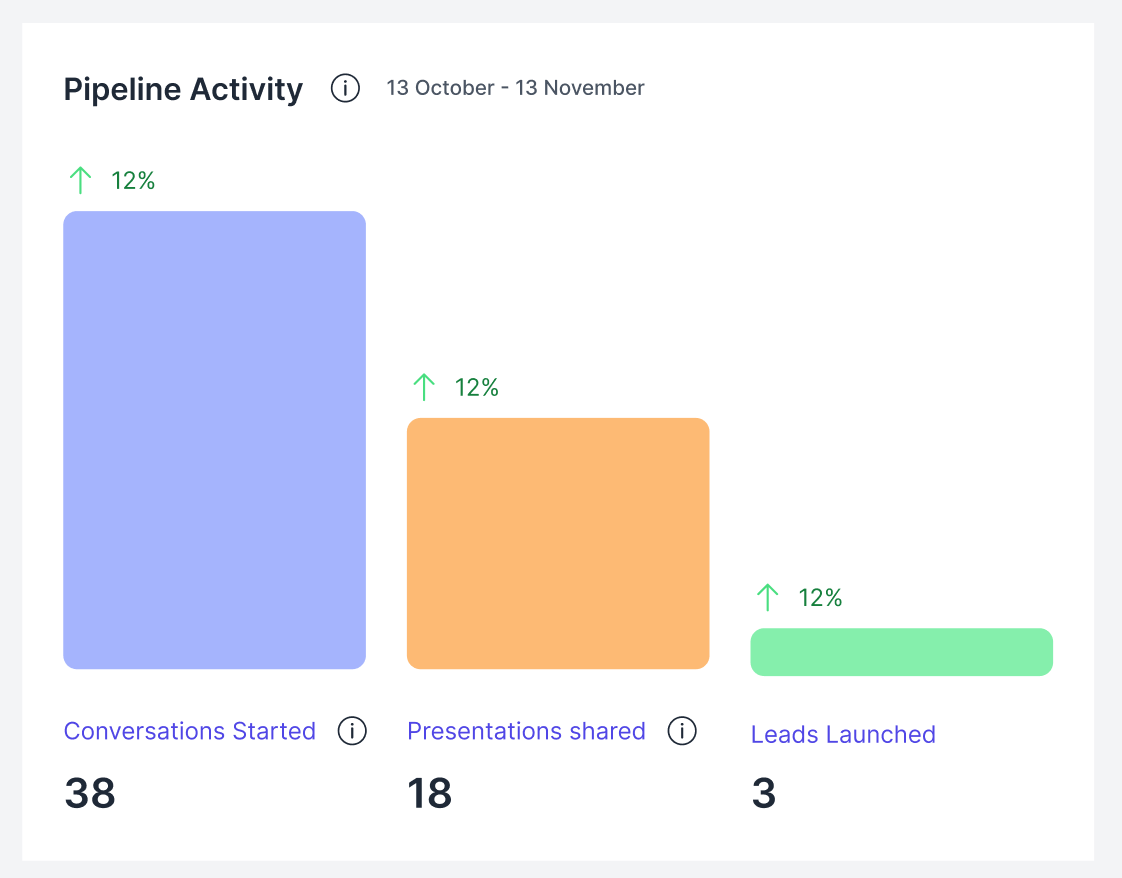
Pipeline Activity
Shows the key actions you took during the selected period:
Conversations started
Presentations shared
Leads launched
Use this to understand how active you were and where most of your effort went.
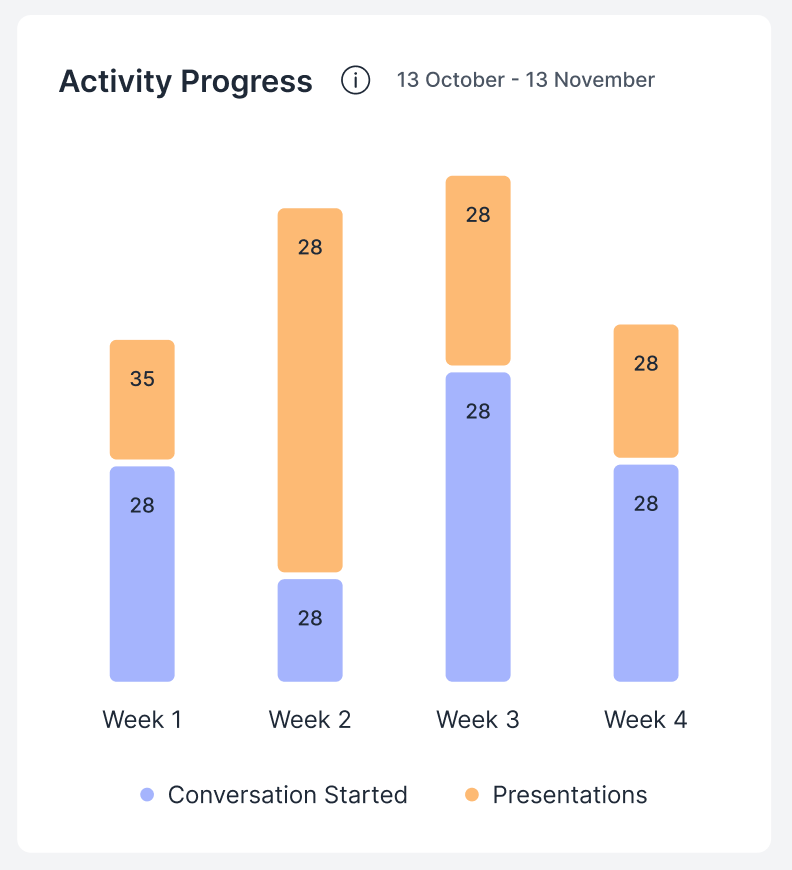
Activity Progress
A time-based breakdown of your activity:
Conversations started
Presentations shared
This helps you see:
Consistency over time
Peaks and drops in activity
Source Distribution
A pie chart showing how leads were generated during the selected period, such as:
Import
LinkMate
Lead magnets
Other tools
This answers the question: Which sources are actually bringing in leads?
Membership Distribution
Shows the membership status of people in your pipeline (e.g. Lead, Customer, Affiliate) during the selected period.
This reflects status during the period, not lifetime status.
Contact Trend
A timeline showing how the number of contacts changed over time in the selected period.
Useful for spotting:
Growth patterns
Sudden increases or plateaus
New Contacts (Chart)
A visual breakdown of new contacts added over time during the selected period.
This complements the New Contacts number by showing when growth happened.
2. Tools & Resources Tab
This tab focuses on how your tools and content perform, rather than people.
Key Numbers

1. Forms Filled
The total number of form submissions across all tools during the selected period.
You may see more forms filled than new leads created because multiple submissions from the same person update their existing contact instead of creating a new one.
2. New Leads Generated
The number of new contacts created through all tools during the selected period.
3. Presentations
The number of times you shared:
Library files
Info pages
Other presentation resources
This reflects how often you presented your business or product.
4. Total Views
The total number of page views across all tools and resources during the selected period.
Lead Generation Tools
This section shows how your lead generation tools are performing.
For each tool, you’ll see:
Number of views
Number of new leads generated
Number of forms filled
Conversion Rate (CR)
You can filter tools by type:
Info pages
Forms
Lead magnets
Other tools
Conversion Rate helps you understand effectiveness, not just traffic.
Presentation Resources
This section focuses on the resources you used to present your business.
Only resources that were shared at least once during the selected period are shown.
For each resource, you’ll see:
Number of shares
Number of views
Average time spent
You can filter resources by type:
Documents
Videos
Info pages
Average time spent helps you understand engagement, not just clicks.
How to Use Analytics Effectively
Use the Contacts tab to understand who you are engaging with and how conversations progress.
Use the Tools & Resources tab to understand what content and tools drive results.
Combine Conversion Rate + Activity to focus on quality, not just volume.
Give a look to your Analytics Now! →
💬 Need Help?
If you need help or have questions:
Support Centre: Need help? Start a chat with the Fibi AI Agent in your SAGA. If they can’t help, a human team member will take over.
Book a Call: Schedule a demo with our team