SAGA Library
Welcome to your Library — your central hub for organizing, editing, and sharing links, media, and documents with prospects or your team. Whether you're prospecting, educating, or closing, this guide will walk you through how to use your library efficiently.
Last updated 5 days ago
🔍 Library Overview
Your Library is built for clarity and quick access to the content you need most. It’s divided into two key sections:
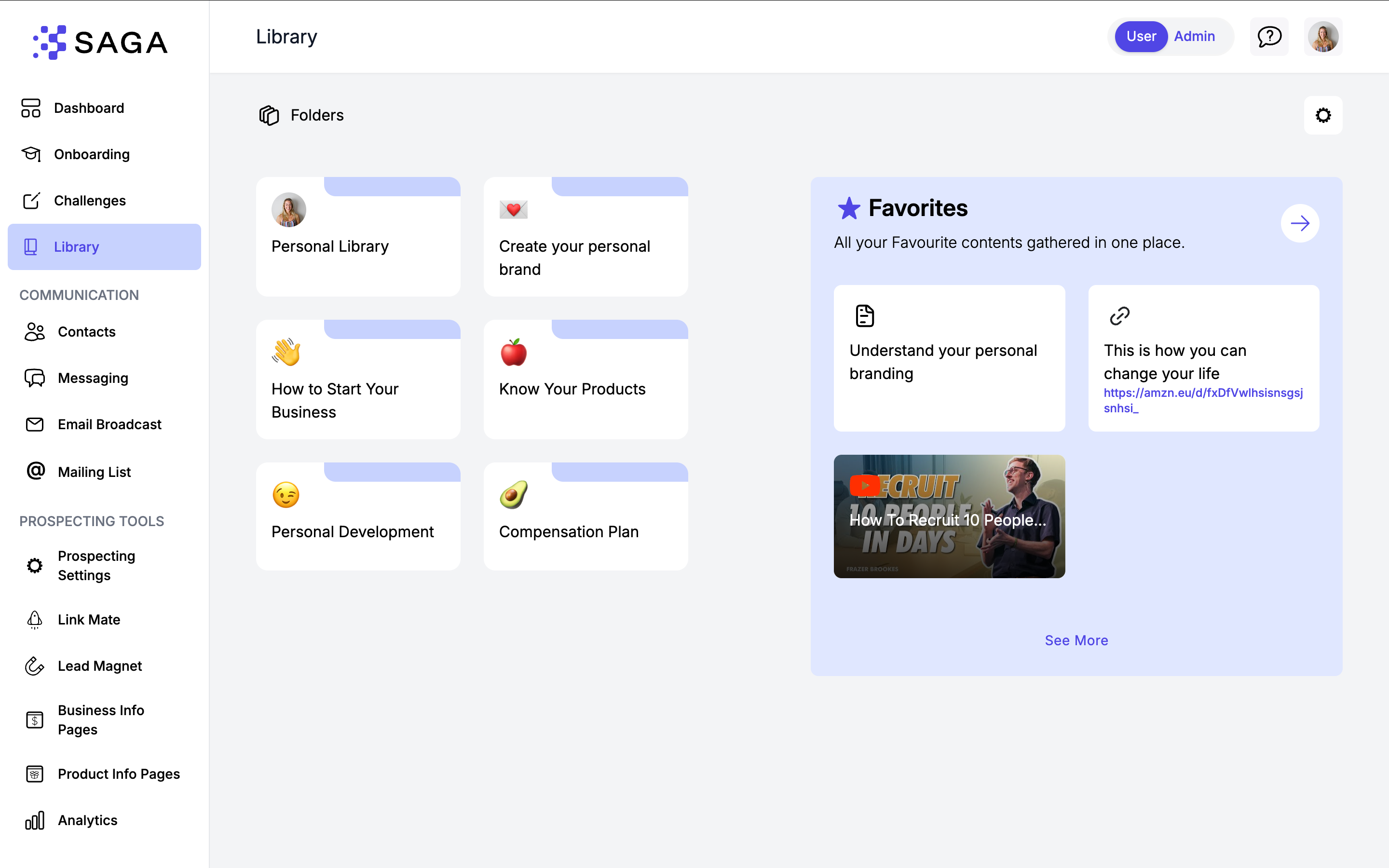
📂 Folders Panel
On the left, you’ll see:
Your Personal Library — A private folder just for you. Upload your own media here, customize as needed, and organize freely.
Default Content Folders — These are pre-filled with ready-to-use content. You can view and share from here, but not edit.
⭐ Favorites
Mark any item as a favorite to access it quickly later. Your favorites live in a dedicated section at the top of your personal folder.
🔎 Search Bar
Find what you need instantly.
🏷️ Tagging & Filtering
Items may include step tags (like "Connecting" & Informing) helping you locate content based on context.
📁 Creating a Folder
Inside your personal library you can create folders and add any content you want. Folders help you organize your library based on purpose, audience, or type of content — making it easier to find and share the right resources quickly.
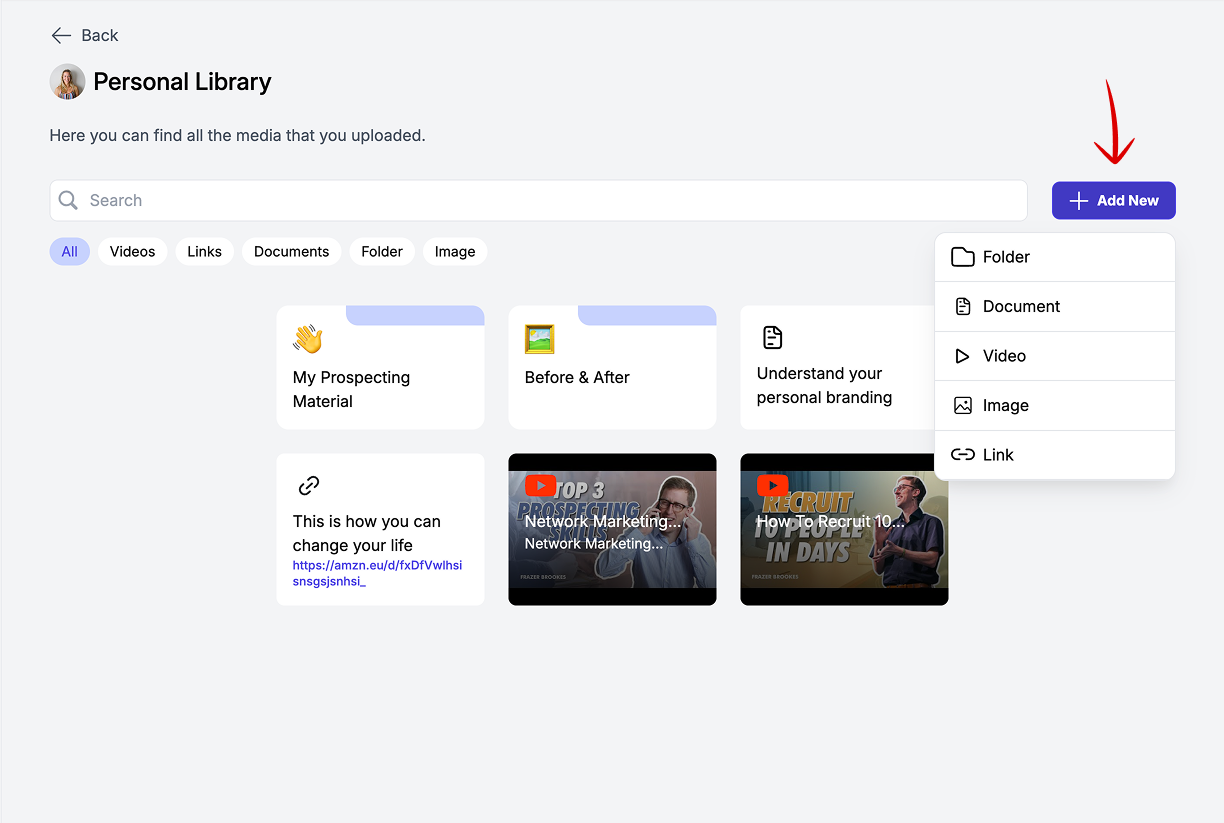
Click the “Add New” button.
Select “Folder”.
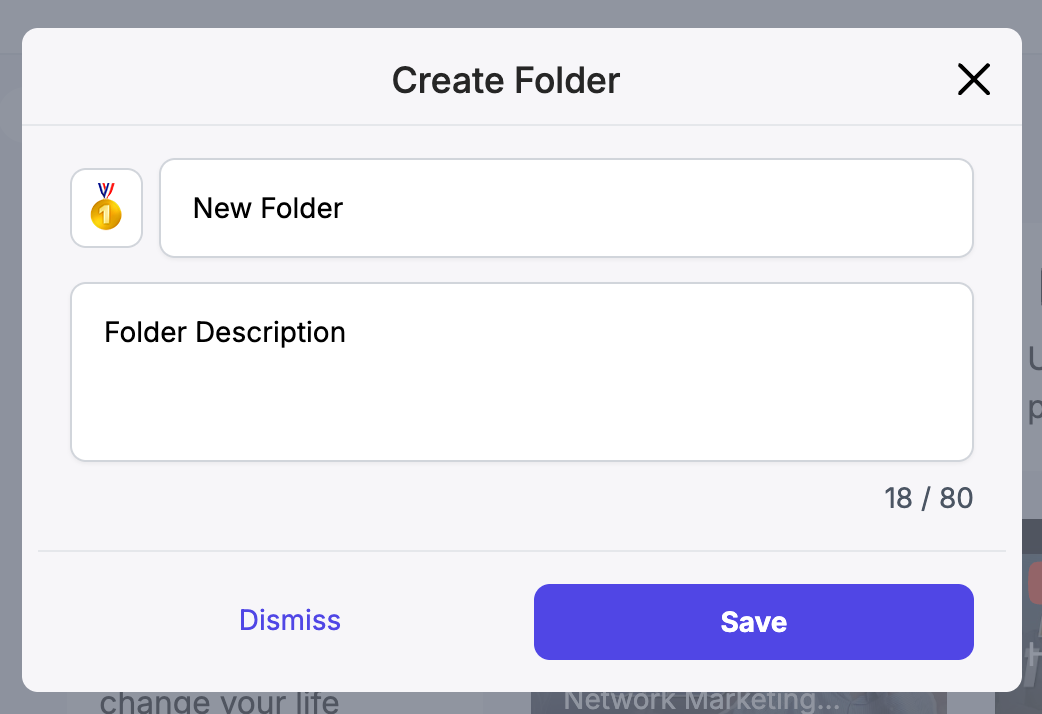
Enter a name (e.g., "Onboarding Videos").
Choose an emoji to visually identify the folder (e.g., 📽️, ✉️, 🧠).
(Optional) Add a description to clarify what the folder contains or when to use it.
Click Save — your folder is ready to be filled with content.
💡 Tip: Use consistent emoji conventions to help you scan faster (e.g., 📚 for learning, 🧊 for cold outreach, 🎯 for sales conversion).
📤 Adding Content to a Folder
You can upload all your materials — videos, PDFs, images, or other media — directly into any folder.
To add content:
Open the folder where you want to upload.
Click “Add New”.
Choose the type of content you’re adding:
📄 PDF · Word documents (.docx)
📷 Image
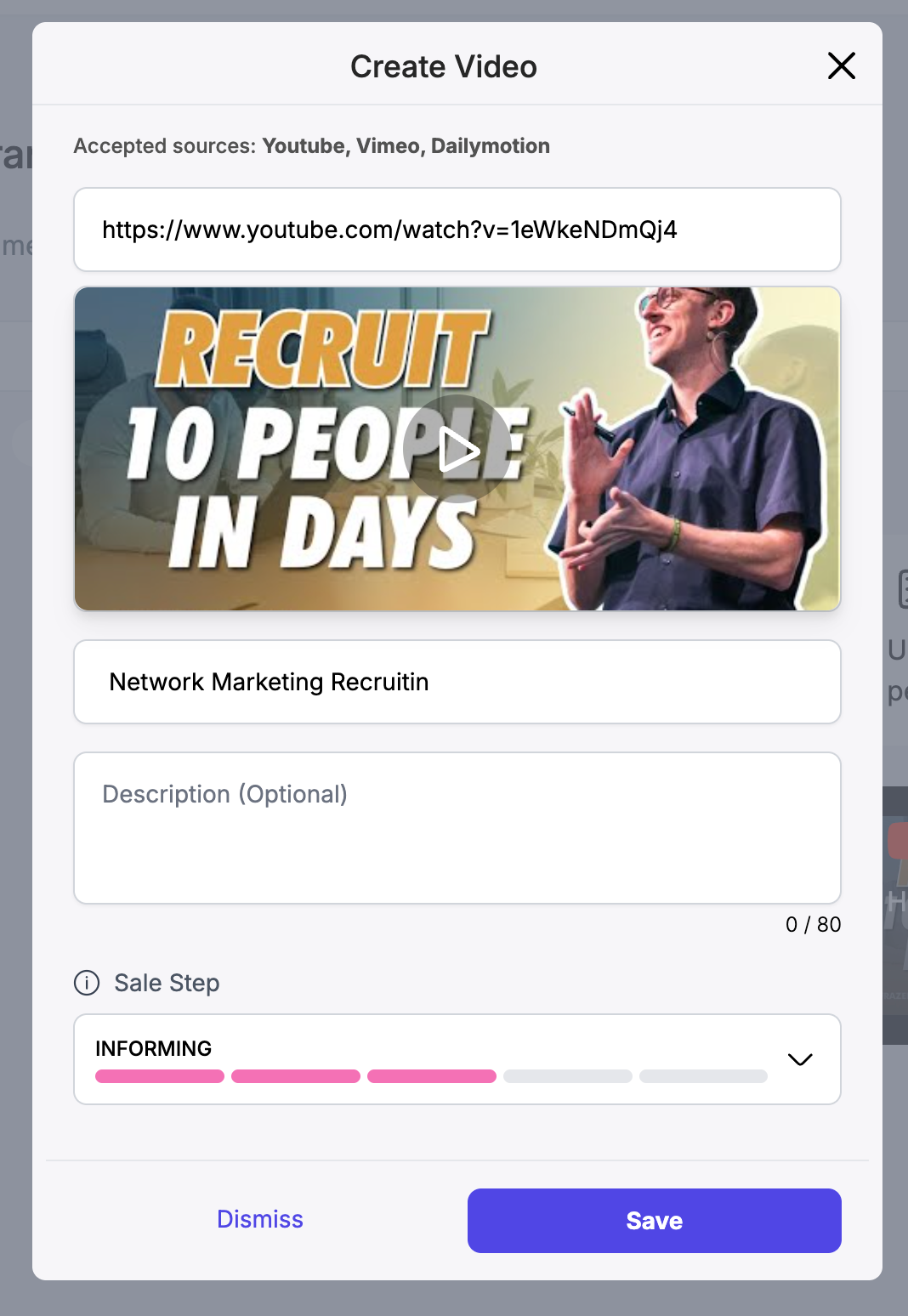
🎥 VideoAccepted sources: Youtube, Vimeo, Dailymotion
🔗Link
Select files from your device or paste their link into SAGA.
Add a title and (optional) description to make the item easier to search and share later.
Add a Step Tag for easier navigation
📌 All uploaded content will be saved within your Personal Library and accessible from any device.
🛠️ Managing Your Content
Each content item has a quick actions menu
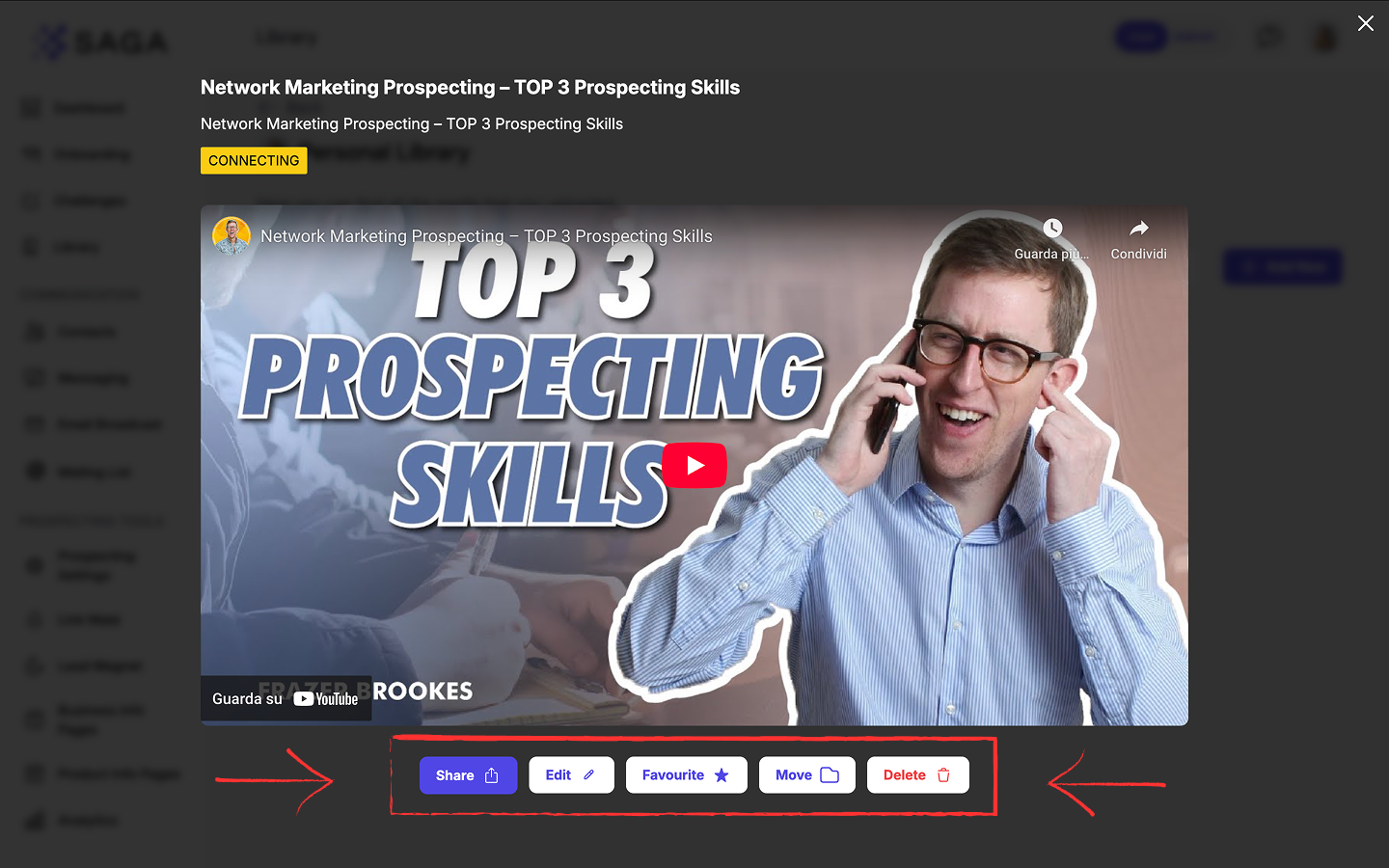
✏️ Edit: replace a media file or update link.
📤 Share: Generate a traceable link to send to your prospects.
⭐ Mark as Favorite: Pin most-used items for quick access.
📁 Move to Folder: Reorganize content at any time.
Delete content
📝 Script length
Scripts can be up to 10,000 characters.
If your script is longer than 1,500 characters, SAGA shows a warning: some platforms (including Instagram) may not support very long messages. The script still saves — shorten it before pasting into social apps.
🔗 Sharing With Prospects: Smart, Trackable Links
When you share a Media item or an Info Page from your Library, SAGA automatically generates a trackable link for that specific share. External links and scripts are not tracked.
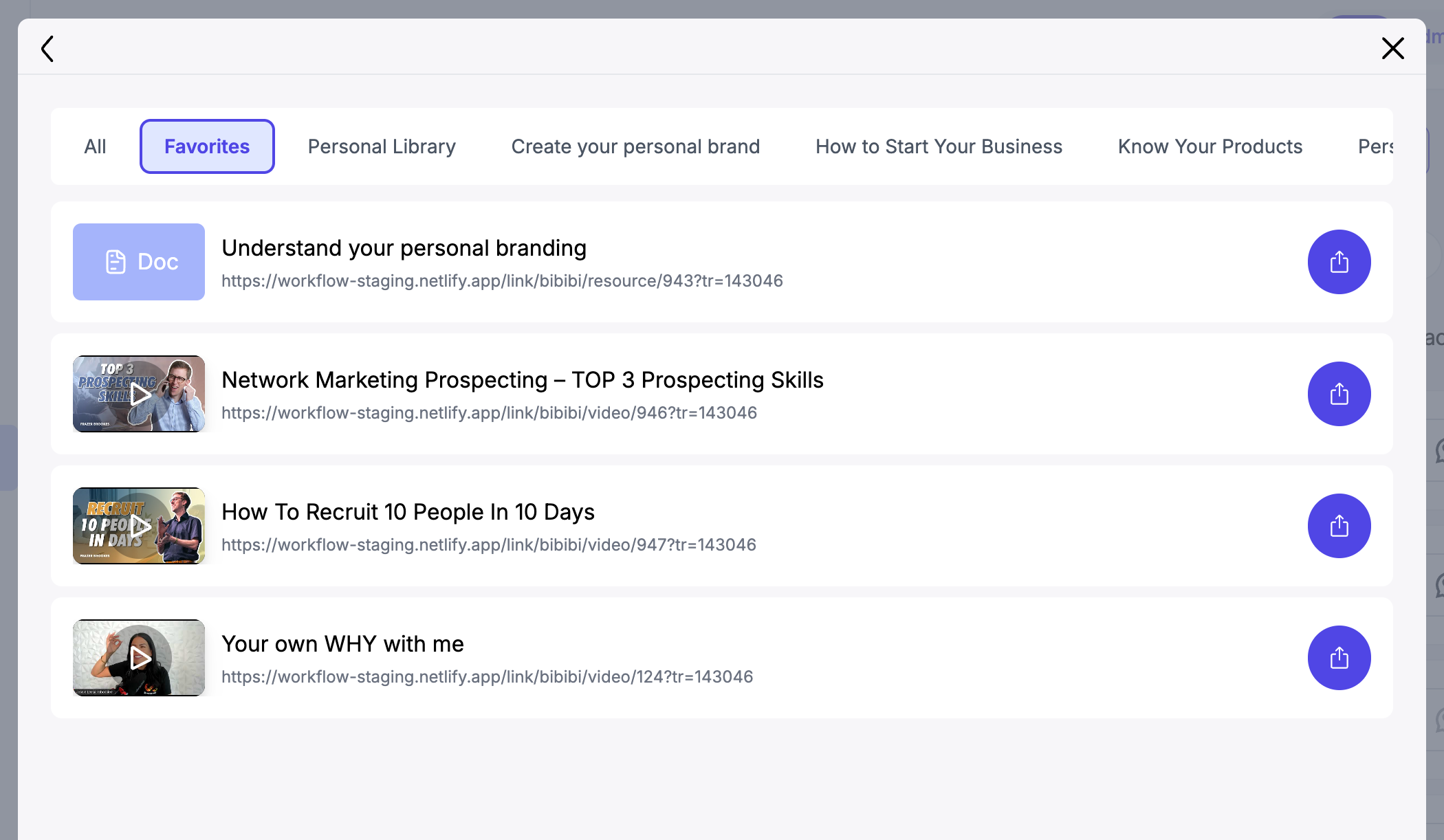
Share from a contact page (Quick Share)
Open any contact from your Contacts list
On the contact page, find the Quick Share row (below the contact information)
Click one of three buttons:
Script — send a pre-written message filtered to the contact's current pipeline step
Media — pick a video, PDF, or image from your Library
Tools — share prospecting tools (Lead Magnets, Info Pages, Forms, Booking links, LinkMate)
Select the item you want to send
Trackable links: From Tools, you can share any prospecting tool — but only Info Pages generate a trackable link. Lead Magnets, Forms, Booking links, and LinkMate share their direct URLs without engagement tracking.
The old Resources tab on the contact page has been replaced by Quick Share.
✅ Once shared, you can track engagement for trackable shares: whether the lead opened the resource and how long they viewed it.
💬 Need Help?
If you need help or have questions:
Support Centre: Need help? Start a chat with the Fibi AI Agent in your SAGA. If they can’t help, a human team member will take over.
Book a Call: Schedule a demo with our team