Link Mate
Link Mate is your personal link hub — like a mini-website where you can showcase everything that matters most. Perfect to share on your social media bios or send directly to prospects, it helps people explore who you are, what you offer, and how to get in touch — all in one place.
Last updated 5 days ago
Get Started!
It works like Linktree, but it’s fully built into SAGA and connected to your tools, contacts, and prospecting system.
When you first signed up, you chose a URL nickname—this is like your personal ID on Saga. It becomes part of the link you’ll use to share your tools and content.
Your LinkMate: https://linkmate.one/yourlink_nickname
So your Link Mate is already live and working. Now is time to make it yours!
💼 What Can You Do With It?
Share multiple links with one single URL
Add personal links, lead magnets, or info pages
Customize the look & feel of your page (colors, fonts, layout)
Highlight links with thumbnails and animations
Add a contact form so people can reach you easily
Track new leads directly inside your SAGA contacts
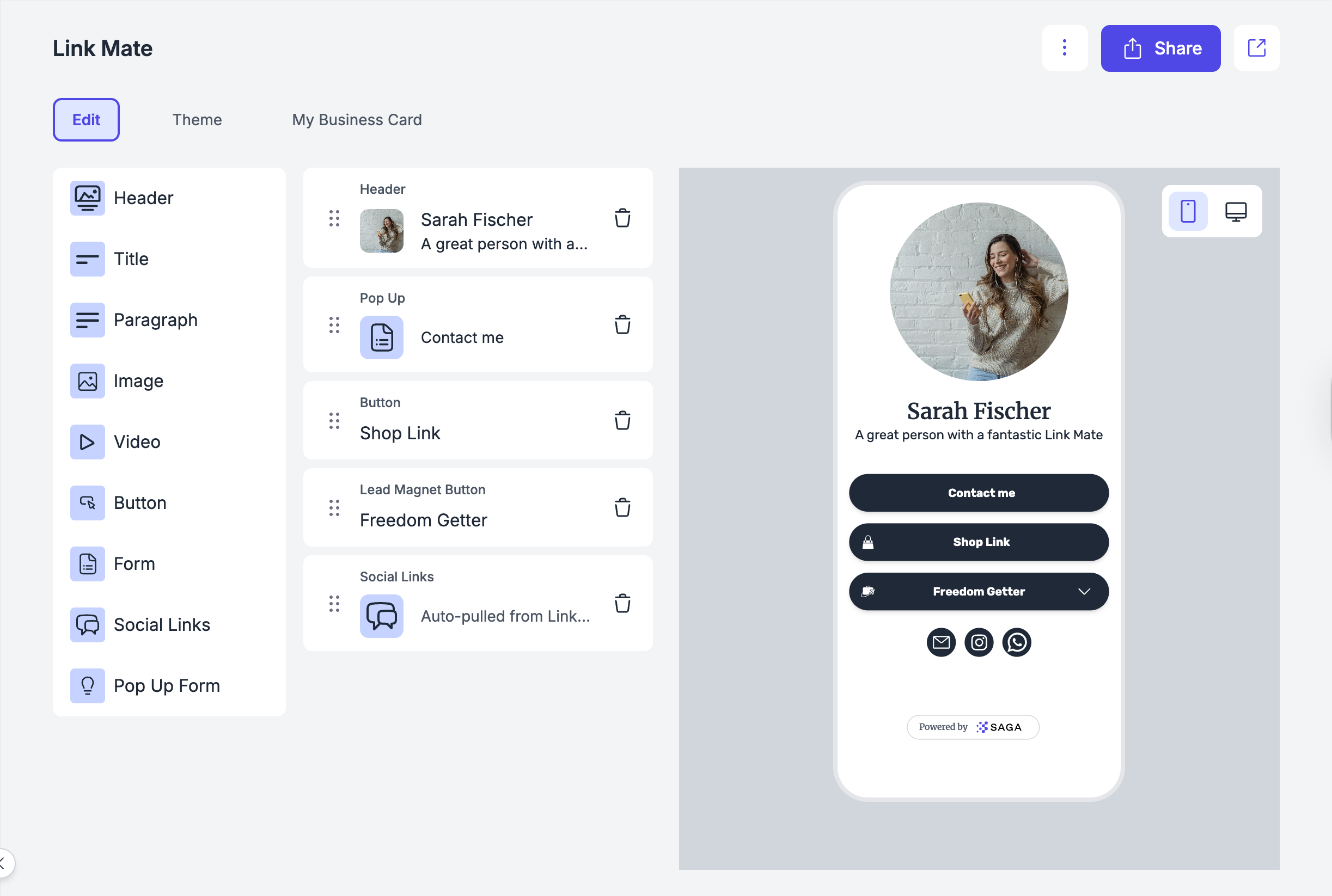
🚀 How to Edit Your Link Mate
You’ll find Link Mate in the left menu, near your other prospecting tools.
You can:
✏️ Edit any block by clicking on it to fill in with your content.
➕ Click on the left menù to add new blocks: once you select it, you add your information, save, and you’ll see the block appearing in the editor beneath the others.
🔀 Reorder blocks easily with drag and drop.
❌ Remove any block you don’t need, by clicking on the trash bin icon next to it.
🪄 Add Special Buttons
Your Link Mate is made of buttons.
Each button sends people somewhere or triggers an action.
Click “Add Button” and choose the type.
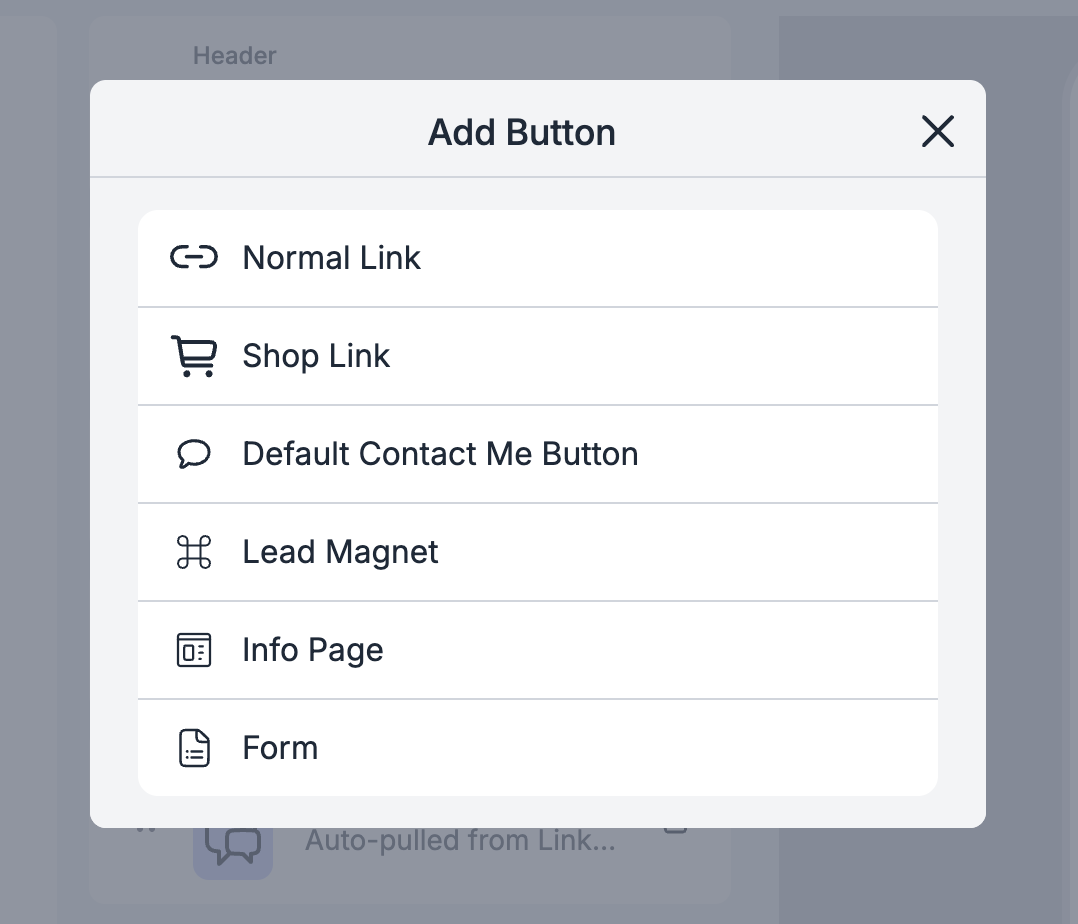
1️⃣ Normal Link
Use this for:
External websites
Booking platforms
Any URL outside SAGA
Just paste the link and add a clear title.
2️⃣ Shop Link
This connects directly to the shop link set in your Prospecting Settings.
You don’t need to paste anything.
Just select it, and it will automatically connect to your configured shop.
Use this if you want people to:
Buy your product
View your offers
Access your store
3️⃣ Contact Me Button
This allows people to contact you instantly through your default platform.
You choose your main contact method in Prospecting Settings:
WhatsApp
Instagram
Email
Other supported platforms
When someone clicks this button, it opens your selected contact channel.
You can also:
Add a prefilled message (recommended)
Example prefilled text:
“Hi! I saw your Link Mate and I’d like more information.”
This makes it easier for people to reach out.
4️⃣ Lead Magnet / Info Page / Form
This connects directly to your SAGA prospecting tools. You can link:
A Lead Magnet
An Info Page
A Form
This is powerful because:
Follow-up emails can trigger automatically
Everything stays inside your system
Use this when you want to:
Collect emails
Share structured information
Guide users into your funnel
When linking a Library video, SAGA stores the video's playback URL (not a LinkMate share URL). Hidden/Private library videos can still play on public pages.
5️⃣ Pop-Up Form
This adds a button that opens a form as a pop-up.
Good for:
Quick contact requests
Simple lead capture
🖼 Optional: Add a Thumbnail & Animation
For each button, you can optionally:
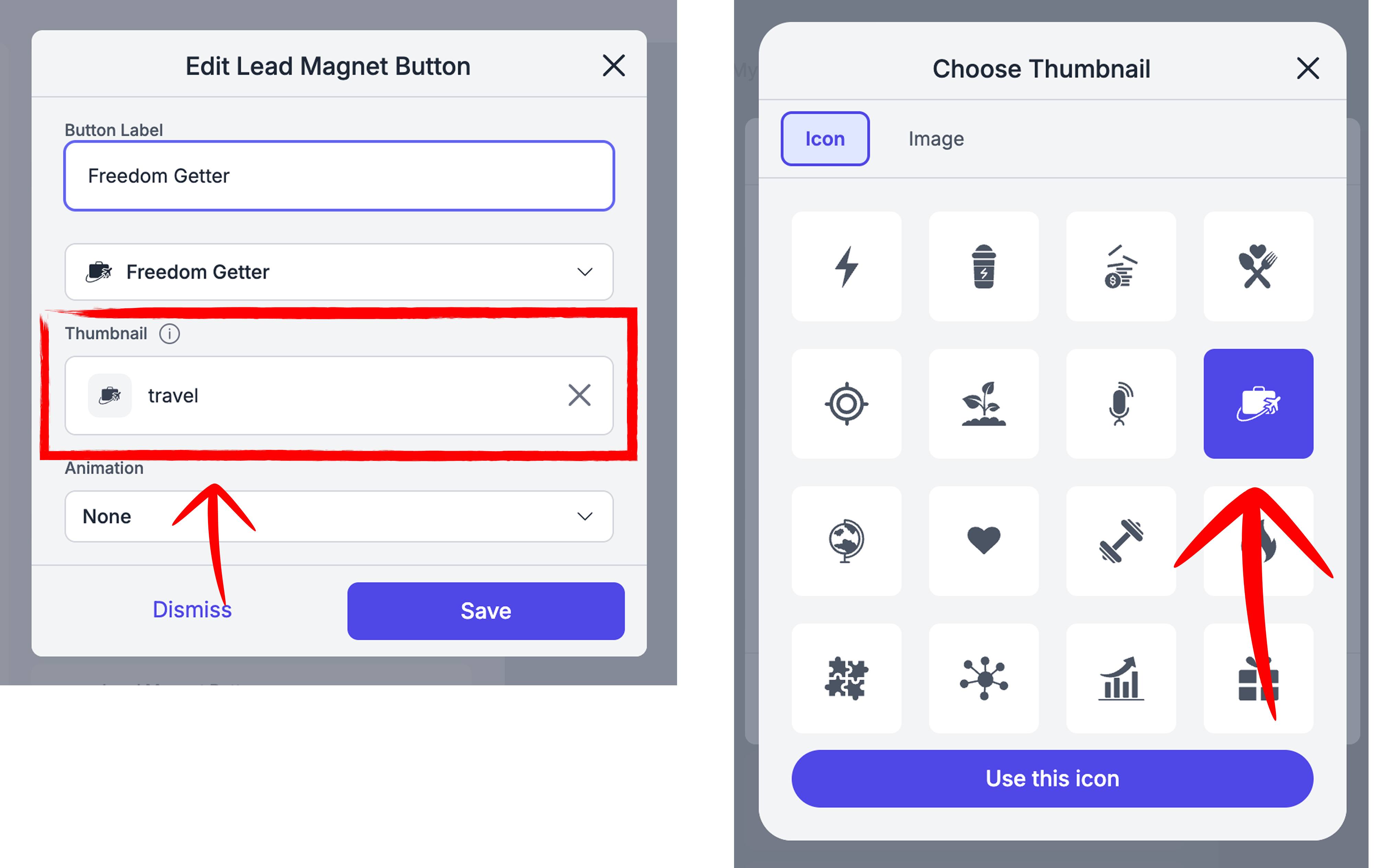
Add a Thumbnail
Upload a small image or choose a default icon to visually support the link.
This makes your Link Mate more visual and engaging.
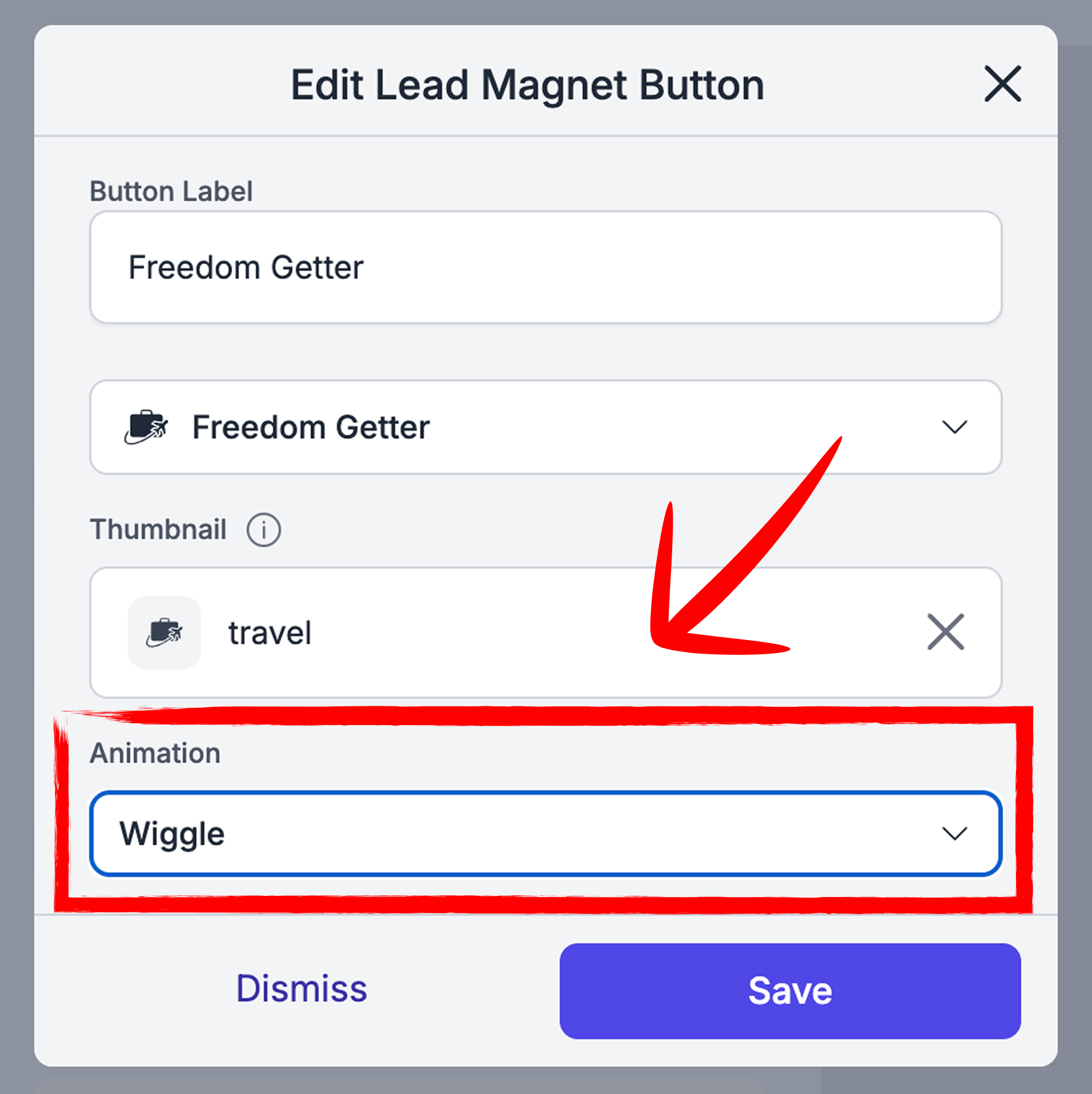
Add Animation
You can apply a simple animation to highlight important buttons.
Use it wisely:
Highlight one main action
Avoid animating everything (it becomes distracting)
⚠️ Yellow Background Warning
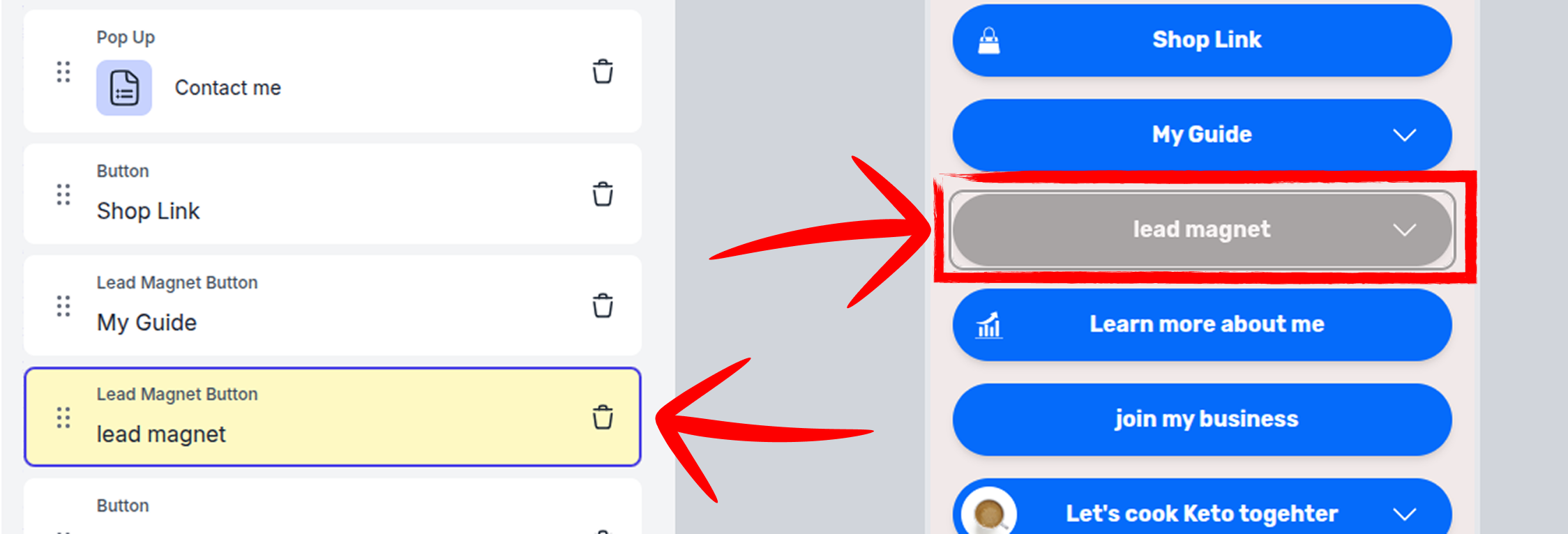
If a block in the page builder appears with a yellow background, it means something isn’t working correctly.
In most cases:
The connected content (lead magnet, guide, page, etc.) has been deleted
Or it is no longer available in the system
Because of this:
The button is shown in yellow in the editor to alert you that something needs attention
It appears grey in the preview because it is no longer clickable
Will my users see it?
No ✅
Your users will not see this button on your Linkmate.
What should I do?
We recommend that you:
Delete the inactive button
Or reconnect it to a new available content
This way your Linkmate stays clean, updated, and professional 💙
🎨 Edit Your Theme
Select from a variety of themes, each with its own colors and vibe.
You can always preview your page live, switching between desktop and mobile views to make sure it looks perfect everywhere.
The Theme Editor lets you shape the look and feel of your Info Page — without starting from zero.
You can begin with a ready-made theme and fine-tune it to match your brand, previewing changes live on both desktop and mobile to make sure everything looks great everywhere.
Start with a Preset Theme
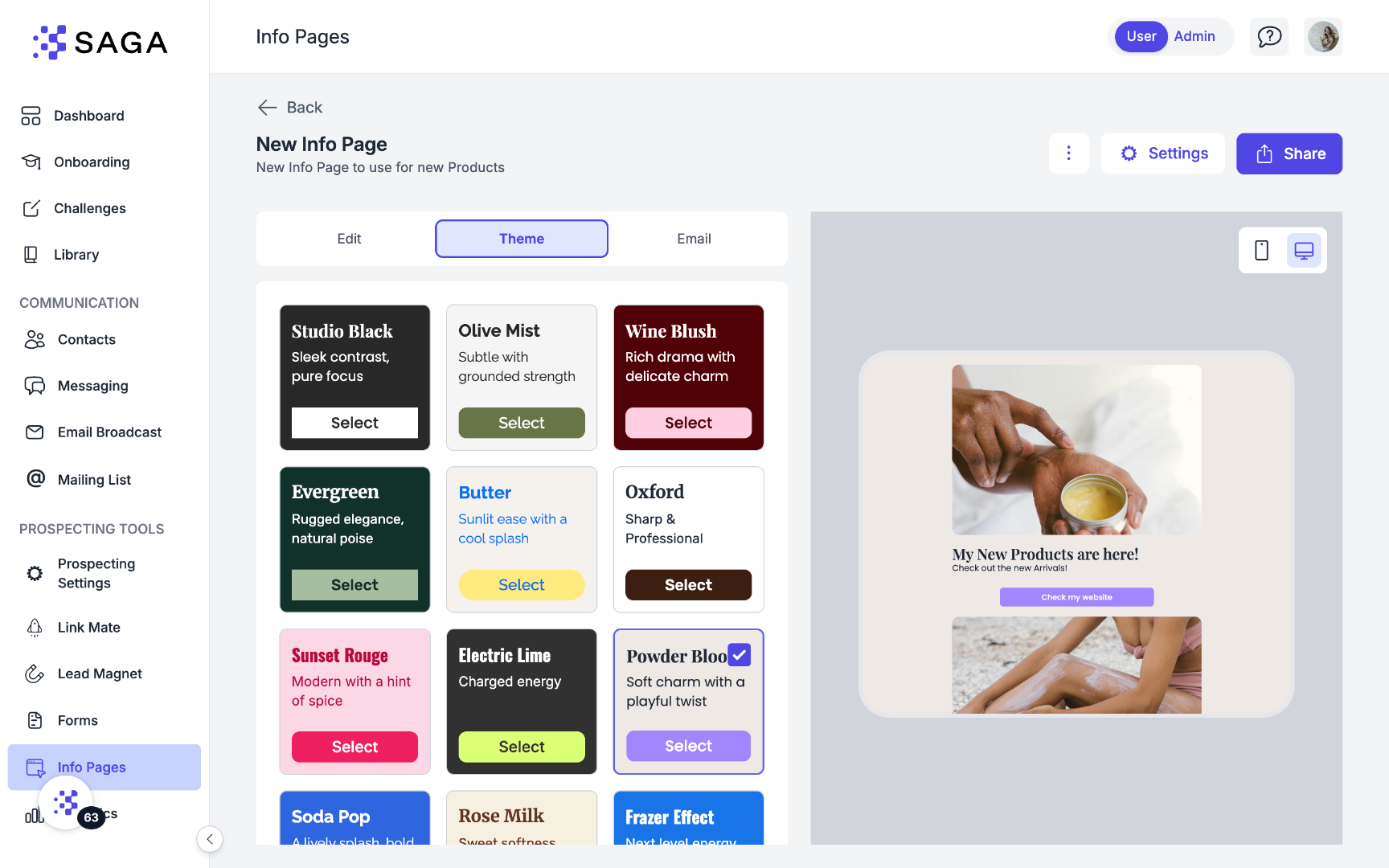
Choose from a selection of professionally crafted presets.
They’re designed to already look balanced, readable, and polished — so you don’t have to make every decision from scratch.
Tip: Pick a preset that already matches the vibe you’re going for, then personalize it.
Customize Your Theme
Once you’ve selected a preset, you can adjust specific elements to make it truly yours.
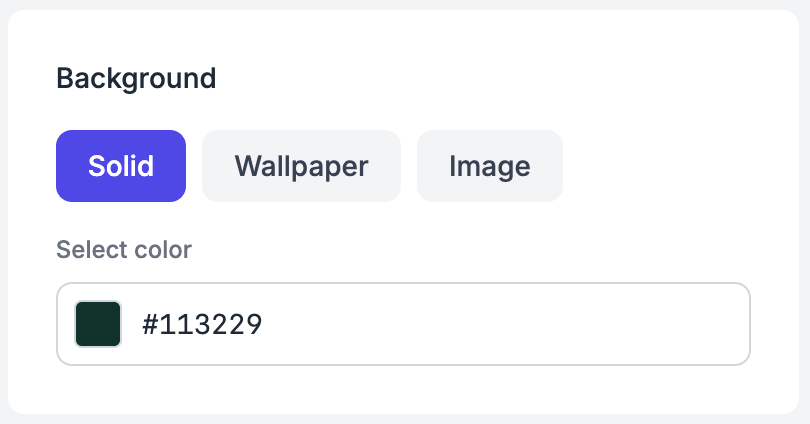
🖼 Background
Choose a solid color using the color picker
Or upload a wallpaper for a more expressive look
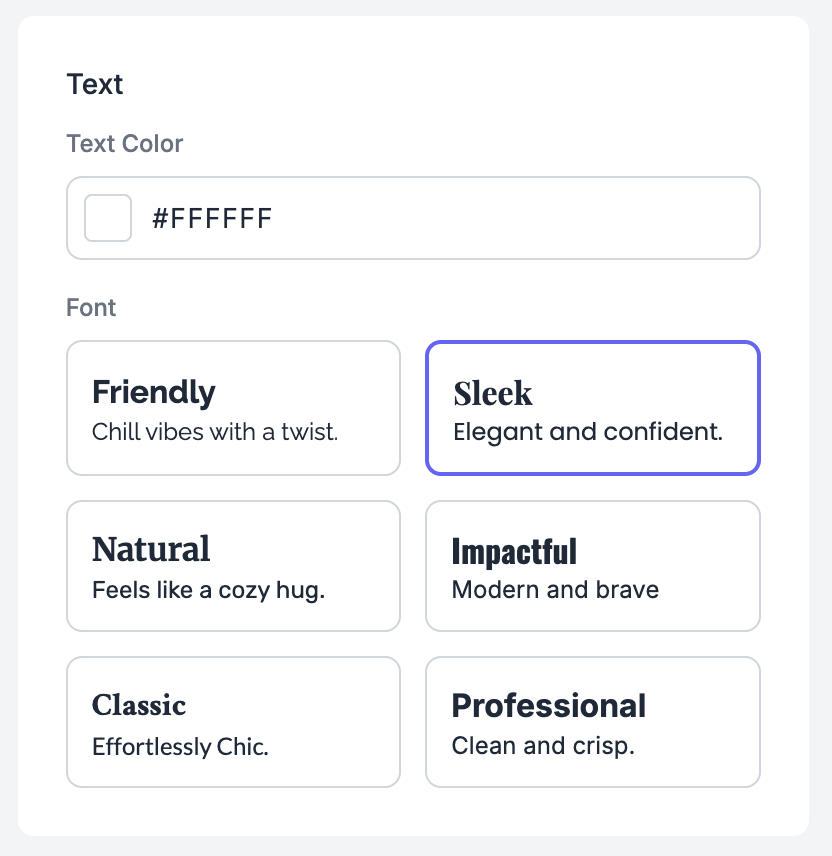
✍️ Text
Select your text color
Choose a font that fits your brand personality
To keep your page readable, always aim for strong contrast:
Light text on dark backgrounds
Dark text on light backgrounds
Good contrast isn’t just aesthetic — it directly affects usability.
🔘 Buttons
Customize how your buttons look and feel:
Shape: rounded, squared, or pill
Colors: button background and text color
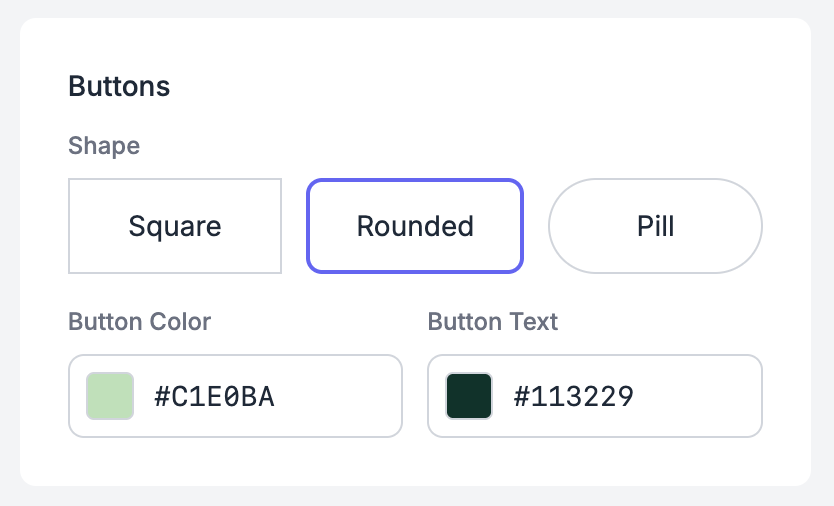
Buttons are key interaction points, so make sure they stand out clearly from the rest of the page.
Save Your Own Presets
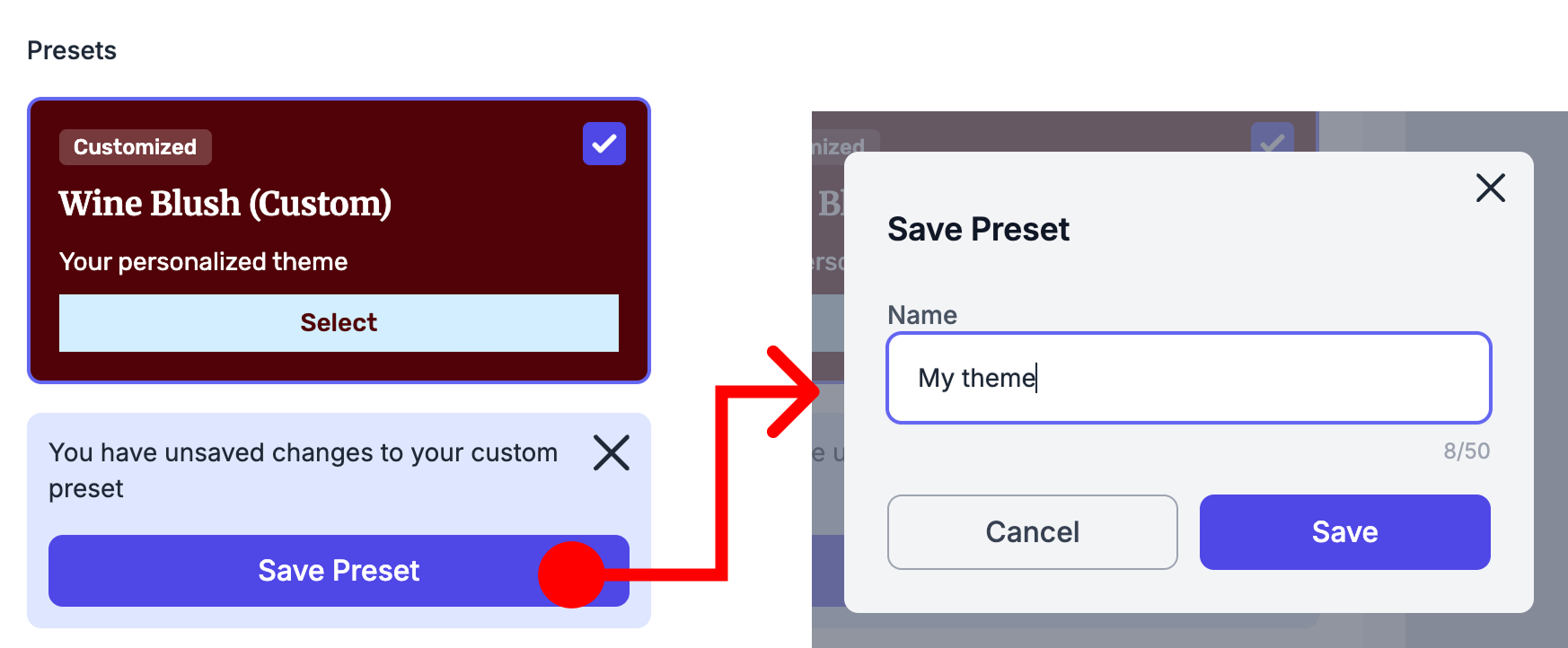
Once you’re happy with your design, you can save it as a custom preset directly from the top of the Theme Editor.
Your preset will appear alongside the default themes
You can reuse it anytime across your pages
If you make changes later, you can update the preset to keep everything consistent
This is especially useful if you’re working with a defined brand style or managing multiple pages.
Share your LinkMate
Once your page is ready, it's time to share it with your audience. Copy the unique link provided and paste it into your social media bios, email signatures, or anywhere else you want to direct traffic.
💡 Best Practice Tips
1. Limit the Number of Links: Aim to keep your Link Mate page clean and easy to navigate by limiting the number of links. We suggest not exceeding 5 links to maintain simplicity and clarity.
2. Choose Relevant Socials: Select the social media platforms that you actively use and monitor. By including only the socials you regularly check, you can ensure timely responses to any inquiries or messages from your contacts.
🚀 Ready to Create Your LinkMate?
💬 Need Help?
If you need assistance with creating your Link Mate or have questions about the process:
Support Center: Start a chat with the Fibi AI Agent in your SAGA. If they can’t help, a human team member will take over.
Book a Call: Schedule a demo with our team