Admin - SAGA Library
A well-structured Library = faster sharing, smoother onboarding, and a more empowered team. Now that your team is using SAGA, you can organize everything in one place. Whether you're moving over your existing content from Boards or starting from scratch, here's how to build a smart structure your downlines will love using.
Last updated About 1 year ago
✅ Why Structure Matters
Your team needs to:
Find the right resource in seconds
Know exactly what to share and when
Learn and grow through well-organized training content
Using folders and subfolders helps you create a Library that’s not just a storage space — but a real engine for growth and conversion.
🛠️ How to Set It Up in SAGA
Go to your Library
Access the admin side
Click “Add New” → “Folder”
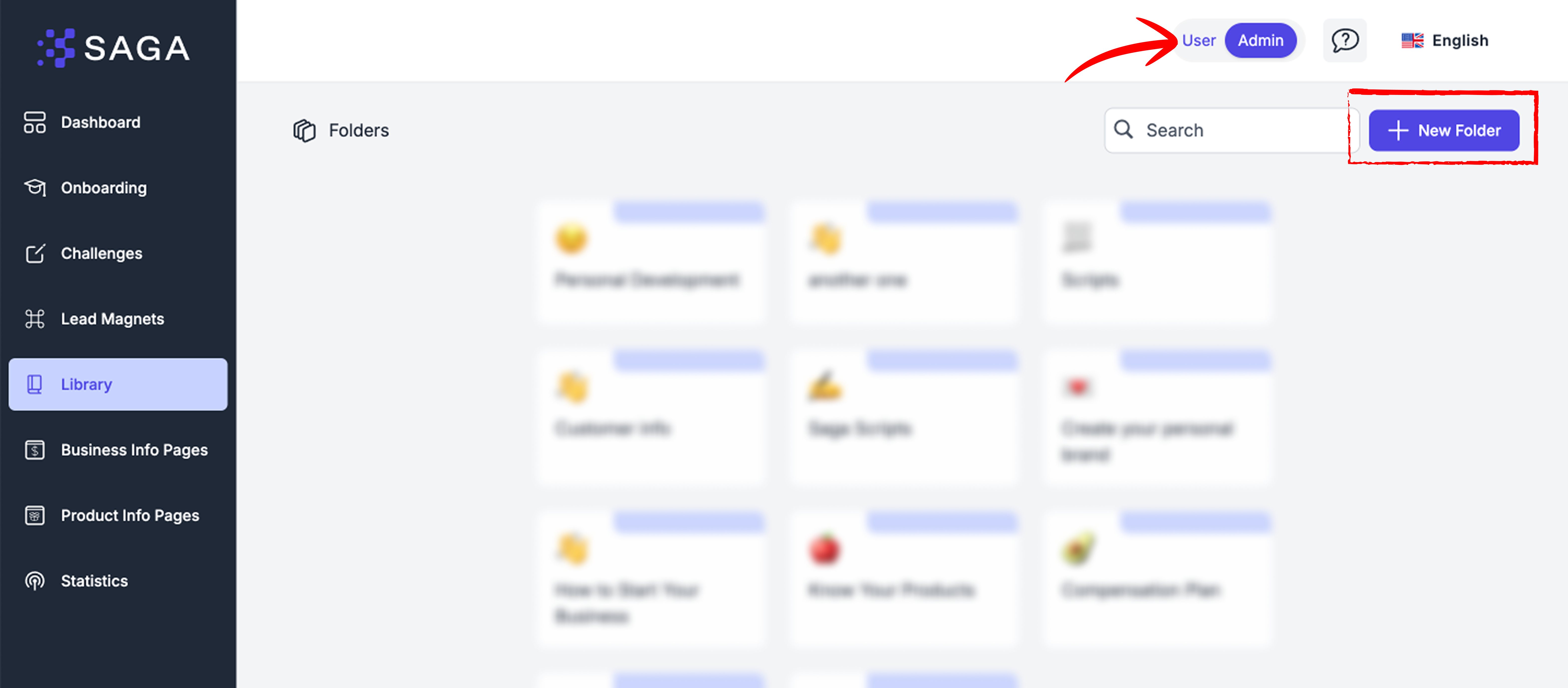
Create main folders like “Customer” or “Partner”
Use subfolders to break it down (e.g., “Testimonials”, “How to Start”)
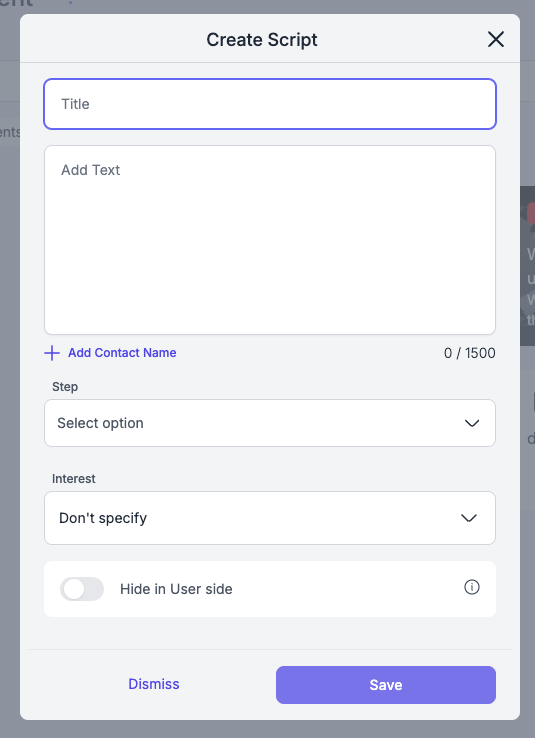
Upload/link resources (videos, pdfs, images, links and scripts)
Use Tags and Titles to make searching easy: you can mark resources with steps (connecting, inviting…) or interest, to make it super easy to navigate and use them in the right moment
Share folders with your team — or keep some private: you can choose for each media or script if to keep it hidden on the main side, and just show it when it’s ready.
Nb: In case of Videos, you’ll have two types of videos:
Private 🔒 – Visible only inside SAGA, for internal training.
Public 🌍 – Perfect for sharing key topics with customers or prospects (e.g., a leader explaining the compensation plan clearly).
➕ How to Create a New Script
To add new scripts:
Click “Add New”.
Select “New Script”.
Fill in:
Title – Make it searchable and specific (e.g. “Demo Follow-up – SaaS”)
Text – The message you want to save.
(Optional) Step Tag
(Optional) Interest Tag
Click Save — your script is now ready to use.
You can always go back and edit them!
If you need some help building scripts from scratch, check out great SAGA Chat GPT
Build by field experts, you can get personalised scripts made for you in a second!
📦 Recommended Folder Structure
Not sure where to start?
Here’s a simple framework we suggest, inspired by top-performing teams:
1. Customer
a. Informing
b. Testimonials
c. Product Info
d. Customer Care
2. Partner
a. Informing
b. Testimonials
c. Getting Started
d. Onboarding Steps
3. Company Info
a. Product Line
b. Compensation Plan
4. Team Resources
a. Training
b. Internal Updates
c. Celebrations & Recognition
🧭 Use this as a base — then adapt it to your team’s way of working. The key is clarity.
💡 Pro Tips for Admins
Keep naming consistent — it helps your downlines find what they need fast
Add clear titles to each item (no more guessing!)
Use emojis in folder names if it helps your team recognize themes
Make scripts personalizable with the “Add Contact Name” smart tag
Start with what matters: What do your downlines need to share every day?
🏁 Ready to Get Started?
If you’re migrating from Boards — this is your moment to simplify and scale.
If you’re new — use the structure above as your launchpad.
👉 Start organizing your Library now
Your team (and future leads) will thank you.
Still need help? Ask the team